

What is the white screen of death? The white screen of death (WSoD) is a system failure state in which a Windows PC or laptop freezes on a completely blank white screen, with no error message, desktop, or accessible menus. It can appear at startup, immediately after logging in, or mid-session, and it blocks all user interaction until you identify and resolve the underlying cause.
Unlike the Blue Screen of Death (BSOD), the white screen provides no error code and no starting point. The cause could be a crashed graphics driver, a corrupted system file, or a failing storage device.
This guide covers every fix for the Windows white screen of death, in order from simplest to most advanced, and explains when the problem signals hardware failure rather than a software glitch, because that distinction matters for your data.
If files were open when the screen went white, SalvageData's PC data recovery service offers a free diagnostic evaluation to determine what can be recovered.
WSoD is a known failure mode on other platforms. If a blank white screen appears on an Apple device rather than a Windows PC, the causes and fixes differ. SalvageData's guide to a white screen on your iPhone covers that scenario separately. Everything in this guide applies specifically to Windows 10 and Windows 11.
White screen of death vs. blue screen of death
The BSOD is a controlled shutdown. Windows detects a fatal error, collects diagnostic data, and displays a stop code before shutting down the system. Those codes are searchable and point to specific failure categories.
SalvageData's breakdowns of the blue screen error 0x000000D1 and the Windows stop error 0x0000007E follow that path, where the code does most of the diagnostic work.
The WSoD most often results from the graphical shell or display layer failing in a way that bypasses the standard crash reporting system. The screen goes white because Windows has no interface left to render, but the system has not always fully crashed. That distinction matters: if a cursor is still visible, the OS is still running.
A black screen in Windows follows the same diagnostic logic: no error code, observation-based troubleshooting, and a hardware-vs-software determination as the first step.
What causes the white screen of death on Windows?
On Windows 10 and 11, the white screen of death is most commonly caused by a corrupted or outdated graphics driver, a problematic Windows update, peripheral hardware conflicts, corrupted system files, a malware infection targeting core processes, or a hardware failure at the GPU or storage level.
Graphics drivers
Outdated, missing, or incompatible display adapter drivers from NVIDIA, AMD, or Intel are among the most frequent software triggers. A driver that installed incorrectly or became corrupted after a Windows update can prevent the graphical shell from loading entirely.
Windows updates
A buggy or incomplete update can introduce driver incompatibilities or damage files that the display layer depends on. WSoD appearing after an automatic update is a strong signal this is the cause.
Peripheral conflicts
Faulty USB accessories, external hard drives, docking stations, or damaged signal cables (HDMI, VGA, DisplayPort) can interfere with the boot sequence or video output before Windows fully loads.
Corrupted system files
Core Windows files damaged by an improper shutdown or disk error can prevent the graphical shell from initializing. Running sfc /scannow addresses this directly.
Malware
Malicious code that hijacks or terminates core Windows processes, including explorer.exe, causes a white screen to appear after every standard restart until the infection is removed.
The Critical Process Died error follows the same pattern, where a terminated system-critical process causes the display to collapse without a traditional crash screen.
Hardware failure
A failing GPU, a damaged display cable, a faulty panel, or a storage device with bad sectors or firmware corruption can all prevent Windows from loading the graphical environment, resulting in a white screen rather than the more expected BSOD.
The hardware cause is the only category where continued restart attempts carry a data risk.
The fix steps below cover software causes first. The hardware distinction is addressed in its own section after the fix sequence.
How to fix the white screen of death on Windows
Work through these fixes in order. Start at the top and stop when the problem is resolved. The difficulty level and data risk for each step are summarized in the table below.
| Fix | Difficulty | Data Loss Risk | DIY Advisable |
| Disconnect external peripherals | Beginner | None | Yes |
| Restart Windows Explorer | Beginner | None | Yes |
| Run a malware scan | Beginner | Low | Yes |
| Boot into Safe Mode | Intermediate | None | Yes |
| Update or reinstall graphics card driver | Intermediate | None | Yes |
| Roll back or uninstall a recent Windows update | Intermediate | Low | Yes |
| Repair corrupted system files with SFC | Advanced | None | Yes — with caution |
| Use System Restore | Advanced | Medium | Yes — with caution |
Disconnect external peripherals (Beginner)
Since a peripheral conflict can trigger a WSoD before the operating system finishes loading, unplugging all non-essential external devices is the first step.
Power the machine off fully. Disconnect everything except the keyboard and mouse: USB drives, external hard drives, printers, secondary monitors, docking stations, and any other accessories.
Power back on and observe the result. If the white screen is gone, reconnect devices one at a time until the cause is identified.
If the screen remains white with peripherals disconnected, proceed to the next step.
Restart Windows Explorer (Beginner)
If a cursor is visible over the white screen, the Windows graphical shell (explorer.exe) has crashed, but the operating system is still running. Restarting the shell process often resolves the WSoD entirely.
Press Ctrl + Shift + Esc to open the Task Manager directly. If that shortcut does not work, press Ctrl + Alt + Delete and select Task Manager from the menu.
Once Task Manager is open, click Run new task, type explorer or explorer.exe, and press Enter. The desktop should reload within a few seconds.
If Task Manager is not accessible, or if the desktop does not return after restarting Windows Explorer, continue to the next step.
Run a malware scan (Beginner)
Malware that targets or terminates explorer.exe or other core processes leaves a white screen that persists through every standard restart until the infection is removed.
If Windows is accessible, open Settings > Update & Security > Windows Security > Virus & threat protection and run a Full scan. If the white screen is blocking access to Settings, boot into Safe Mode first (next step) and run the scan from there.
Boot into Safe Mode (Intermediate)
Safe Mode loads Windows with only essential Microsoft drivers and services active. If the white screen disappears in Safe Mode, the cause is a third-party driver or application, and the remaining steps below will resolve it.
- If Windows can partially boot: press Win + R, type msconfig, select the Boot tab, check Safe Boot, and restart.
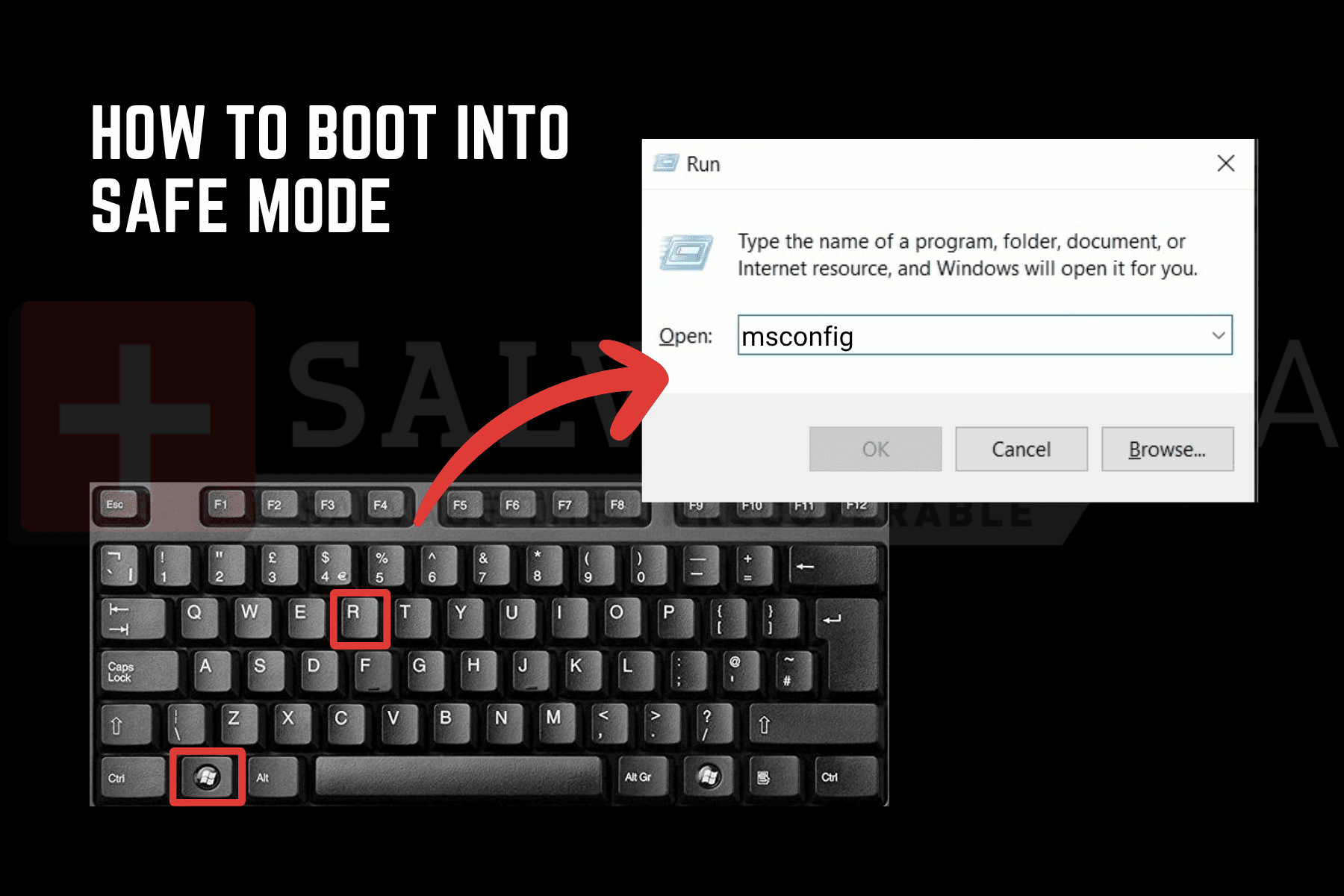
- If Windows cannot boot normally, force a shutdown three times during startup to trigger Automatic Repair, then navigate to Troubleshoot > Advanced Options > Startup Settings > Safe Mode with Networking.
Once in Safe Mode, continue with the driver update and system file repair steps below while Safe Mode is active. Completing fixes in Safe Mode prevents the problematic driver or process from interfering.
Update or reinstall your graphics card driver (Intermediate)
A corrupted or outdated graphics driver is one of the most common causes of WSoD on Windows 10 and 11. Updating or reinstalling it fixes most display-layer crashes without affecting any user data.
Open Device Manager (press Win + X and select it from the list).
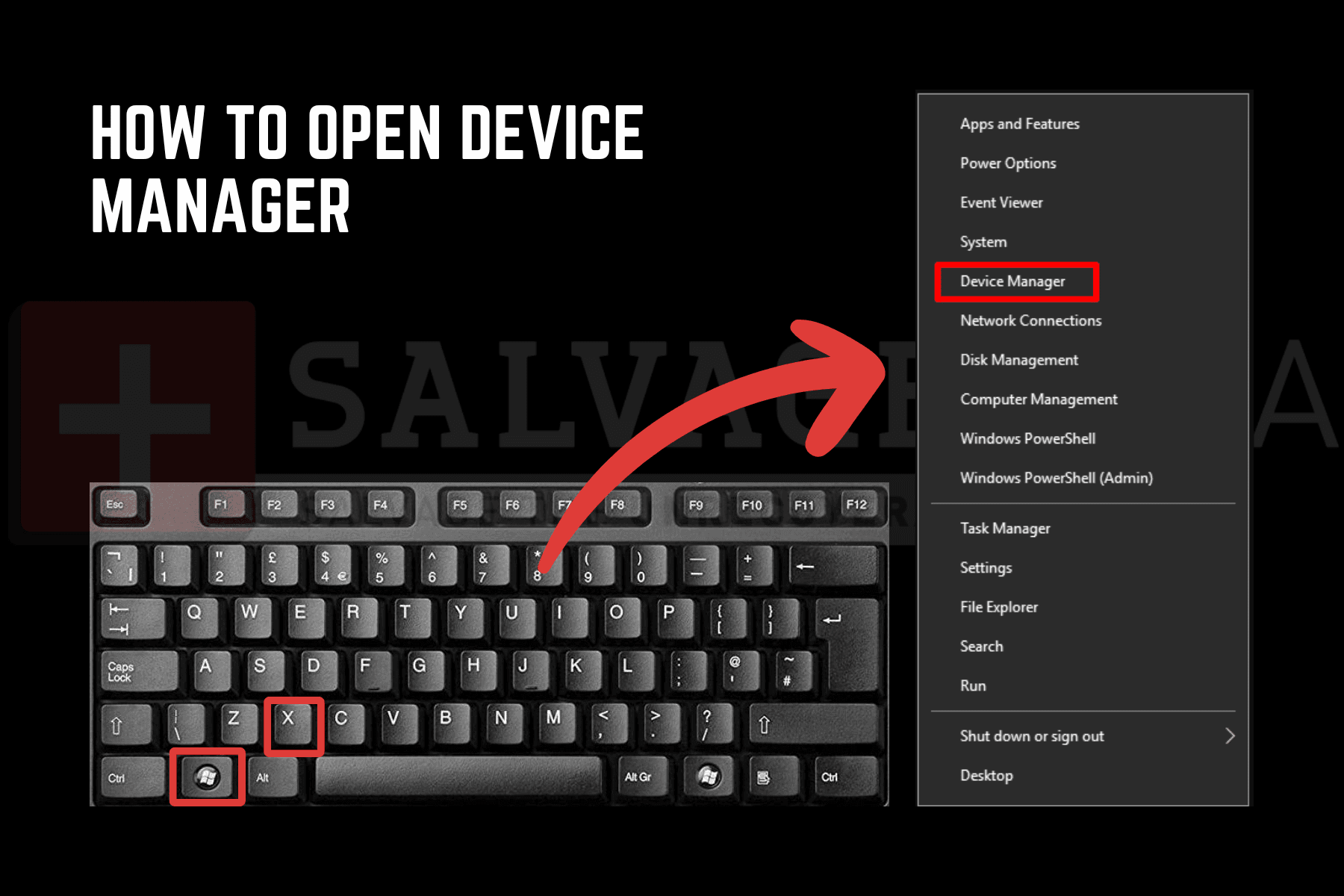
Expand Display adapters, right-click the graphics card, and select Update driver > Search automatically for drivers.
If no update is found, or if updating does not resolve the WSoD, right-click the driver again and select Uninstall device.
Check the box to delete the driver software, then restart the computer. Windows will install the default display driver on reboot, which can be updated afterward with the manufacturer's latest driver package.
Roll back or uninstall a recent Windows update (Intermediate)
If the white screen appeared immediately after a Windows update was installed, that update likely introduced driver incompatibility or damaged a system dependency.
Go to Settings > Update & Security > Windows Update > View update history > Uninstall updates. Sort by installed date, right-click the most recent update, and select Uninstall. Restart and check whether the WSoD is resolved.
If rolling back the update resolves the issue, pause Windows Update temporarily while you wait for Microsoft to release a corrected patch.
Repair corrupted system files with SFC (Advanced)
The System File Checker (sfc /scannow) scans Windows for corrupted or missing core files and automatically replaces them. It does not touch user documents or personal files.
Type cmd (or Command Prompt) in the Start search box and select Run as administrator.
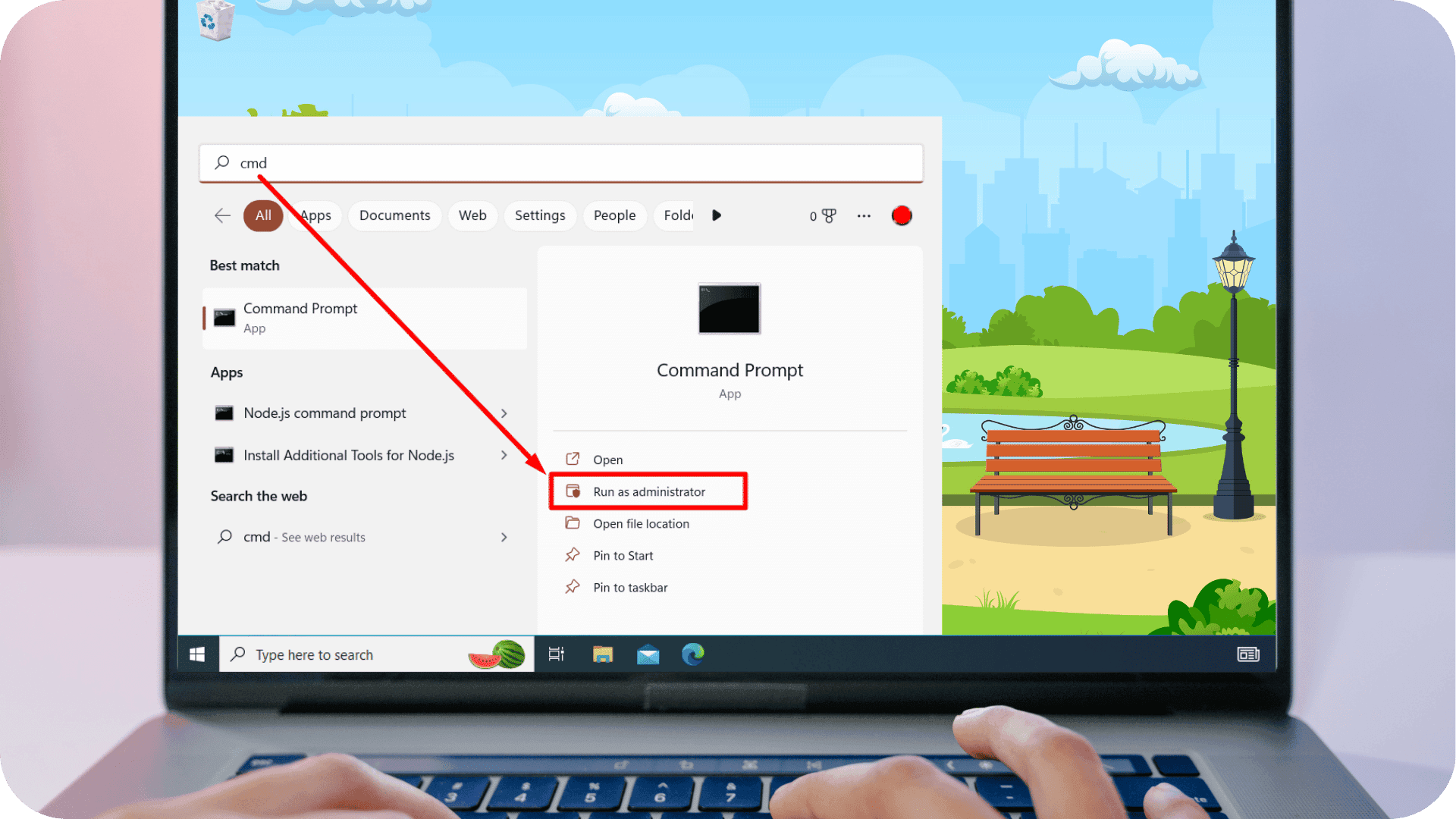 Type the following and press Enter:
sfc /scannow
The scan takes several minutes. After it completes, restart the machine. If SFC reports that it found but could not repair some files, run this command first and then repeat the SFC scan:
DISM /Online /Cleanup-Image /RestoreHealth
Use System Restore (Advanced)
System Restore rolls Windows back to a saved restore point created before the WSoD appeared. User files and documents are not affected, but applications installed after the restore point will be removed.
Open Control Panel > Recovery > Open System Restore. Select a restore point dated before the white screen first appeared and follow the prompts. The process takes several minutes and requires a restart.
If no restore point is available, or if System Restore fails to complete, the issue is likely beyond what a software rollback can address. The next section explains what to look for when the cause may be hardware rather than software.
Is the white screen of death a hardware or software issue?
The fastest way to distinguish hardware from software is to observe when and how the white screen appears:
- WSoD that develops after Windows begins loading is almost always a software issue.
- A white screen that appears at physical power-on, before the OS has a chance to load, points to hardware.
The table below maps the most common symptom patterns to their likely causes:
| Symptom | Likely Cause | First Action |
| Cursor or Task Manager visible over the white screen | Software: driver crash, shell crash, or app conflict | Restart explorer.exe, update graphics driver |
| WSoD appears after login but not at startup | Software: shell crash, malware, or update conflict | Safe Mode, malware scan, SFC |
| Entire screen white at physical power-on before OS loads | Hardware: GPU failure, cable damage, or panel failure | Check signal cables, test with external monitor |
| WSoD began immediately after a Windows update | Software compatibility conflict | Roll back the update in Safe Mode |
When software tweaks can't fix a boot-level white screen, SalvageData HDD Recovery Engineer Michael Galloway advises checking if the system BIOS recognizes your storage drive. A missing drive indicates a storage hardware issue rather than a display or driver error, which requires a completely different recovery path.
Testing with an external monitor is also a fast hardware check. Connect the machine to a separate display using a different cable. If the external monitor shows the desktop normally, the issue is isolated to the cable or the internal panel, not the system itself. If the external monitor also shows white, the GPU or system-level output is the likely cause.
If the drive isn't registering in the BIOS, or if the machine matches the pattern described in SalvageData's PC turns on but no display guide, read the next section before trying any additional fixes.
When the white screen of death points to data loss
A white screen caused by a failing storage device is not a display problem. It is a storage problem that driver updates and System Restore cannot fix, and continued restart attempts can reduce the chance of a successful recovery.
A drive with bad sectors, degraded firmware, or a corrupted partition table can prevent Windows from loading its graphical environment, resulting in a white screen rather than the more recognizable error screens. The files are physically present on the drive. The system simply cannot reach them. Every forced restart cycles the failing hardware, risking further damage.
Recognizing the warning signs before the WSoD appeared matters here. SSD failure symptoms such as slow file reads, repeated "drive not recognized" messages, or frequent freezes in the days before the crash, alongside the WSoD, signal that storage is the source.
Broader common hardware failures, including GPU degradation or RAM errors, can produce similar displays.
Stop troubleshooting and contact a professional before running more fixes if any of the following are true:
- The drive does not appear in the BIOS
- Software fixes have not resolved the WSoD after working through the full sequence above
- The white screen was preceded by slow performance, freezing, or storage errors in the days before
- Files or documents were open and unsaved at the time of the crash
A SalvageData engineer can assess whether the drive is recoverable before any further action makes the situation harder to resolve. The diagnostic is free, with a no-data, no-charge policy.