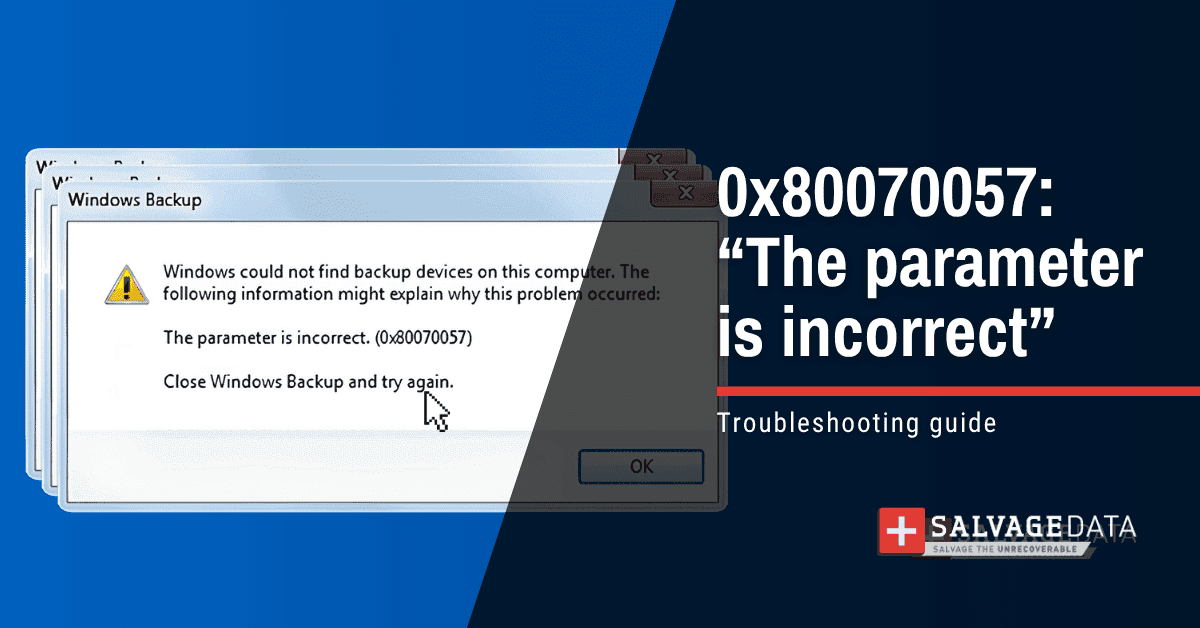

Error code 0x80070057 is one of the longest-running Windows errors still in circulation. The message is deliberately vague, which is why it shows up in completely different situations, from a stalled Windows Update to a failed clean install.
Important: If the 0x80070057 error is accompanied by clicking sounds, SMART warnings, or repeated failures across multiple files, the drive may be failing. Contacting professional hard drive data recovery services is far safer than running repair commands that can overwrite recoverable data.
This guide separates the fixes by scenario and by risk, and flags the exact point where troubleshooting should stop and recovery should begin.
What is the error code 0x80070057?
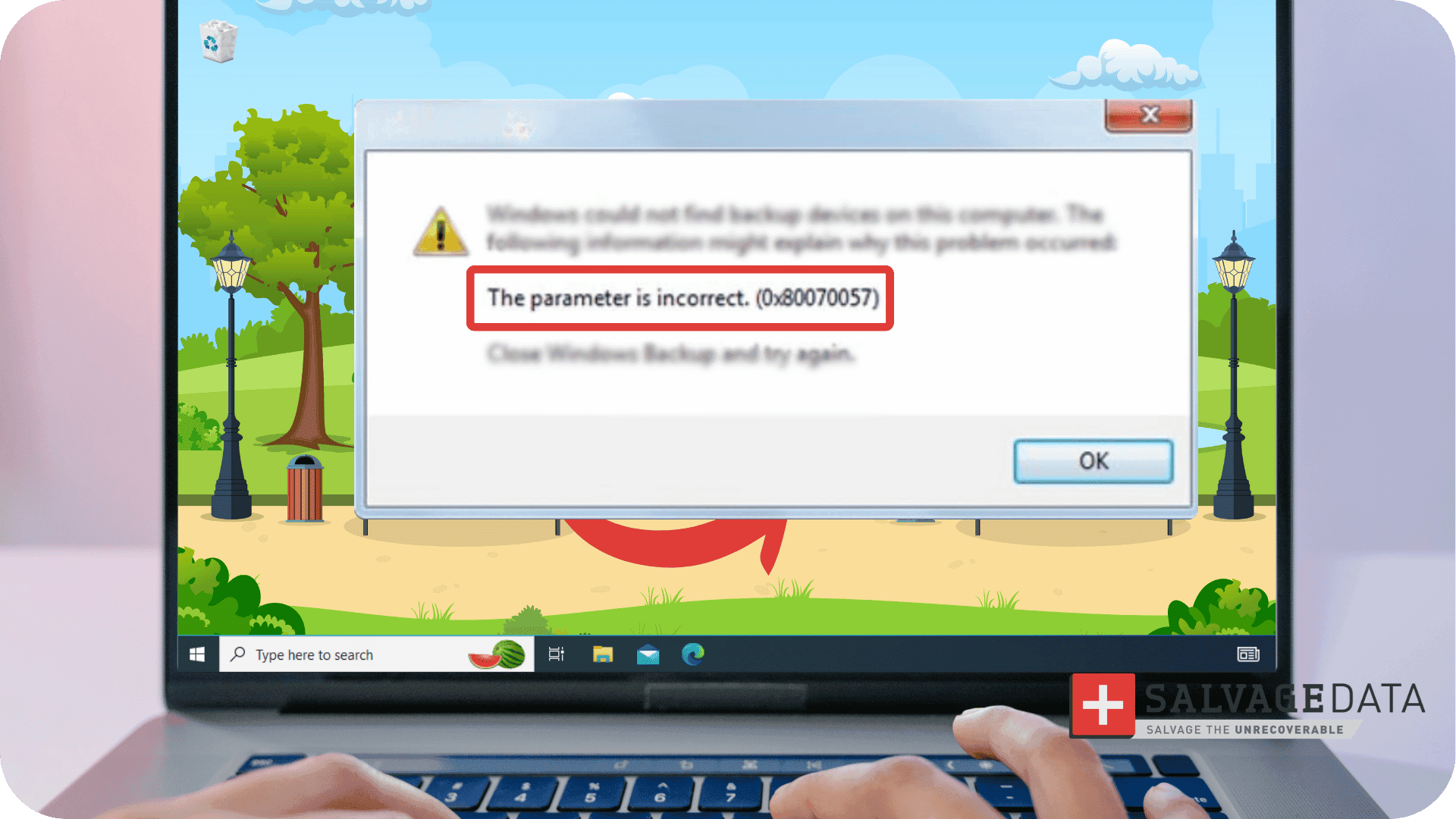
Error code 0x80070057 is a generic Windows error meaning "the parameter is incorrect," triggered when Windows passes an invalid value during an update, installation, backup, or file copy.
Microsoft documents the code as ERROR_INVALID_PARAMETER, equivalent to the hexadecimal value 0x80070057 and the HRESULT -2147024809.
Is the 0x80070057 error a storage problem? Not always, but it is frequently the visible result of one. Windows returns "the parameter is incorrect" when an underlying read fails unexpectedly, which can happen when sectors are unreadable or a drive is unstable. Understanding which scenario you are in is the key to fixing it without making things worse.
What causes the 0x80070057 error?
The most common causes of error code 0x80070057 are a corrupted Windows Update cache, corrupted system files, a damaged Windows image, registry corruption, file system corruption, partition or GPT/MBR conflicts, and insufficient disk space. A failing hard drive or SSD is a less obvious but recurring cause.
The likely cause depends heavily on what you were doing when the error appeared. The table below maps each scenario to its most probable root cause.
| Scenario | Most likely cause |
| Windows Update fails | Corrupted update cache |
| Backup fails | Registry or drive issues |
| File copy or transfer fails | File system corruption |
| Windows installation fails | GPT/MBR mismatch or partition issue |
| Office installation fails | Damaged installer |
Pro tip: File system corruption can produce the same "parameter is incorrect" message you would see with a related Windows fault, such as the "file directory is corrupted and unreadable error. Similarly, when 0x80070057 appears during a file transfer and is accompanied by stalling or repeated retries, it can share the same underlying read failure as an I/O device error.
Is 0x80070057 a sign your drive is failing?
Yes, error code 0x80070057 can be a sign of a failing drive, especially when it repeats across many files or appears alongside clicking sounds, SMART warnings, CRC errors, or extremely slow transfers. Many cases labeled "the parameter is incorrect" are secondary symptoms of storage degradation, including bad sectors, weak NAND cells, SSD firmware instability, and failing SATA connections.
The reason is mechanical at its core. When Windows asks the drive to read a block, and the read fails, the operating system reports the failure as an invalid parameter rather than a hardware fault. To the user, it looks like a software bug. In the lab, it often turns out to be a disk that can no longer reliably read or write data.
How to diagnose if the error is a hardware or a logical issue?
Whether error code 0x80070057 is a hardware or logical fault determines what you should do next, and the warning signs are not identical from one drive to the next.
The fastest first check is your BIOS: if the storage device still appears there, the problem may be logical and potentially repairable, but if it does not appear at all, the drive or the motherboard may have failed.
A clicking or grinding noise is a hardware emergency on a mechanical drive, and our explainer on hard drive clicking covers why it demands an immediate power-off. SSDs fail more silently, which is why unexplained slow reads or sudden recognition failures on a solid-state drive should be taken just as seriously and may call for specialized SSD data recovery.
| Symptom or check | Points to | HDD vs SSD notes |
| Drive missing from the BIOS | Hardware: a failed drive or motherboard | Applies to both |
| Drive is visible in the BIOS, but Windows won't boot | Often logical; can also be bad sectors | Applies to both |
| Clicking or grinding noise | Hardware emergency: power off immediately | HDD: common / SSD: rare |
| SMART warnings | Hardware degradation | Common to both |
| Slow reads or freezes during transfers | Hardware or logical | Common to both |
| Firmware failure | Hardware | HDD: rare / SSD: common |
| Bad sectors | Hardware | HDD: common / SSD: less visible |
Michael Galloway, HDD Recovery Engineer at SalvageData, notes that a drive with bad sectors will often still show up in the BIOS yet prevent the operating system from booting, so testing the drive in another machine is the cleanest way to separate a logical fault from a mechanical one. This is the same diagnostic logic behind diagnosing a Windows detected hard disk problem warning.
If your drive passes these checks and appears healthy, the software fixes below are safe to attempt.
Error code 0x80070057 fixes for Windows installation failures
Error code 0x80070057 when installing Windows 10 or 11 usually comes down to the target disk's partition layout rather than corrupted files. The common fixes are recreating or formatting the target partition with DiskPart and resolving a GPT/MBR mismatch.
Pro tip: Converting MBR to GPT is only relevant during installation, so do not apply it to an already running system. Rebuild partitions only after confirming a backup exists, because the process erases data.
How to fix error code 0x80070057
To fix error code 0x80070057, confirm the drive is healthy and has free space, then work through the safe fixes. Apply the advanced and installation-specific fixes last.
The solution's order is deliberate: it moves from zero-risk actions to higher-risk repairs, so you never reach for a destructive fix before a safe one has had a chance to work.
Safe fixes to try first
These steps carry no risk to your data and resolve a large share of update-related cases.
- Restart Windows to clear transient errors and locked processes.
- Verify you have enough free disk space, since updates and installations fail without it.
- Run the Windows Update Troubleshooter if the error appears during an update.
- Disconnect external devices, which can interfere with installations and backups.
- Confirm your date and time settings are correct, as a mismatch can break update validation.
Repair system files with SFC and DISM
If the safe fixes do not resolve it, corrupted system files are the next most likely cause.
1. Open the CMD as an administrator
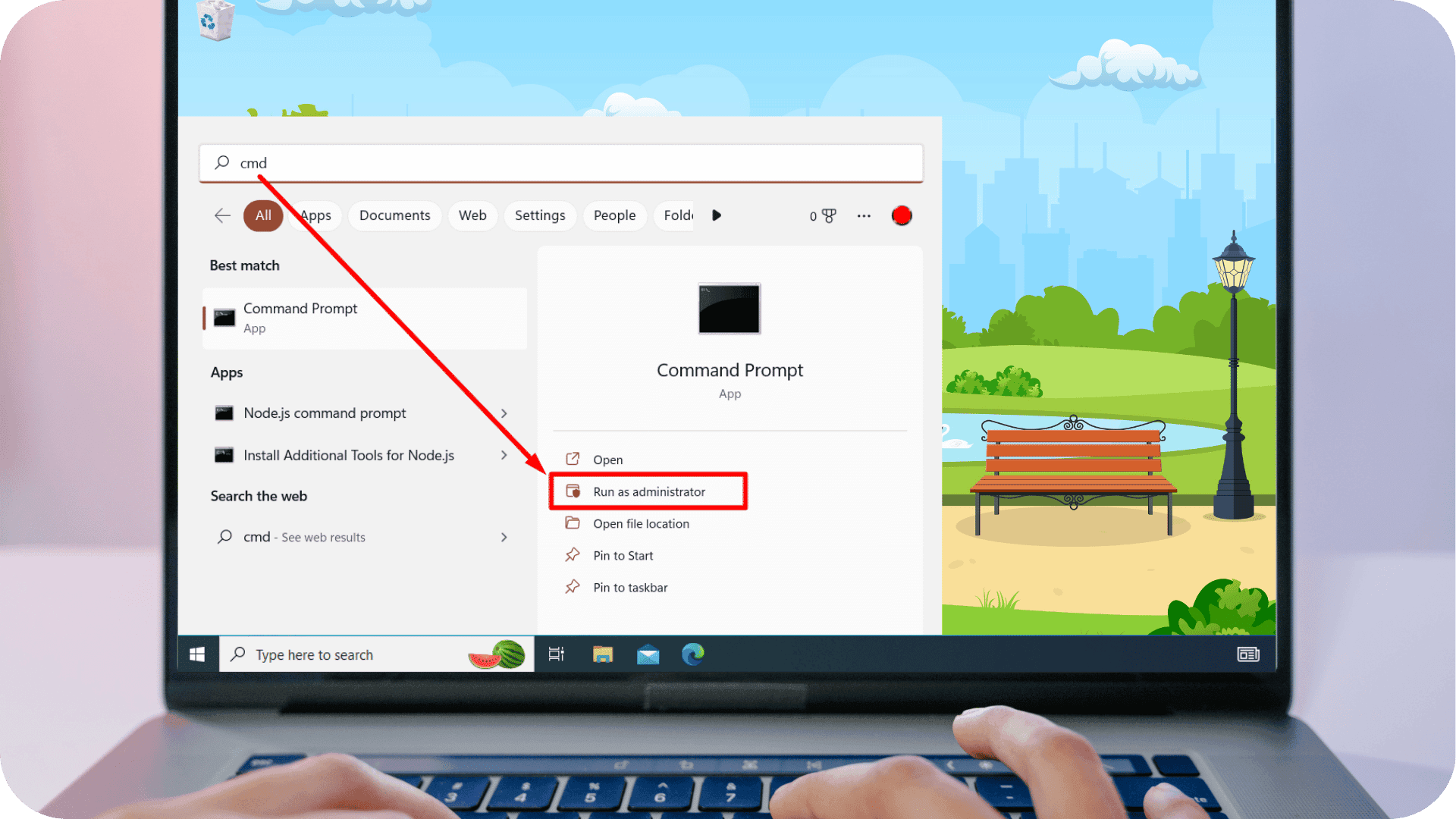
2. Run the System File Checker command to repair corrupted Windows system files:
sfc /scannow
3. If issues remain, repair the Windows component store with DISM:
DISM /Online /Cleanup-Image /RestoreHealth
Reset Windows Update components
When 0x80070057 is specifically blocking Windows Update, resetting the update components clears a corrupted cache. This involves stopping the BITS, Windows Update, and Cryptographic services, then deleting the SoftwareDistribution and Catroot2 folders so Windows can rebuild them. Restart the services afterward and retry the update.
Check the file system (only after backing up)
Run CHKDSK only after your important data is backed up, and never on a drive showing signs of physical failure.
- Open Command Prompt as an administrator.
- Run the command to check and repair file system errors:
chkdsk X: /f
Warning: Repeated CHKDSK usage can worsen recovery outcomes when drive health is unknown, or SMART warnings and clicking sounds are present.
On an unstable drive, forcing repairs can finish off sectors that still hold recoverable data. If your files matter and the drive is questionable, our guide on recovering a corrupted drive without formatting outlines a safer approach.
How risky is each fix, and when should you stop?
Each fix for error code 0x80070057 carries a different level of risk to your data. Check where a fix sits in the matrix below and protect your data and device.
| Solution | Difficulty | Risk |
| Restart PC | Easy | None |
| Update Troubleshooter | Easy | None |
| SFC | Easy | Low |
| DISM | Medium | Low |
| Reset Update components | Medium | Medium |
| Registry repair | Advanced | High |
| Clean install | Advanced | Very high |
Stop troubleshooting immediately and prioritize data recovery if you notice clicking sounds, SMART warnings, missing folders, CRC errors, extremely slow transfers, frequent freezes, or repeated 0x80070057 errors affecting many files.
According to Kyle Ciresi, HDD Recovery Engineer at SalvageData, the most common ways people destroy their own data are "attempting to read data from the drive and keeping it connected to their system," running tools that try to repair a damaged drive and make the damage far worse, and "using external recovery software to recover deleted or lost files, but saving the data to the media they are recovering from," which causes overwrite.
SalvageData offers a free diagnostic and operates on a no-data-no-charge policy, so you can confirm whether 0x80070057 is a simple software fault or a failing drive before risking your files. Request a free evaluation before running another repair.