
Key Takeaways
- Most iPhone white screen cases are software issues that a force restart will fix with zero data loss.
- Restore and DFU mode will delete every photo, message, and contact on your phone. Never run them without confirming your backup works.
- If your iPhone vibrates, makes a sound, or buzzes with notifications while the screen is white, the data is almost always still intact.
Warning: Plugging an iPhone into a computer and hitting Restore can wipe photos, messages, and contacts without fixing the actual issue.
This guide covers every known cause of an iPhone white screen and the fix hierarchy to use, from safe checks to last-resort options. If the screen stays white after the safe steps, SalvageData's iPhone data recovery team can preserve your files before any DIY repair wipes the device.
What the white screen of death means on iPhone
The "white screen of death" occurs when an iPhone display turns fully white, stops responding to touch, and fails to load the normal iOS interface. The phone is still powered on, which is why the screen is illuminated, but the operating system or the display itself is not working correctly.
This happens across every iPhone generation from the iPhone 6s through the iPhone 16 and newer. It can show up right after an iOS update, after a drop or water exposure, or with no obvious trigger.
If your iPhone screen is black instead, then you can read our comprehensive guide on iPhone screen that is black but still on.
The white screen is a symptom, not a single problem. Finding the cause determines whether the fix takes thirty seconds or a trip to a recovery lab.
Full white screen vs. partial white (white line, white dot, half white)
Not every white screen issue is the full white screen of death. If you see a white line, a white dot, or a half-white screen, you are usually looking at a different failure type.
A single white line or small white dot on an otherwise working screen points to localized display damage, often a cracked LCD layer or a pressure point on an OLED panel.
A half-white screen that appeared after a drop points to a damaged display cable or a bruised panel. If your iPhone shows only part of a white display rather than a full white screen, the cause is almost always hardware, not software. Back up your phone and plan a repair before the display fails completely.
When the iPhone is still alive underneath the white display
If your iPhone vibrates when someone calls, buzzes with notifications, plays a sound, or responds to the silent switch, the phone itself is working. The failure is limited to the display. This is the single most useful diagnostic signal for a white screen case.
Display-only failures pose a low risk of data loss. The photos, messages, and contacts are intact on the phone's internal storage. A screen repair or a chip-level lab recovery can pull the data off without a destructive step.
Is the white screen of death fixable?
Yes, the white screen of death is fixable in most cases. Most white screen incidents are software-related, based on patterns seen by SalvageData's mobile data recovery experts, and can be resolved with a force restart or Recovery Mode.
The harder question is whether your data (aka your contacts, photos, files, etc.) survives the fix. Both software fixes and hardware repairs usually preserve data without issue. Data is routinely lost in only two scenarios: when a user jumps to Restore or DFU without a backup, or if the storage chip is damaged beyond repair.
Why your iPhone screen turned white
An iPhone turns white for one of four reasons: a UI zoom glitch, a software or iOS update failure, firmware corruption, or a hardware defect.
| Cause | Example | Data risk | Typical fix |
| UI glitch | Zoom accessibility is stuck at max | None | Triple-tap with three fingers |
| Software | The iOS update crashed | Low | Force restart |
| Firmware | Interrupted update, jailbreak damage | Medium | Recovery Mode |
| Hardware | Drop, water, display, or logic board damage | Varies | Repair or recovery lab |
The Zoom accessibility glitch (a false white screen)
The iPhone Zoom accessibility feature can magnify the screen so far that the display looks completely white. The phone is fine. The interface is just zoomed in on a white area.
To check if this is the cause, triple-tap the screen with three fingers. If Zoom is stuck, the screen returns to normal immediately. This fix has a 100% success rate when this is the actual cause and carries no data risk.
If the triple-tap does nothing, the cause is further down the list.
iOS update failures and system crashes
A large share of white-screen cases occur immediately after an iOS update. In lab observations, this usually traces back to an incomplete firmware write or to corruption of the NAND and system partitions during the update process.
Symptoms look like a frozen white screen or a boot loop stuck on the Apple logo. The phone may reboot on its own, get partway through the startup animation, and freeze white again.
The first fix is a force restart. If that fails, the next option is Recovery Mode using the Update path, which reinstalls iOS without erasing data.
For the full breakdown of update-related errors, see our guide to the iOS software update failed error.
Firmware corruption and jailbreak damage
Firmware corruption sits one level deeper than a software bug. The iPhone's firmware is the low-level code that boots iOS and talks to the hardware. When it is corrupted, usually due to an interrupted update or a jailbreak that modified system files, the phone cannot boot cleanly.
The symptom is a persistent white screen that persists despite force restarts and reboots, returning to the same state.
Jailbreaking is a known contributor, and modified firmware can introduce instability that eventually causes white-screen failures. For recovery after a jailbreak-related failure, see our guide to data loss after iOS jailbreaking.
Hardware failure: display, connector, logic board, battery
Hardware failures are the most serious cause and the highest-risk category for data loss if handled wrong. The four common hardware sources of a white screen are a failed display panel, a loose or damaged display connector cable, a logic board fault (often at the display controller IC), and a failing battery or power IC.
Indicators pointing to hardware: flickering, colored lines mixed into the white display, the phone overheating, battery swelling, and no response to any reset. Physical damage is a frequent trigger. A drop, a bend, or water exposure can shift or tear the internal components that drive the display.
“Heavy falls can cause ripped traces under key components like the CPU and the solder pads between the two boards,” says Michael Galloway, Recovery Engineer at SalvageData, “chances of recovery are high.”
If the phone also refuses to turn on at all, or cycles between white and black, our companion guide covers what to try when your iPhone won't turn on.
Model-specific patterns (iPhone 13, 14 Pro Max, and OLED-era devices)
iPhones from the iPhone X through the iPhone 14 series use OLED display panels, which fail differently than older LCD screens. A white screen combined with green or pink lines on OLED models is a common sign of a display controller IC issue.
Older LCD iPhones, including the iPhone 6s, iPhone 7, iPhone 8, and iPhone SE generations, tend to fail at the connector or the backlight instead. A loose display cable on these models can cause a full white screen that clears when the cable reseats.
iPhone 13 Pro Max owners reported a wave of white screen failures after the iOS 16.3.1 update. The pattern points to a firmware write that finished improperly during the update, leaving the OLED display stuck on a full white screen that no force restart could clear.
How to fix the white screen on iPhone
Work through these fixes in order. The first two carry no data risk. The last three can wipe your phone. Never skip ahead to Restore or DFU if you have not confirmed your backup works.
Step 1: Check for the Zoom glitch (no data risk)
Place three fingers on the screen and triple-tap. If the Zoom feature is stuck, the screen returns to normal immediately.
This takes under five seconds and costs nothing. Do it first on every white screen case.
Step 2: Force restart your iPhone (no data risk)
A force restart is the most effective software fix and should always be tried before any step that connects to the computer. It clears the current session without touching any stored data.
The steps depend on your model:
- iPhone 8 and newer (all Face ID models): Press volume up, press volume down, then press and hold the side button until the Apple logo appears.
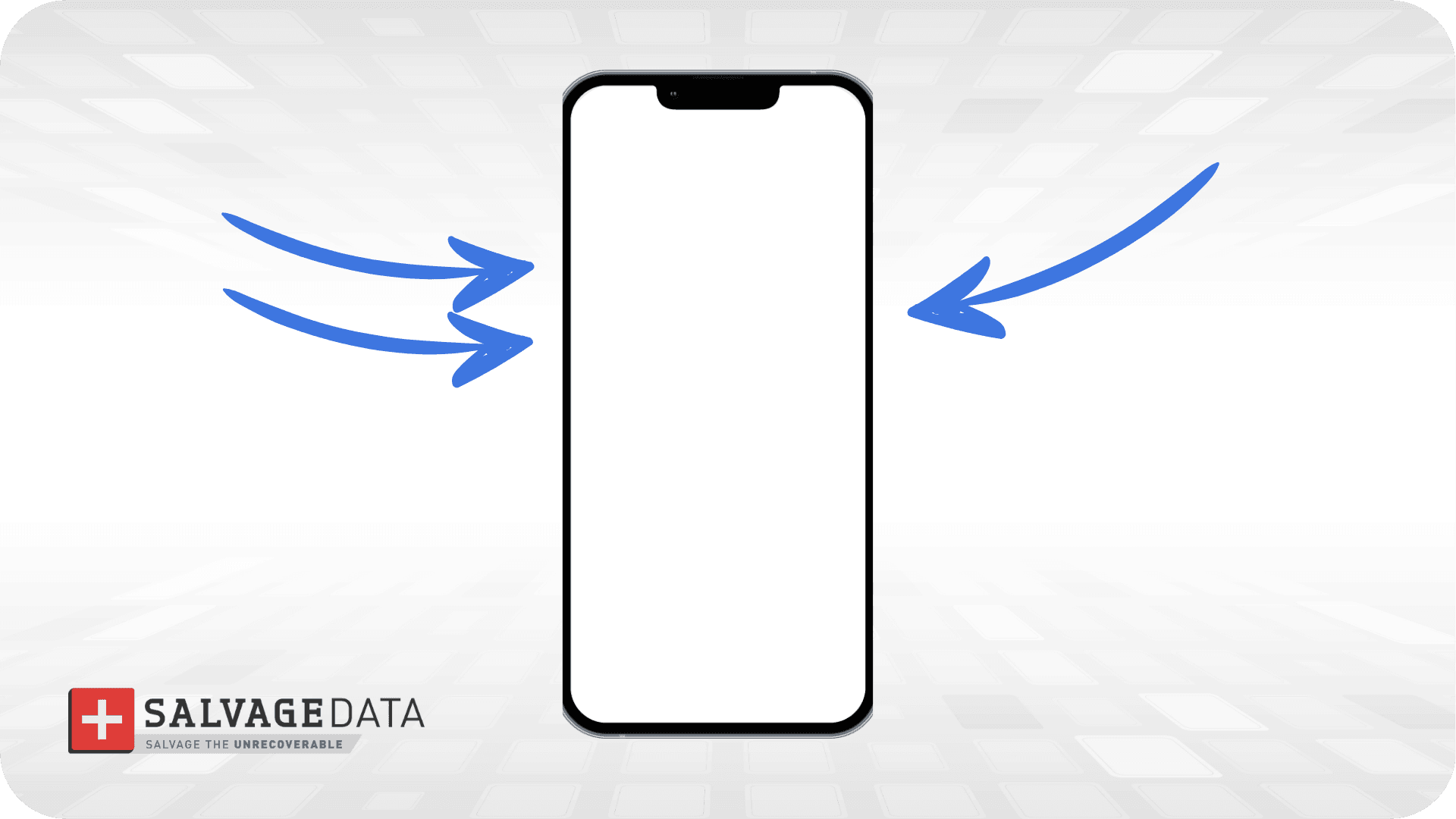
- iPhone 7 and 7 Plus: Press and hold the volume down and side buttons together until the Apple logo appears.
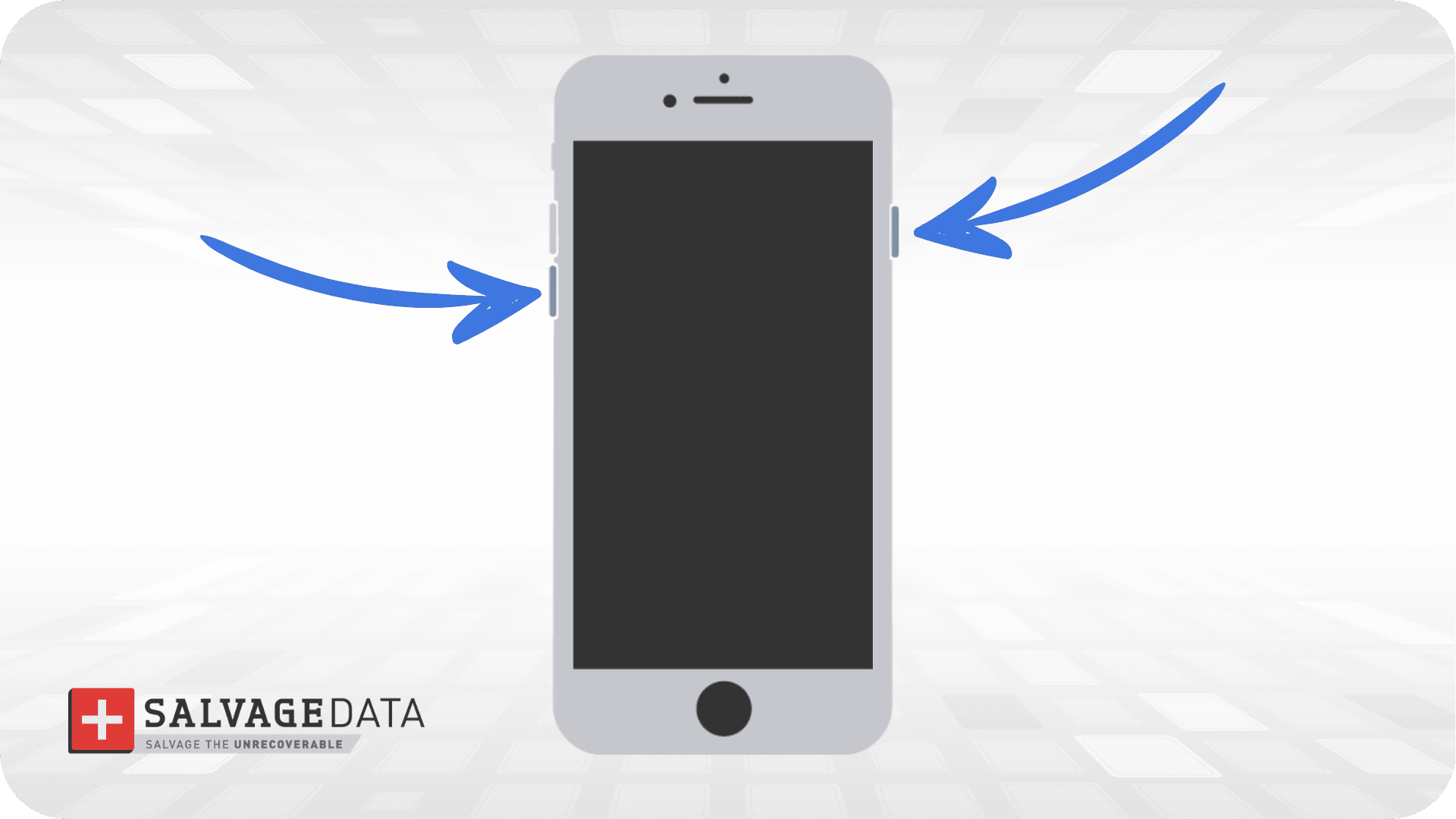
- iPhone 6s and older with Home button: Press and hold the Home button and the top or side button together until the Apple logo appears.
Hold for about 10 to 20 seconds. If the Apple logo appears and iOS loads normally, you are done. If the force restart fails or returns to the same white screen, move to Step 3.
Step 3: Recovery Mode, use the Update path first (moderate risk)
Recovery Mode offers two options: Update and Restore. Update reinstalls iOS without erasing your data. Restore wipes the phone. Always try Update first.
To enter Recovery Mode:
- Connect the iPhone to a computer with a cable
- Open Finder on macOS or the Apple Devices app on Windows, and trigger the force-restart button sequence while the phone is connected.
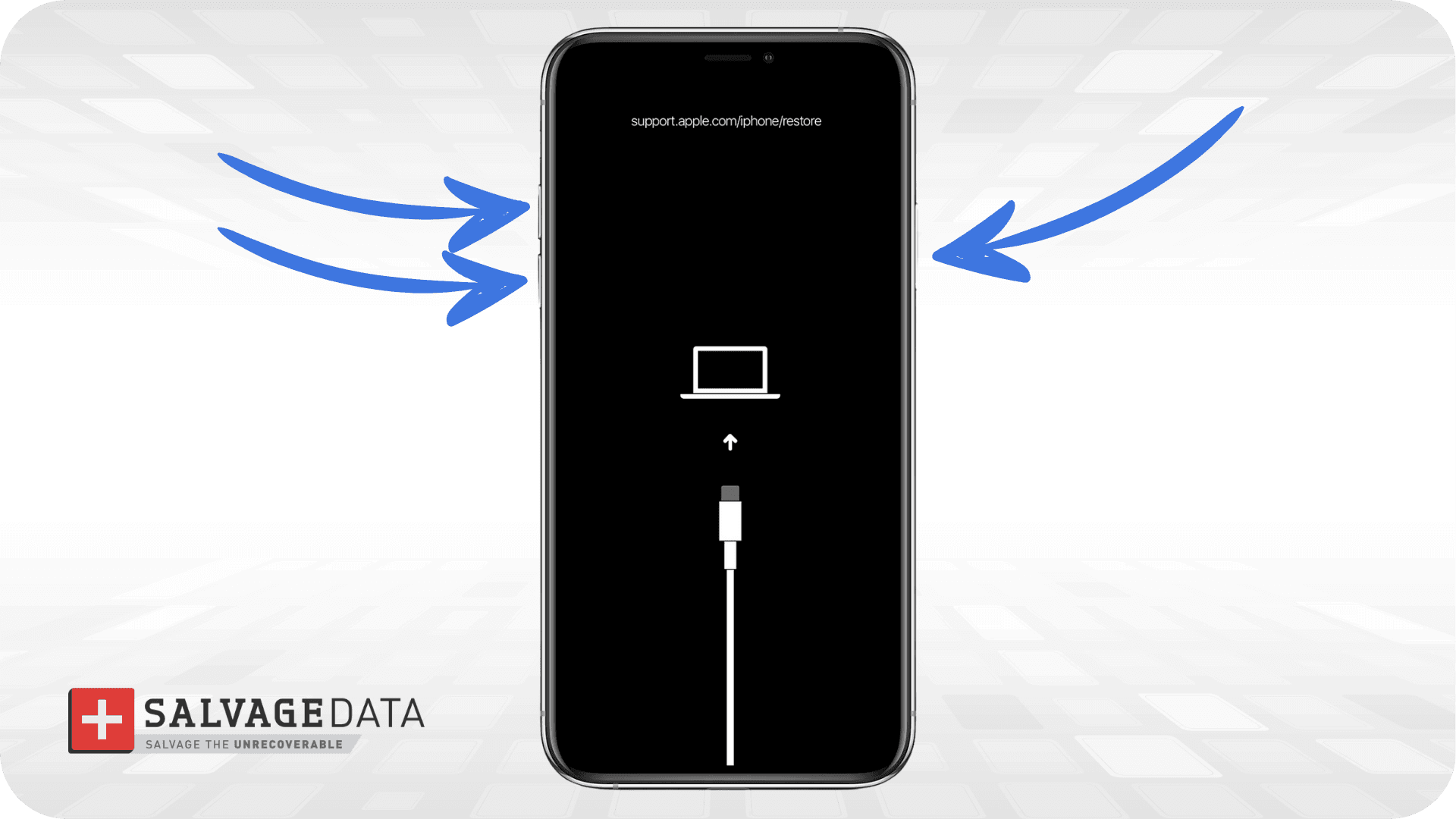
3. Hold the final button until the Recovery Mode screen appears instead of the Apple logo.
When the dialog asks whether to Update or Restore, choose Update. The computer downloads the current iOS version and reinstalls it over the existing system.
If Update fails partway, do not immediately move to Restore. Disconnect, wait a few minutes, and try Update a second time.
Step 4: Restore (high risk, full data wipe)
Restore reinstalls iOS and erases all photos, messages, contacts, and apps on the iPhone. It is a last-resort software fix, not a default option.
Only run Restore if your most recent backup has been verified and is accessible. A corrupted backup or an iCloud backup that stopped syncing months ago will not save you after a Restore.
After a successful Restore, our guide on how to restore an iPhone from a backup walks through pulling your data back onto the clean install.
Step 5: DFU mode (highest risk, full data wipe)
Device Firmware Update (DFU) mode is the deepest-level reset on an iPhone. It rewrites the firmware itself and erases all user data in the process.
DFU is the right option only when Recovery Mode has failed, and the firmware is confirmed to be corrupt. If the underlying problem is hardware, DFU will not help, and it will have destroyed your data for nothing.
Do not run DFU without a verified backup. Read the next section first if you have not confirmed your backup is current.
To enter DFU mode, connect the iPhone to a computer using a cable, then open Finder on macOS or the Apple Devices app on Windows. The screen must stay completely black during DFU. If the Apple logo or the "Connect to Computer" Recovery Mode graphic appears, the timing is off and you need to start over.
The button sequence depends on your model:
- iPhone 8 and newer (all Face ID models): Press and release the volume up button, then press and release the volume down button, then press and hold the side button until the screen goes completely black. As soon as the screen is black, hold the side button and volume down together for 5 seconds. Release the side button, but keep holding volume down for about 10 more seconds.
- iPhone 7 and 7 Plus: Press and hold the side button and volume down together for 8 seconds. Release the side button, but keep holding volume down for about 5 more seconds.
- iPhone 6s and older with Home button: Press and hold the Home button and the top or side button together for 8 seconds. Release the side or top button, but keep holding the Home button for about 5 more seconds.
When the computer detects the iPhone in DFU mode, the only available option is a full firmware restore, which erases all user data. There is no Update option in DFU. Once you confirm the restore, the data is gone.
If you are unsure your backup is current, stop here and contact a recovery service before attempting DFU.
Step 6: Hardware repair or data recovery lab
If the white screen persists after a force restart and Recovery Mode Update, the cause is almost certainly hardware. At this point, the right path is either a qualified repair shop that can replace the display assembly or a professional data recovery lab if the data is more valuable than the phone itself.
A recovery lab can pull data from an iPhone even when the screen is dead, the logic board is damaged, or the phone no longer boots. This is a different service from screen repair and usually requires the device passcode.
When you need a repair shop or a recovery lab
Take the phone to a professional if any of these apply:
- The screen stayed white after a force restart and a Recovery Mode Update
- The phone was dropped or exposed to water before the screen turned white
- You see flickering or colored lines mixed with the white display
- The battery is swollen
- The phone is hot to the touch
Repair shops handle display and board-level fixes. Recovery labs handle cases where the repair cannot save the data or where the phone needs to come apart without losing what is on the storage chip.
What to do before you Restore or DFU
Never run a Restore or DFU unless you have a verified, tested backup. This is the single most important step in this guide. A destructive fix without a working backup turns a recoverable situation into permanent data loss.
Why "I have iCloud" isn't a backup
Most iPhone users assume iCloud is protecting their data. In practice, iCloud storage and iCloud Backup are two different things, and even people who pay for iCloud often find their backup was incomplete, stopped working, or was overwritten.
"Clients don't realize that they are deleting data from their iCloud when they are selecting photos on their iPhone. Some photos and videos are just links that pull the data from their iCloud to save space on their device," explains Galloway.
How to confirm your backup is real before destructive fixes
Open Settings, tap your name at the top, tap iCloud, then tap iCloud Backup. Look at the date and size of the last backup. If it says "Backing up..." or shows a date older than a week, your backup is not current.
For a safer option, plug the iPhone into a computer and make a local backup through Finder or the Apple Devices app before doing anything destructive. A local backup captures everything on the phone at that moment, including app data that iCloud does not always store.
Our guide on how to back up your iPhone walks through both iCloud and local backup steps in detail. If the white screen blocks you from unlocking the phone and making a fresh backup, the situation is already past the DIY stage. Stop, do not run DFU, and consider a recovery lab.
How to prevent the white screen of death on iPhone
Most white screens come from one of three things: an update that didn't finish cleanly, a drop or water exposure, or a bad backup that turned a fixable problem into permanent data loss. Here are the three best practices to avoid a white screen error:
1. Update hygiene
Install iOS updates while the phone is plugged in, on Wi-Fi, and with at least 50% battery. Interrupted updates are one of the most common causes of firmware corruption and post-update white screens.
Avoid the first 48 hours after a major iOS release when possible. Early bugs in the initial release of a new iOS version occasionally trigger white screens on specific models. Waiting for the first point release adds a small buffer against the worst launch-day issues.
2. Physical handling and case choice
Most hardware-caused white screens trace back to a drop, a bend, or exposure to water. A protective case and a screen-edge bumper absorb most of the impact energy before it reaches the logic board or the display connector.
Water resistance ratings on iPhones are conservative. They assume new seals, no prior drops, and clean water. Real-world exposure, like pool water, saltwater, or a phone that has already been dropped once, often bypasses the rating. Treat the phone as not waterproof.
3. Backup redundancy
A single backup is one failure away from being no backup. The 3-2-1 rule used in data storage applies here, too: three copies of your data, two local, one off-site.
For an iPhone, that looks like an iCloud Backup (off-site), a local computer backup (local copy one), and for critical photos, a second service like Google Photos or a physical drive backup (local copy two). Redundancy turns a white screen from a crisis into an inconvenience.
When to call a data recovery service
Call a data recovery lab when the white screen persists after safe fixes, the phone shows signs of hardware damage, or the data is more important than the cost of the recovery.
If the white screen happened after a drop, water exposure, or a failed iOS update, and your last verified backup is old or missing, treat the situation as urgent. The phone's storage chip holds your data regardless of the display state, and a properly handled recovery pulls it off without making the damage worse.
Contact SalvageData for a free diagnostic if the safe fixes did not resolve the white screen.