
Key Takeaways:
- Error 0xc00000e is caused by corrupted Boot Configuration Data, hardware changes, or disk errors. Files are almost always still on the drive.
- The safest first step is to check whether the drive appears in the BIOS. If it does not, stop all repair attempts immediately.
- Rebuilding the BCD resolves most cases. Reinstalling Windows should be a last resort, and only after data has been secured.
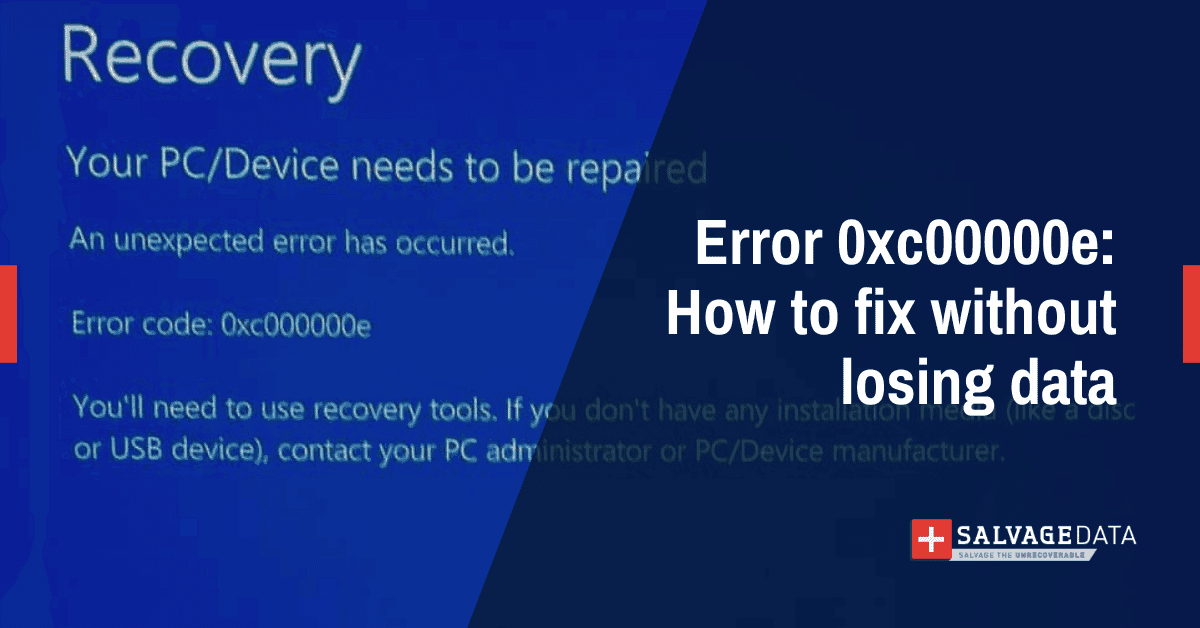
Error code 0xc00000e is a Windows boot failure that appears when the operating system cannot read its Boot Configuration Data (BCD). The screen displays one of two messages: "Your PC needs to be repaired" or "A required device isn't connected or can't be accessed." Both mean the same thing: Windows cannot locate its own startup files.
SalvageData's PC data recovery services are available if a hardware failure is suspected, but most cases are resolved without data loss.
How Windows boots (and where 0xc00000e happens)
Understanding the Windows boot sequence helps explain why error code 0xc00000e appears and what may be causing it. The error occurs early in startup, before Windows fully loads, when the system cannot access the files or configuration data needed to continue booting.
During startup, Windows follows this sequence:
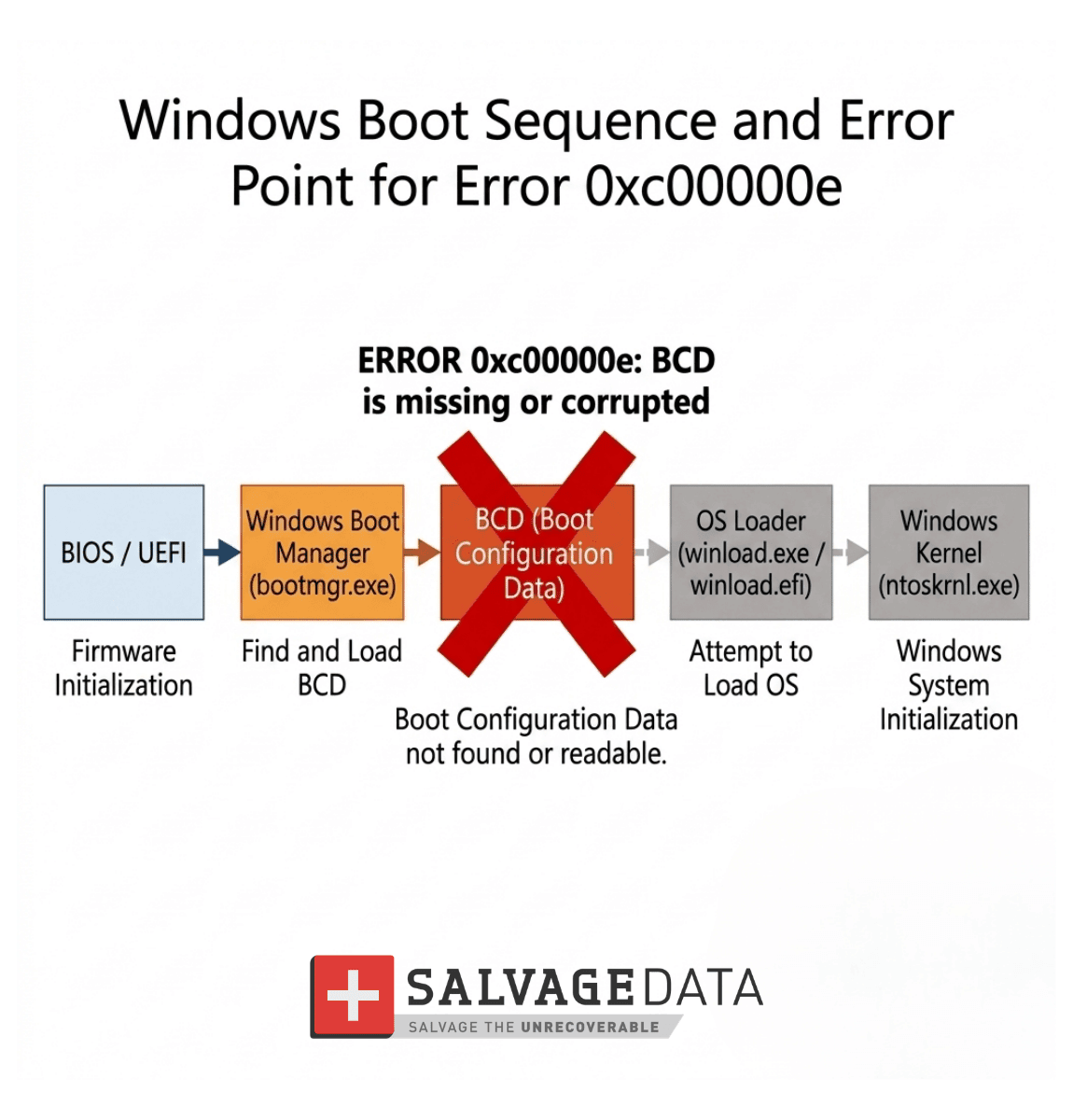
BIOS / UEFI > Windows Boot Manager > Boot Configuration Data (BCD) > Winload > Windows kernel
- BIOS or UEFI initializes hardware and selects the boot device.
- Windows Boot Manager begins the operating system startup process.
- Boot Configuration Data (BCD) stores the location of the Windows boot loader and system partition.
- Winload loads essential boot drivers and prepares the operating system.
- The Windows kernel completes startup and loads Windows.
Error code 0xc00000e typically appears when this sequence is interrupted because Windows cannot access the BCD, locate the boot partition, or communicate properly with the storage device. The root cause may be logical, such as corrupted boot files, or physical, such as a failing SSD or HDD.
What causes error code 0xc00000e?
The BCD is a small database stored on the system partition that holds the path to the Windows boot loader, partition references, and recovery entries. When it is corrupted or missing, the boot manager has no instructions and cannot hand off to Windows, regardless of whether the drive itself is healthy.
Corrupted Boot Configuration Data (BCD)
BCD corruption is the most common cause of this error and the easiest to fix. If the BCD file is corrupted or missing, Windows cannot proceed past the boot manager, and error 0xc00000e appears regardless of whether the drive itself is healthy.
Failed updates, forced shutdowns, and power loss
A Windows update that stops mid-process, a forced power-off during startup, or a power surge can all cause incomplete data to be written to the BCD. The system may have been working normally right before the event, which strongly indicates that the drive is intact and the corruption is a software issue.
Hardware changes, boot mode changes, and loose connections
Replacing an SSD, cloning a drive to a new disk, switching BIOS from Legacy to UEFI mode, or reseating RAM can all confuse the boot manager. A loose SATA or NVMe cable is a frequently overlooked cause: the drive is healthy, but the system intermittently fails to detect it at startup.
Damaged EFI system partition
Modern Windows systems that use UEFI firmware rely on a dedicated EFI System Partition (ESP) to store boot-critical files, including Windows Boot Manager and other startup data. If this partition becomes corrupted, missing, or inaccessible, Windows may fail to locate the boot loader and trigger error code 0xc00000e.
EFI partition issues commonly occur after interrupted Windows updates, failed disk cloning, SSD migrations, partition resizing, or accidental partition deletion. In some cases, simply switching BIOS settings from Legacy boot mode to UEFI, or vice versa, can prevent Windows from finding the expected boot files.
Unlike older BIOS-based systems that rely on a Master Boot Record (MBR), UEFI systems boot directly from files stored inside the EFI partition. This means the drive may still appear healthy in BIOS while Windows remains completely unbootable.
A damaged EFI partition can also cause repair commands such as bootrec /fixboot to return an “Access is denied” error. In these cases, the issue may not be the BCD itself, but the partition that stores the boot files. Repair may require rebuilding the EFI boot files before Windows can start again.
Disk errors, bad sectors, and failing drives
A drive with developing bad sectors may still appear in BIOS but fail to load the OS if those sectors overlap with the boot partition. This is where error 0xc00000e becomes a warning sign rather than a simple software fix.
Early-stage HDD and SSD data recovery often results from a boot error that users spend days trying to repair, unaware that the drive itself is failing.
If the error appeared with no clear triggering event, such as a recent update, a hardware swap, or a power outage, the possibility of a physical failure should be considered before any repair attempts begin.
The cause determines the fix, and for most of the cases above, Windows provides repair tools that work without reinstalling anything. Reviewing the common causes of hard drive failure can help identify which category applies.
Can error code 0xc00000e cause data loss?
Usually, no. Error 0xc00000e is a boot failure, not a file deletion event. In most cases, personal files remain intact because the operating system fails to load Windows.
Data loss becomes more likely when:
- The drive has physical damage
- Bad sectors affect file system metadata
- Windows is reinstalled before files are backed up
How to fix error code 0xc00000e
Most cases of error 0xc00000e are resolved by rebuilding the Boot Configuration Data in the Windows Recovery Environment, without reinstalling Windows or altering any personal files.
The fix steps are ordered by safety: start at the top and move to the next step only if the previous one did not resolve the error.
Disconnect external devices and check BIOS
Before running any repair tool, remove all USB drives, external hard drives, and memory cards from the PC.
External devices can interfere with BIOS boot priority and trigger this error even when the internal drive is completely healthy.
Next, restart and enter BIOS (usually F2, F10, F12, or Delete during boot).
Confirm two things:
- If the internal drive appears in the device list
- And if it is set as the primary boot device
If the internal drive does not appear in BIOS at all, stop here. A drive that is invisible to BIOS is almost certainly experiencing hardware failure. Running software repair commands will not help and may make recovery harder. Skip directly to the data recovery section below.
Run Windows Startup Repair
If the drive appears in BIOS, boot from a Windows installation USB and select:
Repair your computer > Troubleshoot > Advanced options > Startup Repair
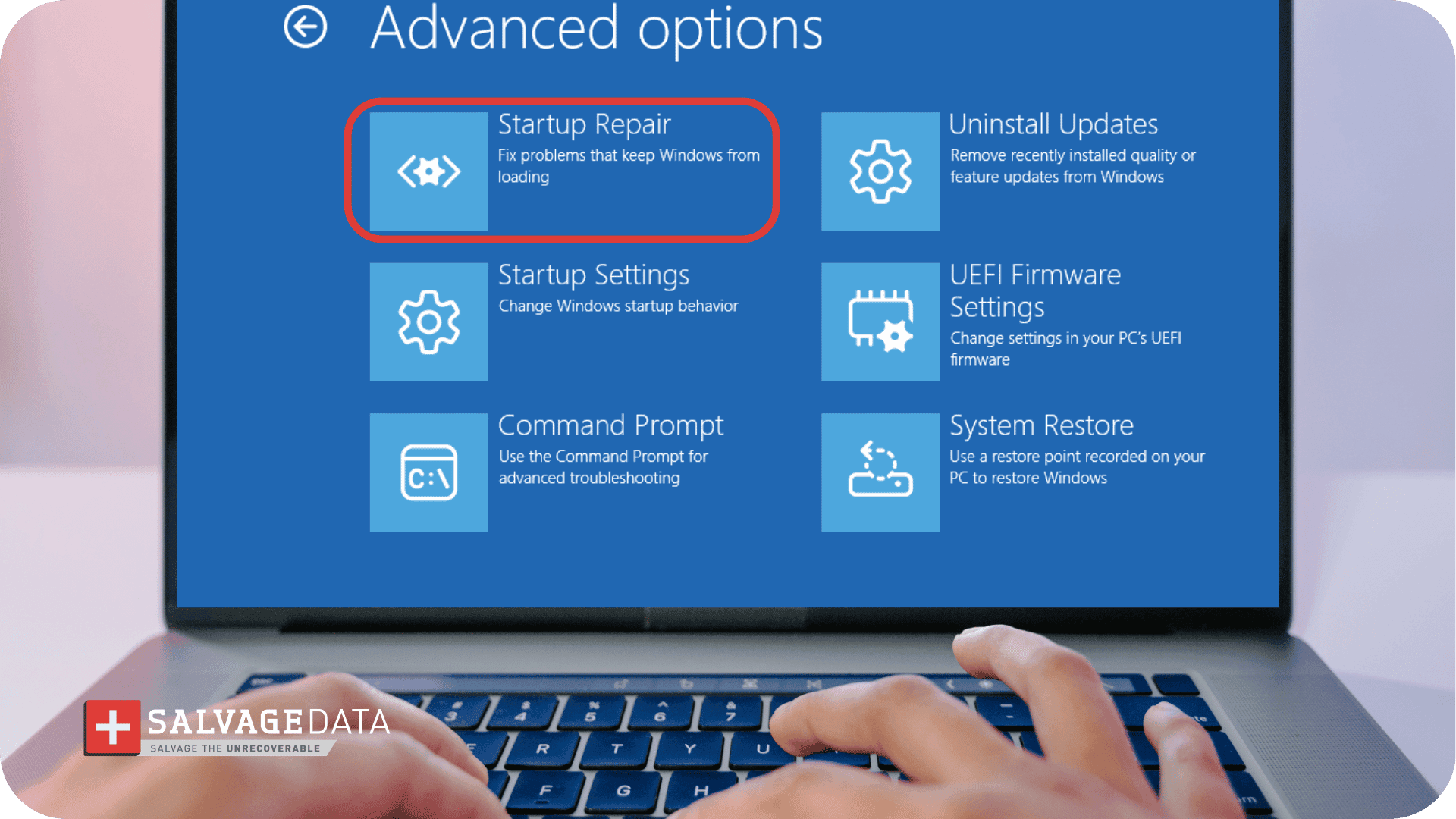
Startup Repair scans the BCD and common boot file locations and attempts an automatic fix.
If Startup Repair completes without fixing the issue, or reports it cannot repair the PC, move to the manual BCD rebuild.
Rebuild the BCD manually
From the same Advanced Options menu, open Command Prompt and run the following in order:
bootrec /fixmbr
bootrec /fixboot
bootrec /scanos
bootrec /rebuildbcd
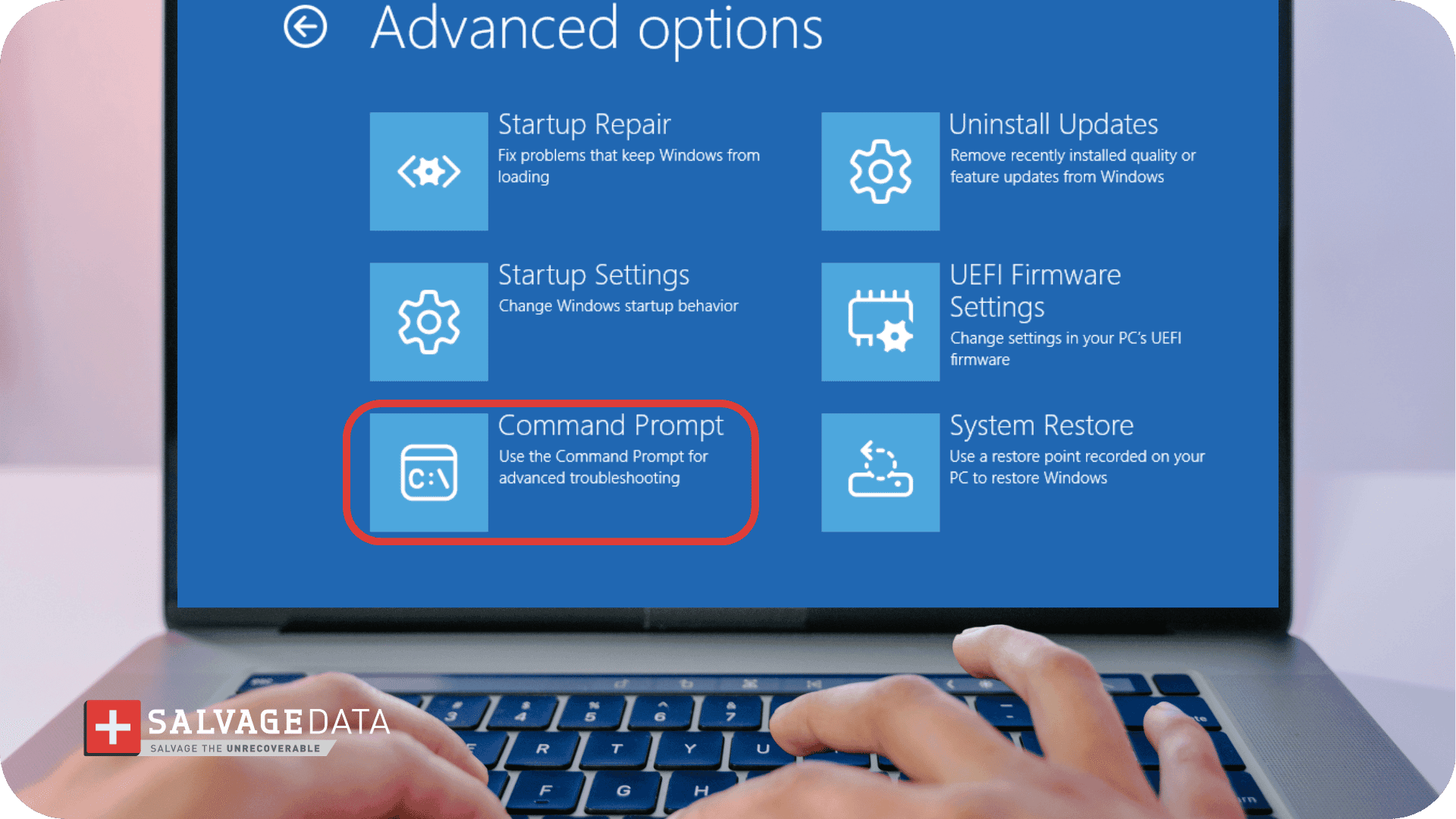
After running the commands, restart the PC without the USB drive connected.
On modern UEFI systems, bootrec /fixboot sometimes returns an "access denied" error. That points to an EFI partition issue rather than the MBR. SalvageData's guide to bootrec /fixboot errors covers the additional steps required for that specific scenario.
If bootrec fails on modern UEFI systems, rebuilding boot files with bcdboot may succeed.
bcdboot C:\Windows
What to do if the BCD rebuild fails
If the rebuild completes but the error persists, or if the commands return errors about unreadable partitions, the problem is likely hardware-related. Do not attempt a Windows reinstallation at this point. Reinstalling Windows can overwrite partitions containing personal files, especially if formatting or repartitioning occurs.
The next priority is securing the data.
How to recover files from a PC that won't boot
The goal at this stage is to access those files without writing any new data to the drive, which means keeping the affected disk read-only until everything important is secured.
| Method | Requires | Risk level | Best for |
| External USB enclosure | Screwdriver and a second working PC | Medium | Logical failures where the drive is physically healthy |
| Linux live USB | Bootable USB and a second PC | Low | BCD corruption with accessible partitions |
| Professional forensic imaging | Nothing — mail the drive to a lab | Lowest | Physical failures, SMART warnings, or drives that disappear from BIOS |
- Removing the drive and connecting it to a working PC via a USB enclosure lets the second machine read it as an external drive. Be cautious when removing the drive from a laptop.
- A Linux live USB can access Windows partitions even when Windows itself cannot start, and it does not write to the drive unless instructed.
- For cases involving physical damage or drives that become undetectable during startup, a professional lab creates a sector-by-sector image before any recovery work begins.
The single most important rule at this stage: never install recovery software onto the drive being recovered. Writing any data to the affected partition risks overwriting file records that would otherwise be fully retrievable.
Is the error code 0xc00000e a software problem or a failing drive?
Error code 0xc00000e can result from a purely logical issue that leaves the drive fully healthy, or from physical drive degradation that no software tool can fix. Identifying which situation applies prevents wasted repair attempts and protects the data from compounding risk.
"First, check if the storage device is being displayed in the BIOS. If the storage device appears in the BIOS, it could be a logical issue. A bad sector on a drive will show up in the BIOS but may prevent the OS from booting. A storage device not showing up in the BIOS could be a failed drive or a motherboard issue. Testing the drive in another device would determine whether it is a logical or mechanical issue," explains Michael Galloway, HDD Recovery Engineer at SalvageData.
| Symptom | Likely cause | Recommended action |
| SSD disappears intermittently | Controller/firmware failure | Stop repair attempts |
| Error appeared after a Windows update or crash | BCD corruption, logical | Run Startup Repair, rebuild BCD |
| Error appeared after cloning a drive or hardware swap | Boot partition or mode mismatch | Check BIOS boot order, rebuild BCD |
| Drive does not appear in BIOS | Hardware failure | Stop all repair attempts, contact a lab |
| HDD is making clicking or grinding sounds | Mechanical head failure | Power off immediately, contact a lab |
| Drive appears and disappears during startup | Controller or firmware failure | Stop all repair attempts, contact a lab |
| Error appeared with no clear triggering event | Possible early physical failure | Check SMART data before any further repair |
Running a SMART diagnostic is the fastest objective check when the situation is unclear. SalvageData's guide to checking your hard drive's health explains how to read SMART data and which values indicate imminent failure.
The broader distinction between logical vs. physical data loss also shapes recovery expectations: logical failures are almost always fully recoverable at home or with minimal professional assistance, while physical failures require a controlled cleanroom environment.
When to contact a professional data recovery service
Professional data recovery is appropriate when the drive shows signs of physical failure, when software repair has already failed, or when the files at stake cannot be risked on additional DIY attempts.
SalvageData handles error 0xc00000e cases involving both logical BCD corruption and physical drive failure, across desktop and laptop configurations. Contact our data recovery team 24/7 for a free evaluation.