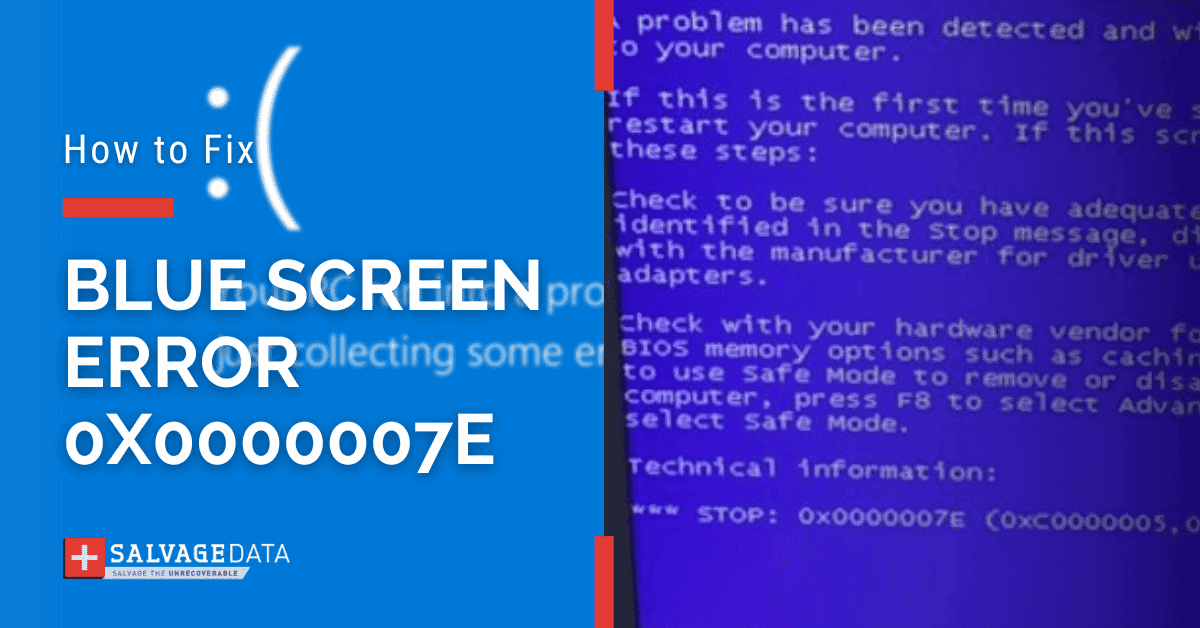

The 0x0000007E Blue Screen error, also known as the stop error 7E, is a type of Blue Screen of Death (BSOD) that often appears when your system is running normally or during the booting process.
This stop error can occur due to issues with your hard drive or while trying to access the system during boot-up. It rarely provides any information and causes a sudden shutdown or restarts the system by itself.
What is the stop error 0x0000007e
The error message SYSTEM_THREAD_EXCEPTION_NOT_HANDLED has the code 0x0000007e. It is a BSOD stop error code that occurs when the Windows operating system experiences a fatal system error. It happens suddenly and is shown as a blue screen with the code 0x0000007e written in white.

Causes of the stop error 0x0000007e
There are several causes for stop error 7E, but what puzzles users is that it appears without warning. You can be using your Windows computer just as you normally do, and it just freezes.
- The driver installation errors. A driver installation that goes wrong can lead to system instability.
- Outdated BIOS. An outdated BIOS (Basic Input/Output System) can cause compatibility issues and system instability.
- Drivers issues. Faulty, outdated, or incompatible drivers are a frequent cause of BSOD errors.
- Damaged hard drive. Physical damage or file system corruption can lead to this error.
- Full storage. Insufficient disk space can hinder system operations and trigger errors.
- Registry corruption. Corrupted registry entries can lead to system instability.
- Incompatible drivers. Newly installed drivers might not be compatible with your system.
- Audio/video adapter issues. Problems with your graphics card or sound card drivers can cause this error.
- Sudden Removal of USB video device. Disconnecting a USB video device while it's in use can sometimes trigger the error.
How to fix Blue Screen of Death 0x0000007e
Fortunately, 0x0000007e Blue Screen errors can be resolved, and you don’t need to be a computer expert.
Before proceeding with any of the solutions mentioned below, we suggest restarting your system first. This allows you to determine whether the 0x0000007e error is caused by a hardware problem or if it’s related to software instead.
If the 0x0000007e Blue Screen Error appears again after restarting your system, then try the following steps.
1. Free disk space
A full hard drive can contribute to system errors. Freeing up disk space can sometimes resolve the 0x0000007E error.
Disk Cleanup:
- Type "disk cleanup" in the Windows search box and select "Disk Cleanup."
- Select the drive you want to clean (usually C:) and click "OK."
- Check the boxes for the types of files you want to delete (e.g., "Temporary files," "Recycle Bin") and click "OK."
Uninstall unnecessary programs:
- Go to Settings > Apps > Apps & features.
- Uninstall any programs you no longer need.
Empty recycle bin:
Right-click the Recycle Bin icon on your desktop and select "Empty Recycle Bin."
Temporary files:
- Press Windows key + R, type %temp%
- Press Enter.
- Select all files and folders in the Temp folder and delete them.
2. Check your hard drive
You can look for any errors or bad sectors on the hard drive using the CHKDSK command to find any error on your disk.
1. Type cmd on the Windows search box, then choose to Run as Administrator.
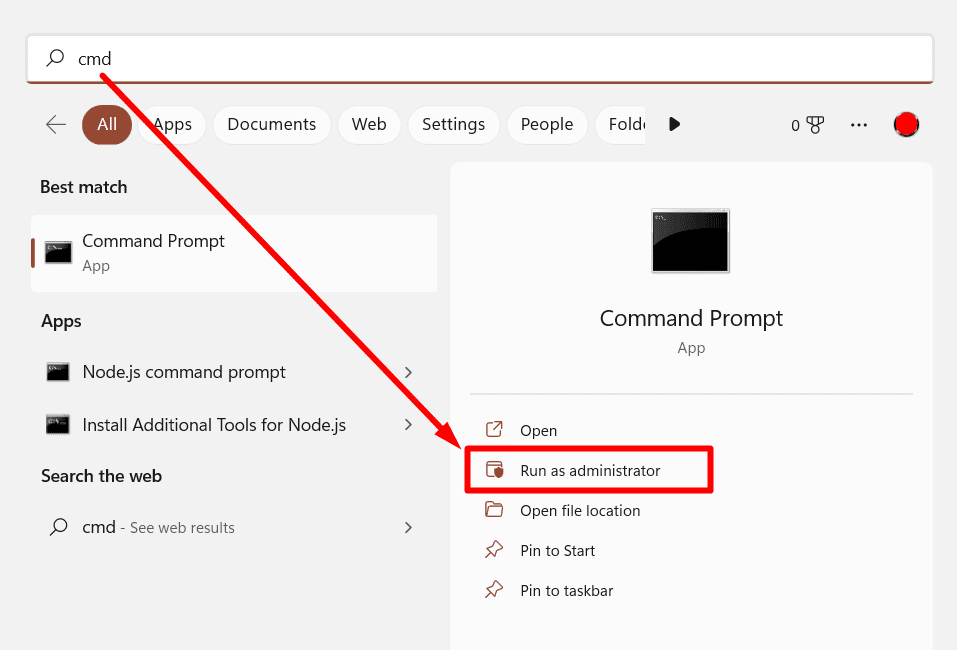
2. On the new window, type the chkdsk / f command and press Enter.
3. You may be prompted to schedule the scan for the next system restart. Type Y for yes and press Enter.
4. Restart your computer. CHKDSK will run during the startup process.
The command scans your computer disks and gives you a report. At the end of the report, you can see if there’s a problem with the hard drive.
If this is the case, contact your device’s manufacturer or a recovery specialist for further help.
You can also back up your computer to an external drive and replace the hard drive with a new one. Check our selection for the best 2025 internal hard drives to ensure your data security.
3. Update device drivers
Ensure all your device drivers are up-to-date, as this could help resolve 0x0000007E errors.
On your Windows 11 computer, go to Settings > Windows update > Search for Update to update a driver. There, you can see if there are any new updates for your computer’s drivers.
Or follow these steps:
1. Press the Windows key + X and select "Device Manager".

2. Expand each category (e.g., "Display adapters," "Network adapters") and right-click on each device.
3. Select "Update driver" and choose "Search automatically for drivers."
4. You can also check updates on the manufacturer’s web page.
4. Repair corrupted registry entries
Use a reliable registry cleaner to repair the 0x0000007e Blue Screen Error-related issues in the Windows Registry.
This is a useful tool if the issue occurs due to some fault in the Registry. To make it, you must restart your Windows computer in safe mode.
1. To do it, go to Settings > Update & Security > Recovery > Advanced Startup > Restart Now.
2. On the Options screen, follow the path: Troubleshoot > Advanced options > Startup Settings > Restart.
3. As soon as your computer starts, press F4 to start your PC in Safe Mode or F5 to start your PC in Safe Mode with access to the internet.
4. Press the Windows + R key and type regedit in the search box.

5. Type the registry key:
HKEY_LOCAL_MACHINE\SYSTEM\ControlSet001\Services\Intelppm
6. Right-click to select Modify and then type 4 as the value data. Hit OK.
7. Restart your computer.
5. Update BIOS
BIOS is responsible for initializing all devices on your computer. Updating it removes bugs, improves performance, and solves errors like the blue screen of death 0x0000007e. You can check if your computer has the most recent BIOS versions on the System Information tool.
Open Command Prompt as administrator and type:
wmic baseboard get the product, Manufacturer, version, serial number
With both information, go to your device’s manufacturer’s website and download the current version of BIOS. Run it to update the BIOS. Carefully follow the manufacturer's instructions for updating the BIOS.
Warning: Updating the BIOS is a risky procedure. A failed update can render your motherboard unusable. Only update the BIOS if necessary and follow the manufacturer's instructions precisely.
How to recover data lost due to stop error 0x0000007e
The stop error 7E can lead to data loss. The most important thing to do if you notice missing files is to stop using the computer immediately. Then, contact a professional data recovery service.
Don’t try to recover data on your own after the stop error 0x0000007e – Blue Screen of Death. SalvageData offers reliable recovery service and secure solutions for 0x0000007E BSOD-related data recovery needs. Our technicians are trained and experienced in providing complete solutions for both Windows and Mac systems, ranging from small home users to large corporate enterprises.