
Key takeaways:
- A persistent CRC error on the same device across reboots and machines is a physical failure signal, not a software glitch.
- CHKDSK can fix logical file system errors, but running it on a physically degraded drive adds write operations that may reduce your recovery odds.
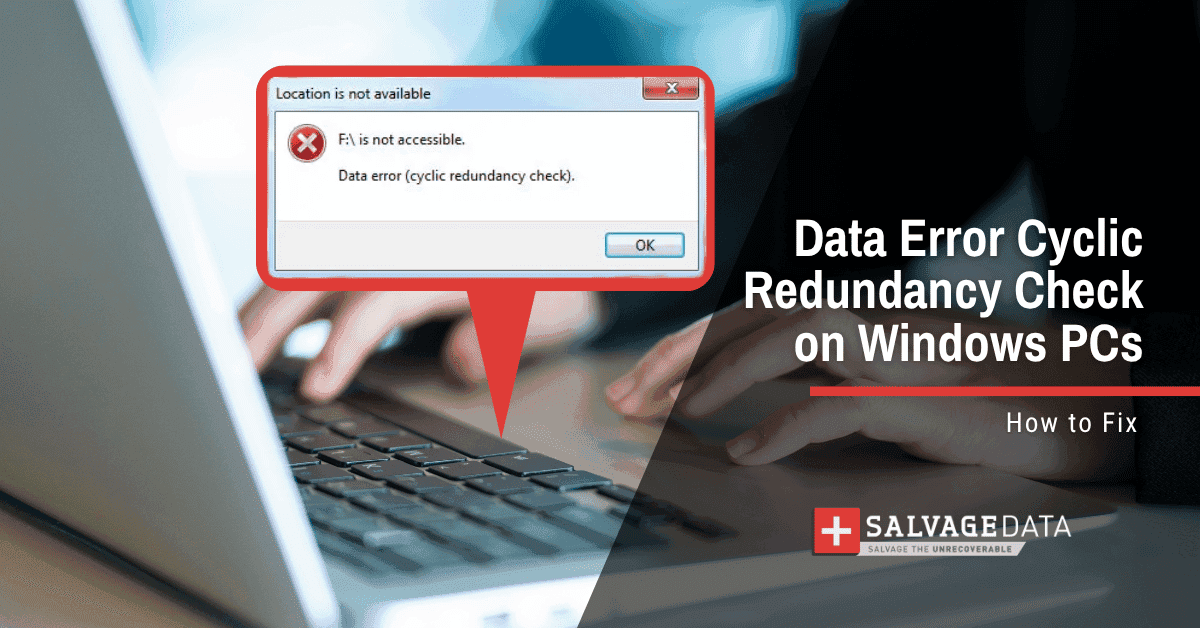
- Reformatting or initializing a drive with a CRC error erases the data structure and makes professional recovery significantly harder. If your screen shows "D:\ is not accessible. Data error (cyclic redundancy check)," your drive is telling you that something is wrong with the data it's trying to read. A "data error (cyclic redundancy check)" means your operating system read data from a drive, and the result didn't match the original data stored there. It can point to something as simple as a loose cable or as serious as a physically failing drive.
Before you run any fix, you need to know whether it's a logical error or a physical one. SalvageData's hard drive data recovery engineers see this error across every device type, from aging HDDs to brand-new external drives.
What is a cyclic redundancy check error?
A cyclic redundancy check (CRC) is a built-in error-detection mechanism that your operating system (OS) uses to verify data integrity when reading or writing files. When data is saved, the system runs a calculation on it and stores the result as a short fixed-length value called a checksum. When that file is read later, the system re-runs the same calculation. If the two checksums match, the data is intact. If they don't, you get the error.
The error message itself is Windows surfacing a mismatch. It is not a diagnosis of the cause.
How the CRC algorithm works
The checksum is generated by applying polynomial division to the raw binary data. The result is appended to the data block before it is written. When the data is read back, the same division is run on the retrieved data. A mismatch means the retrieved bits are not identical to the written bits within that block.
What the error message looks like on Windows
The most common form is a pop-up dialog: "D:\ is not accessible. Data error (cyclic redundancy check)." The drive letter varies. Users also encounter it as a message in Windows Explorer when trying to open a folder, as a CHKDSK output line, or as a SMART alert from drive-monitoring software.
Common causes of a CRC error by device type
CRC errors share a name but not a cause. The device type determines what is most likely failing and which response is safest.
| Device | Most common cause | Recommended first step | DIY safe? |
|---|---|---|---|
| HDD | Bad sectors or platter degradation; drive retries reads before surfacing the error | Check cables and port; listen for clicking or grinding sounds | Conditional |
| SSD | Controller failure or NAND cell degradation; no moving parts to diagnose audibly | Try on a second computer; do not run CHKDSK | Avoid DIY |
| External drive | Faulty cable or enclosure; bad sectors on internal HDD inside the enclosure | Swap cable first; try a different USB port and a second computer | Conditional |
| USB flash drive | Controller failure or flash cell wear; write endurance limit reached on older drives | Try on a second computer; do not attempt to reformat | Avoid DIY |
| Optical disc | Physical disc degradation: scratches, disc rot, or manufacturing defects | Inspect disc surface; software utilities cannot fix physical disc damage | No fix |
CRC error causes by device type. "Conditional" = CHKDSK is safe only if the drive responds normally with no unusual sounds or delays.
Hard drives and external drives
On a hard drive, a CRC error most commonly points to bad sectors on the platter. A bad sector is a storage area that the drive's read/write head cannot reliably access. As sectors degrade, the drive retries the read multiple times before reporting the error to the OS. You may notice that the drive takes an unusually long time to open folders or copy files before the error appears.
Physical shock, gradual platter wear, and firmware corruption are the primary causes. Understanding the common causes of hard drive failure helps identify whether the drive is approaching end-of-life or has suffered a one-time event.
On external drives, cable and enclosure issues add an extra layer of connection that can produce CRC errors independently of the drive itself. If you're seeing this error on an external, check the cable and port before assuming the drive is at fault.
SSDs and USB flash drives
SSDs and USB drives do not have moving parts, so bad sectors work differently. On flash-based storage, CRC errors typically indicate NAND cell degradation or a controller failure rather than a mechanical issue.
Optical media (CDs, DVDs, Blu-ray)
On optical discs, CRC errors are caused by physical degradation of the disc surface: scratches, disc rot (chemical breakdown of the reflective layer), or manufacturing defects. No software utility can repair a physically damaged disc. If the disc is scratched, professional disc polishing can sometimes restore readability. If it is disc rot, the data on that sector is gone.
What not to do when you see a CRC error
Do not reformat the drive. Reformatting creates a new file system and marks all existing data blocks as empty. The data itself may still be physically present on the drive, but the file system map that points to it has been destroyed. Professional recovery becomes significantly harder.
Do not initialize the disk. If Windows prompts "You need to format the disk in drive X: before you can use it," decline. Initializing wipes the partition table. Choosing to recover a corrupted external hard drive without formatting is the right path when the drive is not mechanically dead.
Do not open the drive enclosure. Hard drives require a certified cleanroom environment for any internal access. Airborne particles smaller than a micron can score the platter surface and destroy data that was still intact.
Do not run CHKDSK immediately if the error is persistent. CHKDSK writes to the drive during repair. On a drive that is already struggling to read, those additional write operations can overwrite sectors that a recovery engineer could have imaged first.
How to fix a data error cyclic redundancy check
Work through these steps in order. Stop as soon as the error resolves. If you reach Step 4 and the drive still shows the error after rebooting, assume a physical failure and proceed only if the drive is replaced.
Step 1: Reconnect and rule out cables and ports
Disconnect the drive completely, wait 10 seconds, and reconnect. If it is an external drive, swap the cable for a known-good one.
Try a different USB or SATA port. A surprising proportion of CRC errors on external drives resolve at this step, particularly on older USB 2.0 cables that have developed intermittent connections.
Step 2: Try the drive on a different computer
If the drive works on the second machine, focus troubleshooting on the original computer's ports, drivers, and power supply. If the error follows the drive to a second machine, the problem is the drive, not the host computer.
Step 3: Re-download or re-copy the file (network or file corruption only)
If the CRC error appears only when accessing a specific file, not the entire drive, the file itself may be corrupted. Delete it and re-download or re-copy from the source.
Step 4: Run CHKDSK (logical errors only)
Only run CHKDSK if the error is on a drive that responds normally (opens, is recognized by Windows, does not make unusual sounds). Do not run it on a drive that takes multiple minutes to be recognized, makes clicking or grinding sounds, or shows signs of physical damage.
To run CHKDSK:
- Open Command Prompt as Administrator.
- Type
chkdsk X: /f /r(replace X with your drive letter) and press Enter. - If the drive is your system drive, Windows will schedule the scan for the next reboot.
- When the scan completes, type
exitand press Enter.
CHKDSK /f fixes file system errors. CHKDSK /r attempts to recover bad sectors.
Step 5: Run SFC for Windows system file corruption
If the CRC error is occurring on Windows system files or appears during boot rather than when accessing a specific drive, run the System File Checker:
- Open Command Prompt as Administrator.
- Type
sfc /scannowand press Enter. - Wait for the scan to complete, then restart your computer.
CRC errors on SSDs and USB drives
SSDs and USB flash drives require a different diagnostic approach because their failure modes differ fundamentally from those of spinning drives.
SalvageData technicians explain that CRC errors on solid-state drives often indicate controller failure or NAND cell degradation. Running CHKDSK on a controller-failed SSD may return a clean result even as the underlying hardware continues to fail.
When you need professional recovery
If the drive shows any of the following, stop all attempts to fix it and contact a data recovery service.
- The CRC error persists after cable swaps, port changes, and a reboot on a second computer.
- The drive makes clicking, grinding, or beeping sounds.
- The drive takes more than 30 seconds for Windows to recognize it.
- CHKDSK runs, but the drive becomes inaccessible again within days.
- SMART monitoring software reports reallocated sectors, pending sectors, or uncorrectable errors alongside the CRC error.
- The drive was dropped, exposed to liquid, or experienced a power surge before the error appeared.
The critical distinction is between a transient CRC error (resolved by reconnecting or re-downloading) and a persistent CRC error (follows the drive across machines and reboots).
How to prevent CRC errors
Back up regularly. A CRC error on a backed-up drive is an inconvenience. The same error on an unbacked drive is a data loss event. Follow the 3-2-1 rule: three copies, two different media types, one offsite or cloud location.
Eject drives safely. Removing a drive while data is still being written, without ejecting it safely first, can corrupt the file system and trigger CRC errors on the next access.
Monitor drive health with SMART. Free tools like CrystalDiskInfo (Windows) or smartmontools (macOS/Linux) surface reallocated sector counts and read error rates before a drive fails completely.
Replace aging drives proactively. Most HDDs have a rated lifespan of 3–5 years under normal use.
What to do next
A data error (cyclic redundancy check) is not always an emergency, but it is always a signal worth taking seriously. Logical errors caught early are fixable. Physical failures escalate fast, and the steps you take in the first hour determine what a recovery engineer can work with.
If the error persists across cables, ports, and machines, stop troubleshooting and get a professional assessment before the situation changes. SalvageData offers free diagnostics with no-data-no-charge: if the drive isn't recoverable, you owe nothing. Contact SalvageData experts 24/7 before running another scan.