
Boot device not found is a Windows error that appears when the computer's BIOS or UEFI firmware searches for a drive to start Windows from and cannot find one. Most cases can be fixed in a few minutes using the BIOS and repair steps below.
If the drive does not show up in BIOS at all, stop and read the section on physical failure before trying anything else, since further attempts can make laptop or computer data recovery harder later.
What causes the "boot device not found" error
Several distinct issues can break the connection to your startup drive, ranging from minor settings tweaks to hardware failures.
While software issues like BIOS misconfigurations and corrupted boot records are easy to fix, physical drive failure requires immediate caution to prevent permanent data loss.
Wrong boot order
A wrong boot order happens when the computer's firmware, BIOS on older systems and UEFI on most recent computers, tries to start from a USB stick or a second drive before your main drive.
This can happen on desktops and some laptops with more than one storage slot. Adding a second hard drive or SSD for extra storage can push the original boot drive down the list, even if you didn't mean to change a setting. An external USB drive left plugged in at startup can cause the same problem.
Loose or damaged cable
A loose SATA or power cable can disconnect just enough to hide the drive from BIOS, especially after moving the computer or opening the case. The cable does not have to fall out completely. Even a partial connection can prevent the BIOS from detecting the drive, even though the drive itself is fine.
This is one of the easier causes to rule out, since it only takes reopening the case and checking both ends of the cable.
Corrupted Master Boot Record
The Master Boot Record (MBR) is a small set of startup instructions stored at the very start of the drive. A bad shutdown, malware, or a failed update can corrupt it. When the MBR is damaged, the firmware can still see the drive but can't find instructions to start Windows, so it reports the drive as missing even though it's still connected and the files on it are often untouched.
Inactive system partition
Less often, someone may accidentally set the Windows system partition to inactive, which also stops the boot process. This can happen after using a partition manager or repair tool and skipping a confirmation step, or after installing a second operating system that changes which partition is marked active.
Failing hard drive
If none of these causes apply, the drive itself may be failing. Hard drives wear out over time from normal use, and common causes of hard drive failure (like worn components or developing bad sectors) can make a drive drop in and out of the BIOS, respond to commands incorrectly, or stop answering altogether, which looks the same to the computer as having no boot device at all.
This cause is riskier than the others. Running a software fix like chkdsk or the bootrec commands assumes the drive’s hardware is working and only a setting or a file needs repair.
Important: On a physically failing drive, those same commands can push it past the point where the data can be recovered, since they write changes to a drive that may already be damaged. That calls for a different approach: stop using the drive and have a hard drive data recovery professional look at it.
What's the difference between "Boot device not found" and "No bootable device"?
"Boot device not found" and "no bootable device" point to the same basic problem, just worded differently by different computer makers.
- "Boot device not found" usually means the firmware cannot find any device to boot from at all.
- "No bootable device" more often means the firmware found a device, but it doesn't have a working operating system.
In practice, the fixes below work for both. The differences matter more for matching your exact screen to the right manufacturer, covered next.
Common error message variants and what they mean
The exact wording on your screen can help point to the cause, especially on certain computer brands. Here is what some of the most common variants mean and where to start:
| Exact message | Brand/variant | First recommended check |
| "No Boot Device Found" | Dell | Press F2 at startup to enter BIOS, confirm the hard drive is first in boot order, and set Boot Mode to UEFI |
| "No Boot Device Found" (after switching to Legacy mode) | Dell (newer models) | These models only boot in UEFI mode. Toggling the BIOS setting back and forth does not fix a mismatch. If the machine still supports Legacy mode, switching back to Legacy restores boot. If not (most newer Dell models drop Legacy support entirely), Windows must be reinstalled fresh under UEFI |
| "No Boot Device Found" / "A Bootable Device Has Not Been Detected" | Asus | Check the Boot Drive Order in BIOS. A blank or missing drive in that list usually means a loose M.2 screw or slot shift, a disconnected drive, or a failed drive, so reseat the SSD before assuming the worst |
| "Boot Device Not Found, Please install an operating system on your hard disk" (often called the 3F0 error) | HP | Same first checks apply: BIOS boot order, then cable or drive connection. If those check out, also try resetting BIOS to default settings (F10, then Load Setup Defaults) and toggling Secure Boot, since a drive update or OS change can leave a BIOS entry corrupted |
How to fix "boot device not found"
Most "boot device not found" cases can be fixed by checking the drive's connection, checking BIOS settings, and repairing the boot files. Try each step below before assuming the drive has failed.
Warning: If you hear any unusual sounds from the hard drive, such as grinding or clicking, stop any repair attempt immediately.
1. Check the hard drive connection
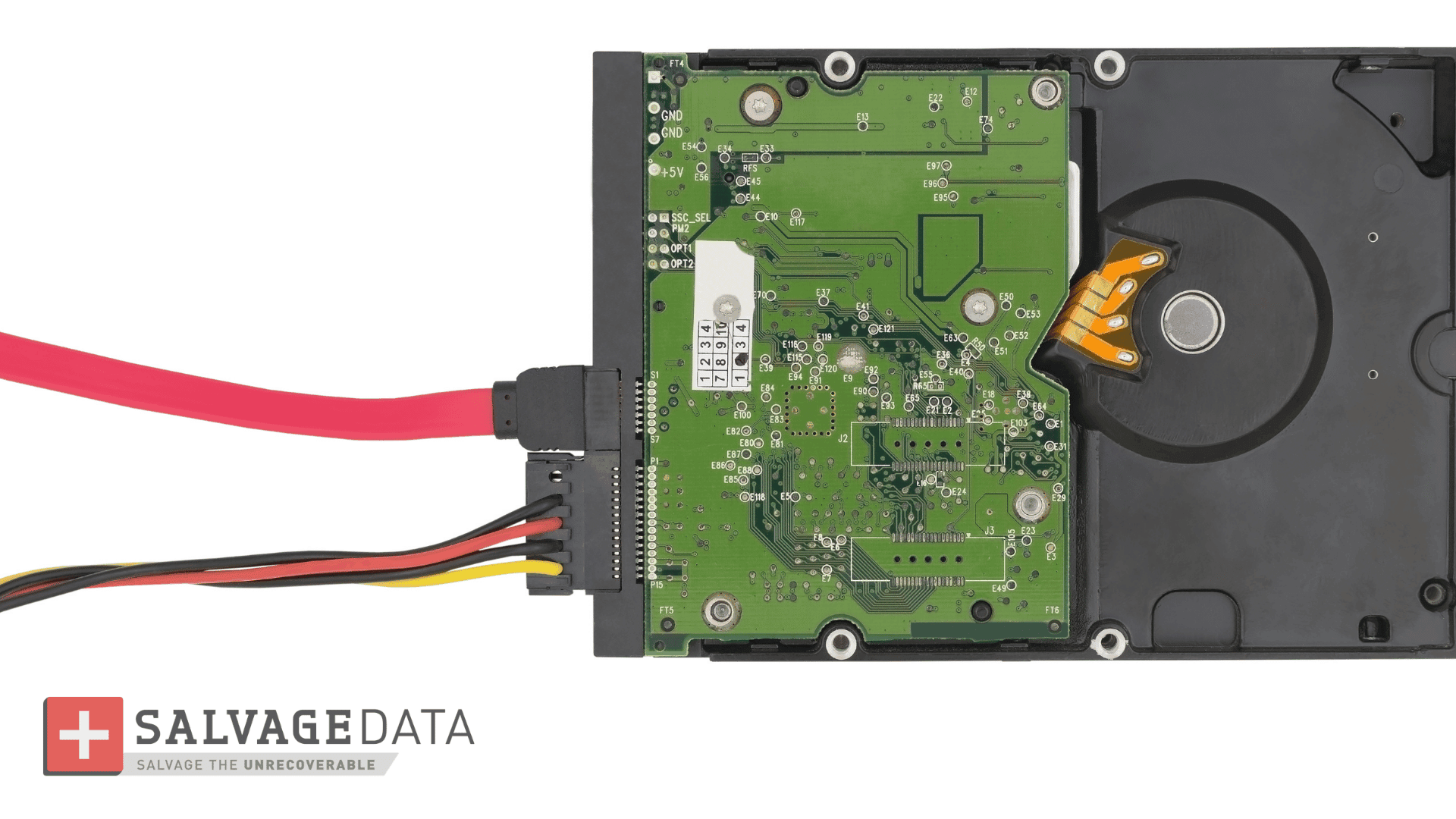
If the BIOS cannot find the drive, the easiest and fastest fix is to check for a loose connection.
On a desktop, power off the computer, open the case, and confirm the SATA and power cables are fully seated.
On a laptop, this means opening the case to access the drive bay. Our guide on a laptop hard drive that won't boot covers that process in more detail, since laptops vary more by model.
2. Check BIOS boot order and settings
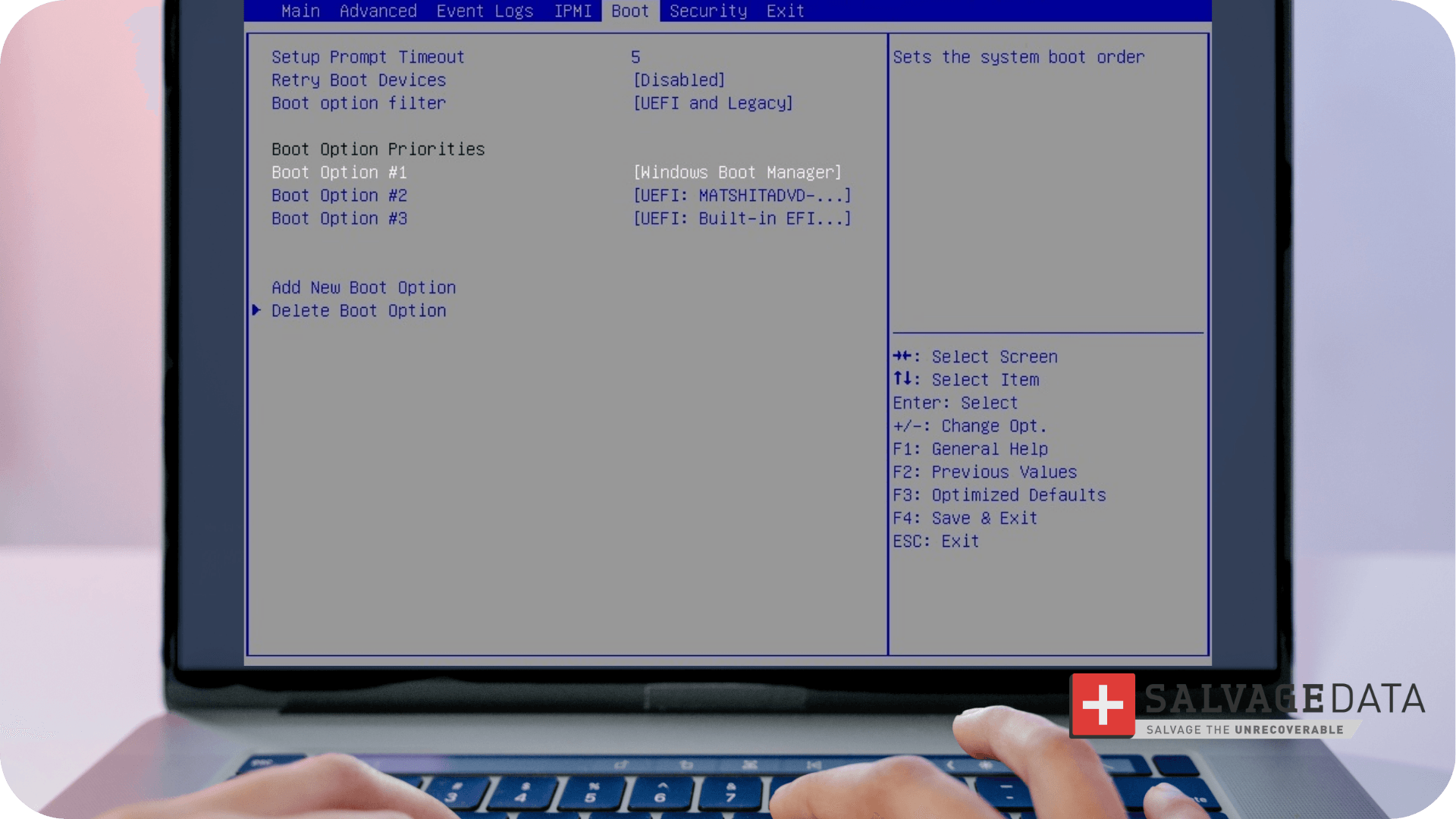
Restart the computer and press the BIOS setup key. This is often F2, F10, F12, Esc, or Del, and it varies by computer brand. Once inside, find the Boot Order or Boot Priority menu and make sure your main hard drive or SSD is listed first.
If the system uses UEFI, also check that Secure Boot is set the way it was when Windows was first installed, since switching it can block the boot process.
Save your changes and restart.
3. Repair the Master Boot Record and boot files
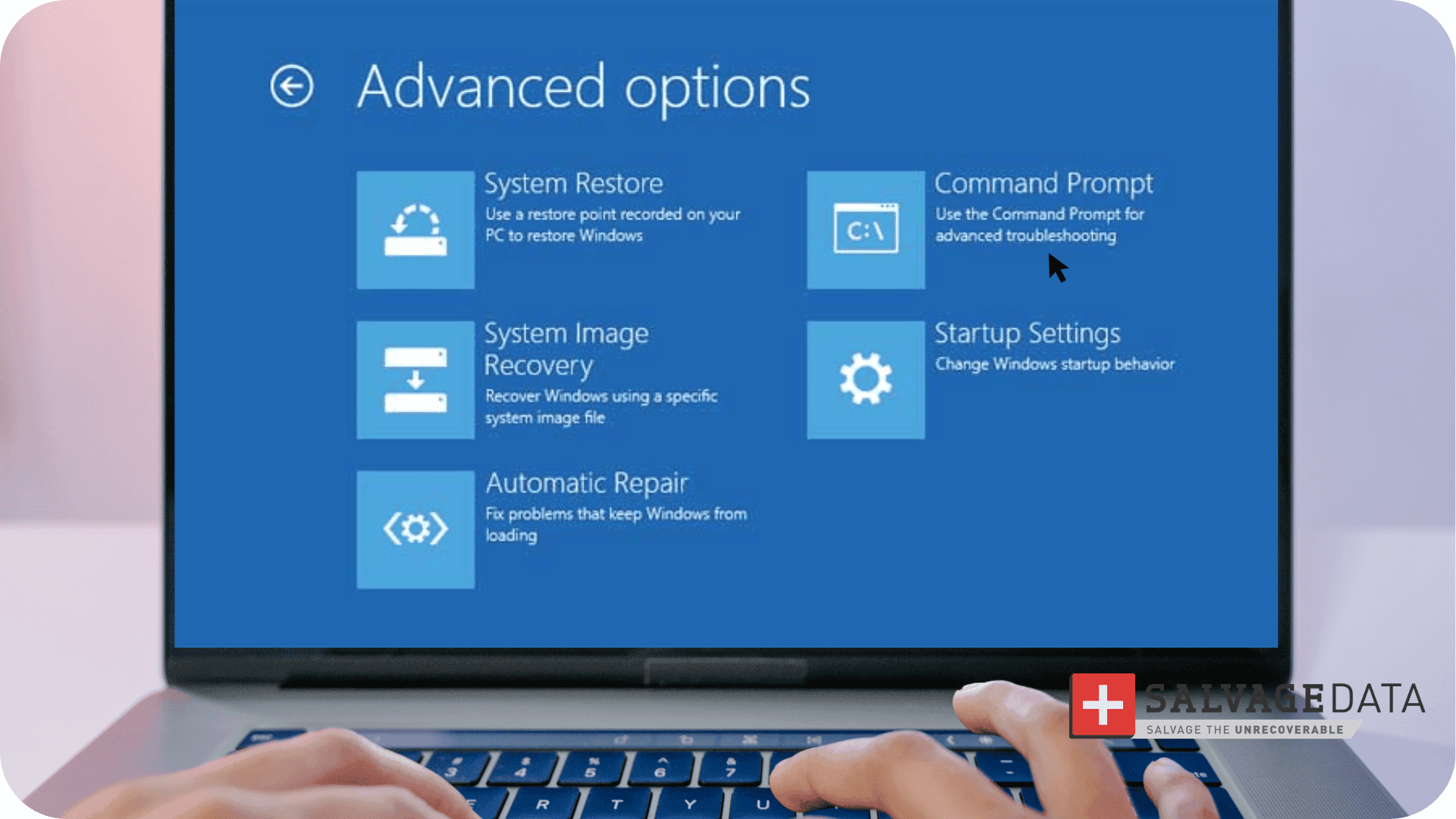
If the boot order already looks correct, the Master Boot Record (MBR) may be damaged.
To fix it, boot from Windows installation media, choose Repair your computer, then open Command Prompt from the Troubleshoot menu. Type each of these commands, pressing Enter after each one:
bootrec /fixmbrbootrec /fixbootbootrec /scanosbootrec /rebuildbcd
If bootrec /fixboot returns an access denied error, that has its own fix. Our guide on bootrec /fixboot access denied errors walks through it step by step.
Warning: Running chkdsk can help fix file system errors, but only if the drive is not physically failing. If the drive clicks, grinds, overheats, or doesn't show up consistently, skip this step.
If your drive does any of that, the next section explains what it means and what to do.
What to do when the drive doesn't show up in BIOS at all
According to Michael Galloway, an HDD Recovery Engineer at SalvageData, the fastest way to tell a software problem from a hardware one is simple: if the drive shows up in BIOS at all (even with errors), it’s more likely fixable with software. If it doesn’t show up at all, that usually points to a failed drive or a motherboard problem. This matches signs that your hard drive is starting to fail, like clicking noises or the drive disappearing and reappearing in BIOS. If any of those apply, power down and have a professional look at it, and check your warranty before opening the case.
Not every boot problem is “boot device not found,” either. Reboot and select proper boot device appears when BIOS finds a device but can’t use it correctly as a boot medium, while inaccessible boot device is a Windows blue screen error that needs its own fix.