
Key takeaways:
- Clicking, grinding, or repeated beeping can indicate physical drive failure. Power the drive off until it has been evaluated.
- Diagnosing the cause of the failure before attempting repairs or software recovery helps avoid unnecessary risks.
- Some failures can be resolved through logical recovery techniques, while others require specialized hardware or internal repairs performed in a cleanroom environment.
Data can often be recovered from a dead hard drive, even when it no longer powers on, spins normally, or is recognized by a computer. Whether data recovery is possible depends on the type and extent of the failure. Problems such as accidental formatting or file system corruption generally have higher recovery success rates than drives with severe physical damage, but every case requires individual evaluation before the chances of recovery can be determined.
Note: This guide focuses on traditional magnetic hard disk drives (HDDs). Solid-state drives (SSDs) fail differently and often require different recovery techniques due to wear leveling, TRIM, and flash memory architecture.
What causes a hard drive to die?
A hard drive typically dies from one of four causes: mechanical failure, firmware corruption, electrical failure, or logical damage. Each requires a different recovery approach, and misdiagnosing the cause is the fastest way to turn a recoverable drive into an unrecoverable one.
Physical and mechanical damage
Mechanical failure happens when the drive's moving parts break down. This includes head crashes, motor failure, damage from drops, or scratches on the platters.
Mechanical failures involve the moving components inside the drive, including the read/write heads, spindle motor, bearings, or platters. Some drives produce clicking, grinding, or beeping noises when these components fail, while others fail silently without any unusual sounds. Because the symptoms vary, the noise alone isn't enough to identify the exact problem.
According to Michael Galloway, HDD Recovery Engineer at SalvageData, the first step in any suspected mechanical failure is determining exactly where the damage occurs. In the lab, the engineer will "check to see if the platters are damaged or if the heads are damaged," Galloway explains. That single distinction determines whether a technician reaches for donor parts, a firmware repair, or a full cleanroom teardown.
Firmware corruption
Firmware is the low-level software that allows the drive's controller to communicate with its internal components and organize how data is accessed. Corruption within firmware modules can prevent a drive from initializing correctly, cause it to report the wrong capacity, or prevent it from being detected altogether.
Recovering firmware-related failures depends heavily on the drive model and the specific corruption involved. Some firmware modules can be rebuilt or repaired using specialized recovery tools, while others contain drive-specific calibration information that cannot simply be copied from another drive.
Electrical failure
Electrical failures typically involve the printed circuit board (PCB) or its supporting components. Power surges, failed voltage protection components, or damaged controller chips can all prevent a drive from powering up.
Replacing the PCB alone is rarely sufficient on modern hard drives because important calibration information is often stored in ROM or other drive-specific memory. Recovery usually requires transferring or rebuilding this information before the replacement board can function correctly.
Logical damage
Logical damage means the drive's hardware is fine, but the data structure on top of it is corrupted. File system corruption, accidental formatting, and software errors all fall into this category. The data itself typically remains intact on the platters, even though the operating system can't read it.
This is also where data recovery software can sometimes help, though only for logical issues, never for drives showing physical symptoms.
| Failure Type | Typical Symptoms | DIY-Safe? | Recovery Approach |
| Mechanical | Clicking, grinding, drive not spinning | Not safe | Cleanroom repair |
| Firmware | Drive not detected, wrong capacity shown | Not safe | Firmware repair or donor parts |
| Electrical | No power, no sound at all | Not safe | PCB diagnosis and repair |
| Logical | Drive spins normally but files missing or corrupted | Limited DIY possible | File system scan or software recovery |
But knowing the category is only half the picture. The next question is what your specific drive is telling you right now, and that comes down to the symptoms.
Signs your hard drive is failing
The clearest signs of a failing hard drive are unusual noises (clicking, grinding, or beeping), the drive disappearing from the BIOS, and a total lack of spin-up sound.
Galloway notes that errors transferring data, freezing when opening files, and slower than usual boot times are the most commonly overlooked early indicators, the kind of thing people write off as "the computer is just old" until the drive fails completely.
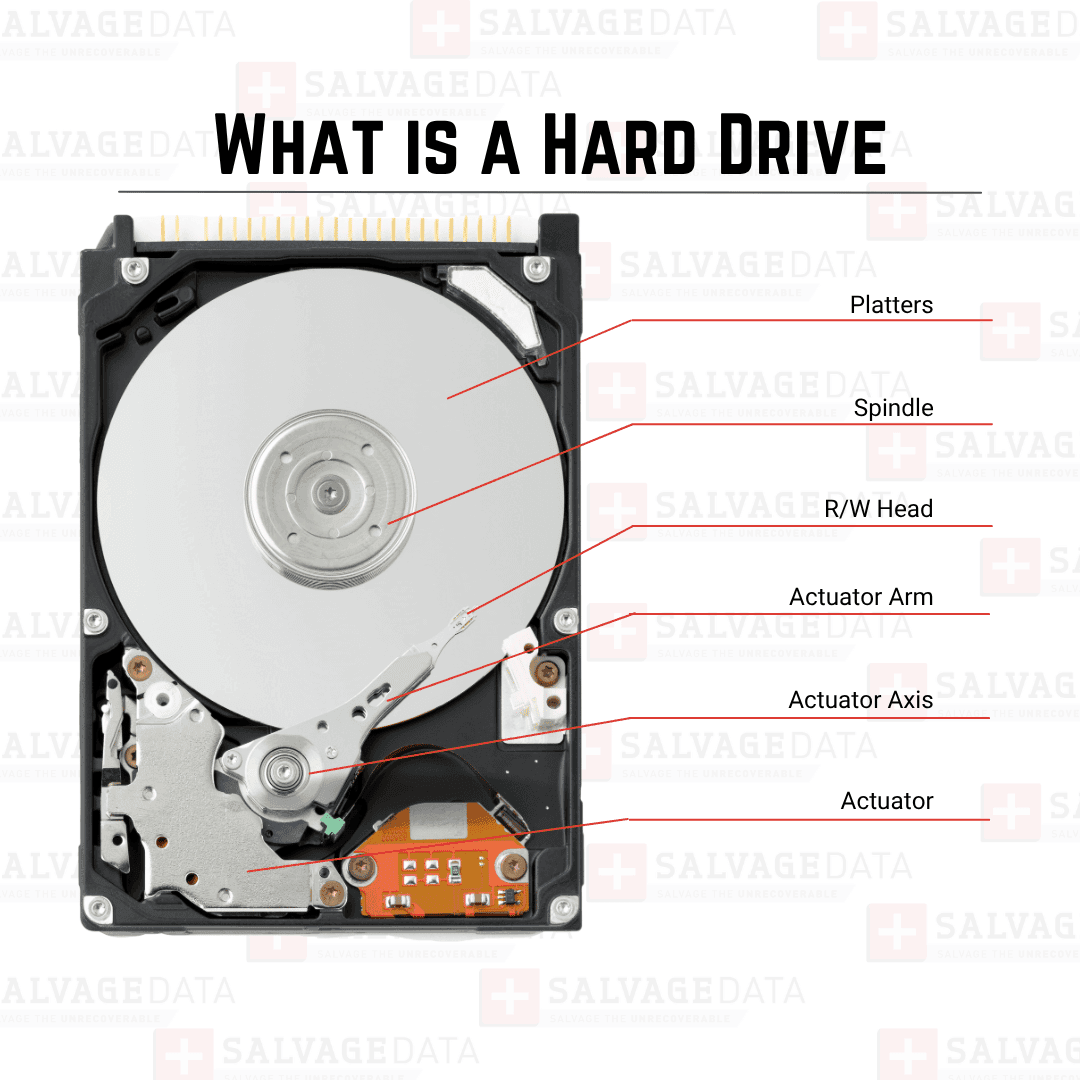
A clicking or grinding noise specifically means the read/write heads may be scraping against the platters. This is one of the most urgent symptoms in data recovery. As Galloway puts it: "Heads could be grinding against the platters, causing scratches or rings. Clicking heads could be caused by a bad PCB or worn-out heads from a degraded surface." His guidance is direct: "Always turn off the HDD when the drive is clicking or grinding. Always send it to a professional instead of trying DIY."
A beeping drive usually indicates a seized spindle motor or a head stack assembly stuck against the platter surface. Total silence, meanwhile, means the drive isn't spinning at all, which can point to either a dead motor or a PCB that isn't delivering power.
Every second a clicking, grinding, or beeping drive stays powered on raises the risk of permanent data loss. Here's what happens once that drive reaches a professional lab.
The professional data recovery process
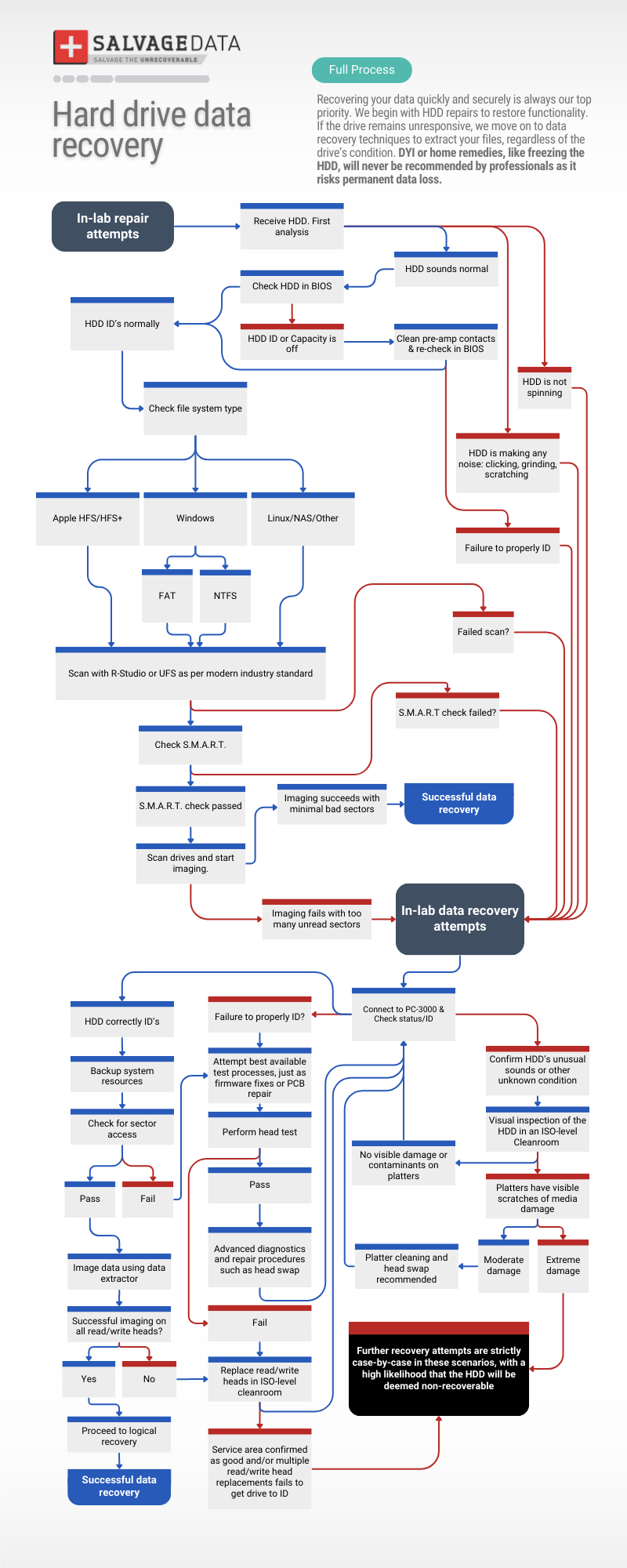
Professional hard drive recovery follows a structured, multi-stage workflow: diagnosis, file system identification, scanning, imaging, and, when needed, in-lab repair.
This process exists because opening a failing drive or reading directly from it carries real risk, and skipping steps tends to cost data rather than save time.
Initial diagnosis
Technicians start with a client consultation, like an anamnesis, covering the drive's history: recent crashes, drops, or unusual sounds.
Then comes visual inspection for scratches, dents, burn marks on the PCB, or liquid exposure, followed by sound diagnostics.
The next step is BIOS detection. A drive that appears in BIOS with the correct model and capacity presents a different set of possibilities than one reporting an incorrect size, an unexpected model name, or not appearing at all. Each behavior points technicians toward different hardware or firmware issues.
Learn what to do if your hard drive isn't detected at all in our comprehensive guide.
File system identification
Once a drive shows some functionality, technicians identify its file system: NTFS or ExFAT for Windows, APFS or HFS+ for Mac, and ext3/ext4/XFS for Linux and NAS systems. Recovery software and techniques both depend on getting this match right.
Scanning and S.M.A.R.T. diagnostics
With the file system confirmed, technicians run industry-standard tools such as R-Studio, PC-3000, and UFS Explorer to scan the drive sector by sector, mapping readable areas, bad sectors, and recoverable file structures.
Technicians also review the drive's SMART (Self-Monitoring, Analysis and Reporting Technology) data when it's available. Although SMART can reveal developing hardware problems, it isn't a reliable predictor of every failure, and many drives fail without reporting critical SMART warnings. For that reason, SMART data is considered alongside other diagnostic findings rather than in isolation.
Drive imaging
Before attempting file recovery, technicians usually create a sector-by-sector image of the original drive whenever the hardware condition allows.
Unlike copying files through the operating system, sector imaging captures readable sectors directly from the storage media, including data that may no longer appear in the file system.
Recovery work is performed on the image rather than the original drive whenever possible, reducing unnecessary stress on failing hardware and allowing multiple recovery attempts without repeated access to the damaged disk.
Advanced in-lab and cleanroom recovery
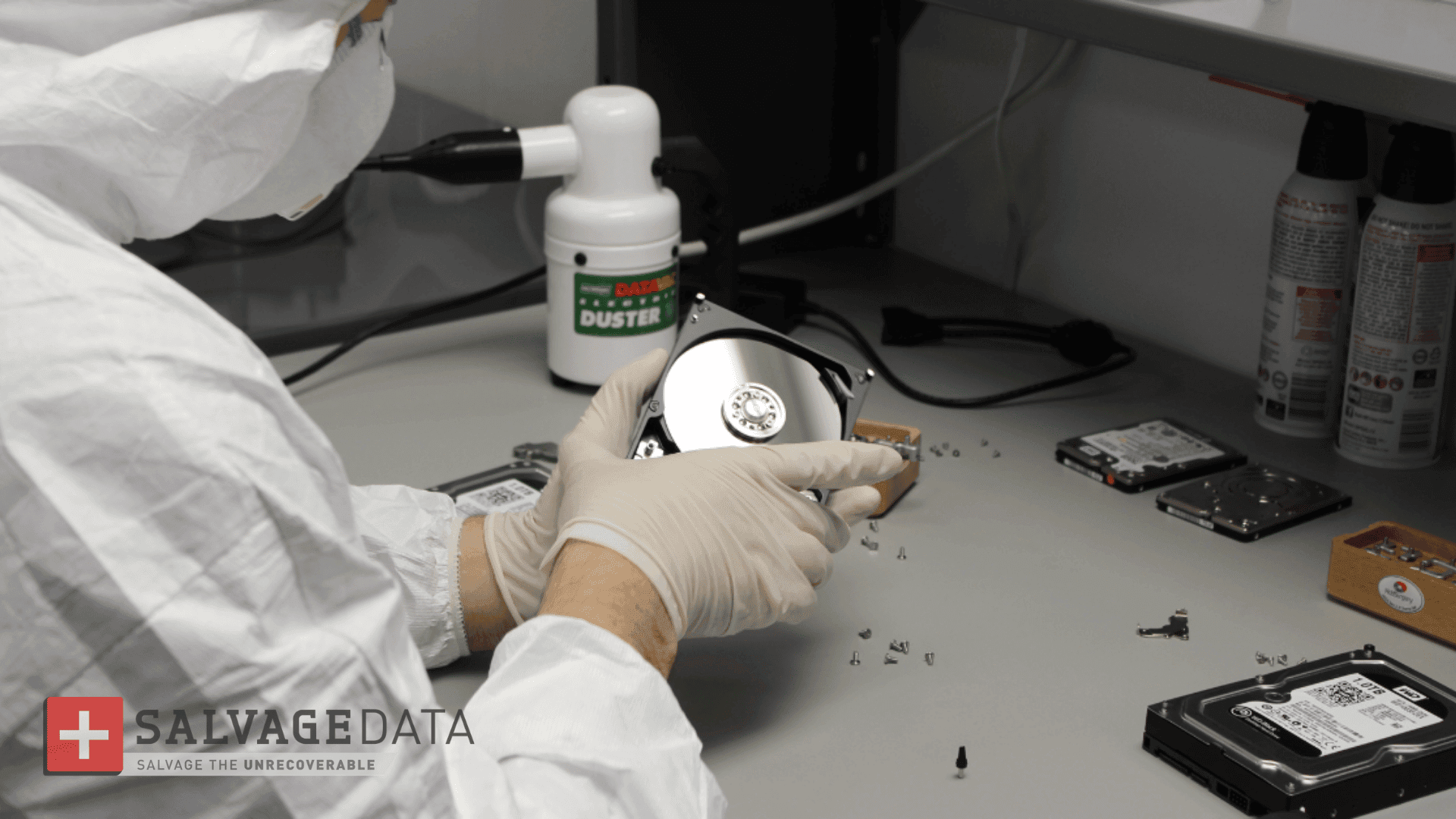
When a drive has a physical problem inside, such as a damaged head or a stuck component, it has to be opened, and that can only be done safely in an ISO-certified cleanroom. A cleanroom keeps airborne dust to near zero, because a single particle landing on a spinning platter can scratch it and permanently destroy the data on that section.
For firmware-level issues, technicians use a PC-3000 hardware tool that connects directly to the drive's electronics to diagnose and repair the corrupted firmware, often restoring enough function to copy the data off.
 When is a hard drive’s data non-recoverable?
A hard drive is typically declared non-recoverable only after repeated failed attempts to get it to identify, or when physical damage to the platters is too severe to reverse.
Every drive is still evaluated on a case-by-case basis before that call is made.
Severe physical damage includes shattered platters from a major impact, platters that warped or demagnetized from fire, and long-term water submersion that caused corrosion.
Deep scratches that scraped away the magnetic surface fall into this category too, though partial recovery with some data corruption is sometimes still possible.
Technical roadblocks can make an otherwise healthy drive unrecoverable as well: a lost password with no unlock method, data that's already been overwritten, or a drive that has simply reached the end of its usable lifespan.
This is why choosing a provider with a no data, no charge guarantee matters. It means every reasonable attempt is made, often with input from an internal R&D team on emerging recovery methods, without risking payment for a recovery that didn't happen.
What not to do after a hard drive fails
The most damaging thing you can do after a hard drive fails is keep using it, whether that means repeated reboots, running disk utilities, or trying recovery software.
Specifically, avoid the following:
- Don't keep the drive connected and try to read from it repeatedly. Continued access on a mechanically failing drive increases the risk of further head or platter damage.
- Don't attempt to "fix" a clicking or grinding drive yourself. Opening it outside a cleanroom introduces dust that can permanently scratch the platters.
- Don't save recovered files back onto the same drive. This is one of the most common mistakes technicians see. Saving recovered data onto the same device being recovered can overwrite the very files you're trying to save.
- Don't run CHKDSK or similar repair utilities on a drive with physical symptoms. These tools can attempt writes to a failing drive, which risks further data loss.
If the drive is logically damaged rather than physically failing, and you're not seeing clicking, grinding, or beeping, cautious use of recovery software may be appropriate. But once physical symptoms appear, professional evaluation is the safer path every time.