
I dropped my external hard drive once, and the sound of the device hitting the floor still haunts me. Your heart skips a beat as you helplessly watch it fall like you were a detached witness to an accident.
The harsh truth is that even if a dropped hard drive turns back on, it doesn’t mean it’s working properly, as the damage might be happening internally. The damage might not be detected at first, and in the worst-case scenario, it will eventually fail on you without warning (likely just when you’re about to save a long spreadsheet you’ve been working on for hours). Therefore, turning on a dropped hard drive is not recommended, as it can cause further damage.
So, how can you know the extent of damage to a dropped hard drive and what to do to avoid making it worse? Here’s how to save your data from a dropped hard drive (external or internal).
Will dropping a hard drive damage it?
Yes, dropping a hard drive will most likely damage it and even cause the HDD to fail.
Even if it fell from a short distance onto the fluffiest surface, whether it’s an internal or external HDD, and there was no visible exterior physical damage, internal components might have been dislodged.
That’s because of how hard drives are made and how they work to save data. When you want to save a file on your hard drive, the read/write head writes the file onto the platter in a series of tiny magnetic pulses. To read a file, the head reads the magnetic pulses off the platter.
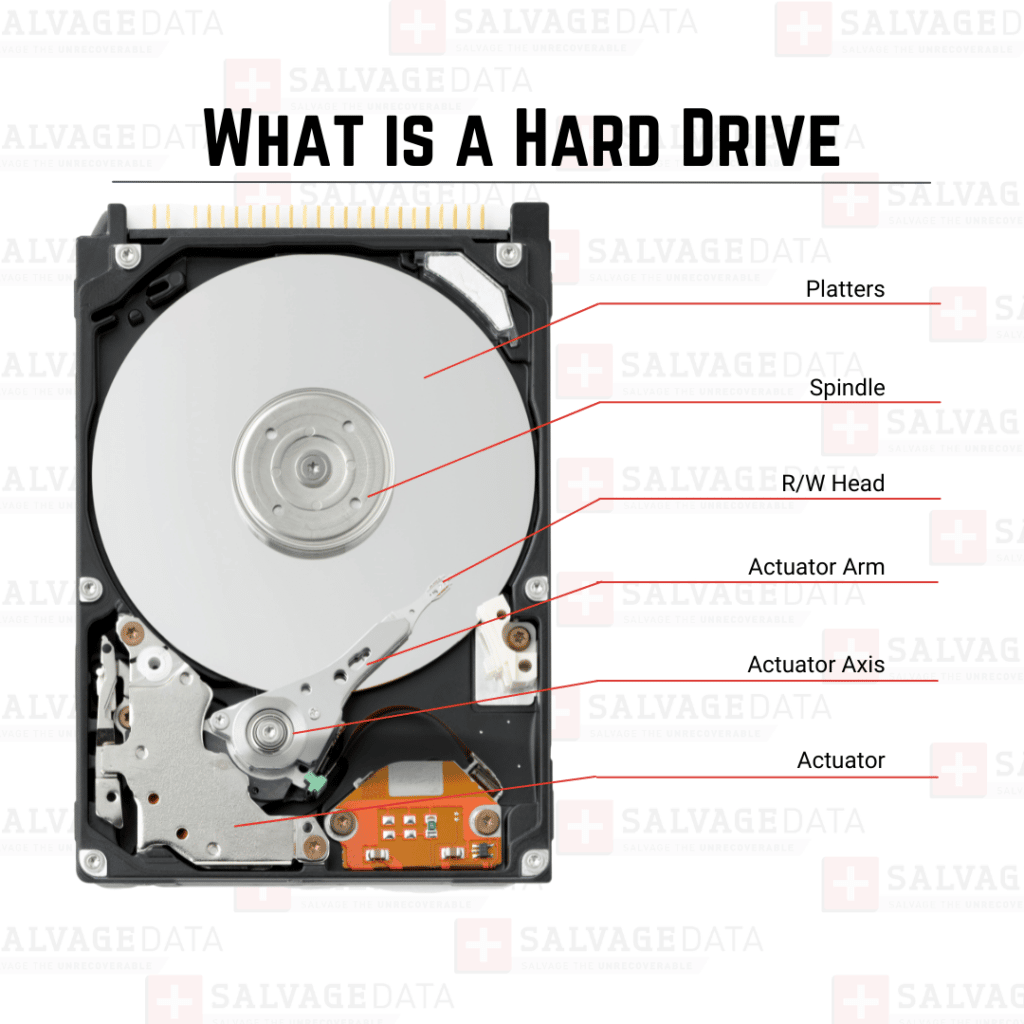
In a fall, the platter can scratch or crack, the actuator arm can move, and the read/write head can break without any sign on the exterior. However, a dropped external hard drive will “tell you” it got damaged. It will make unusual sounds, like beeping, clicking, or whirring. Or it won’t boot, show error messages, won’t access files, and then start crashing without notice.
What to do after dropping an external hard drive?
Ideally, if your external hard drive falls by accident, the best advice is to avoid moving it around, not turn it on, and leave it to professionals. Hard drives are delicate devices, so powering them back on might cause more damage.
Turning on a dropped external hard drive will prompt its head to read the data. If the read/write head or its actuator arm got misplaced, stuck, or bent during the accident, it might touch and scratch the platter, causing any data to be unrecoverable.

But powering it up is not as bad as opening the dropped hard drive to fix it. Even if you know your way around an HD's internal structure, you need a controlled environment to ensure that not even a speck of dust gets in. That’s why SalvageData has a certified full-size cleanroom, where our lab engineers recover data from damaged or faulty hard drives.
So, as tempting as it might be if you value the integrity of your data and device, leave it powered off. Do not try to open the dropped hard drive yourself; instead, get a professional to evaluate it first.
But if it’s too late to exercise caution, you can at least try to assess the extent of the damage based on the noise it’s making.
Also, watch out for warning signs, like repeated crashes and reboots or an unresponsive and unusually slow system. If you notice missing files (either deleted or moved), it will be a matter of time before your dropped hard drive crashes permanently.
Important: If you were able to reboot the hard drive that was dropped and access your files, then quickly back up your data (start with the most important ones).
How to diagnose a dropped hard drive when you hear unusual noises
If you turn it on, a dropped hard drive will hint at what’s wrong with it. The moving parts (platter and spindle) make a familiar voice when spinning to access data tracks.
A problem can be detected when the HDD makes a different sound, showing the system is struggling to perform:
Clicking
A repeated loud clicking means some physical obstruction preventing proper functioning. If insisted, the damage can be irreversible.
The spindle (read/write head) parks at different points depending on the HD model but never touches the magnetic field (it should hover above it). Only a certified hard drive data recovery can ensure proper alignment and parts replacement if needed.
Whirring or grinding
That’s the sound of a red flag, and your dropped hard drive is at serious risk of permanent data loss. This is past the point of the clicking sound, meaning that the spindle is scratching the platter surface.
In this case, the drop's impact was severe, so the best way to save your data is to turn it off immediately. Contact a data recovery company and report the whirring sound so the engineers can examine what’s left to retrieve.
Beeping
The beeping sound indicates another mechanical obstruction, but an electronic failure causes it. The drop most likely affected the power supply to the spindle motor.
This sound usually occurs when an external hard drive is dropped while the device is still plugged into and connected to its cable. If the spindle motor is not stuck, the USB cable and/or port are most likely damaged.
How do I recover or repair a dropped hard drive?
If you’ve dropped a hard drive, the best course of action is to immediately contact a professional for a free data recovery evaluation, as they have specialized tools and cleanroom environments to safely recover your data. It's important to avoid opening the drive yourself or other DIY methods to prevent further damage.