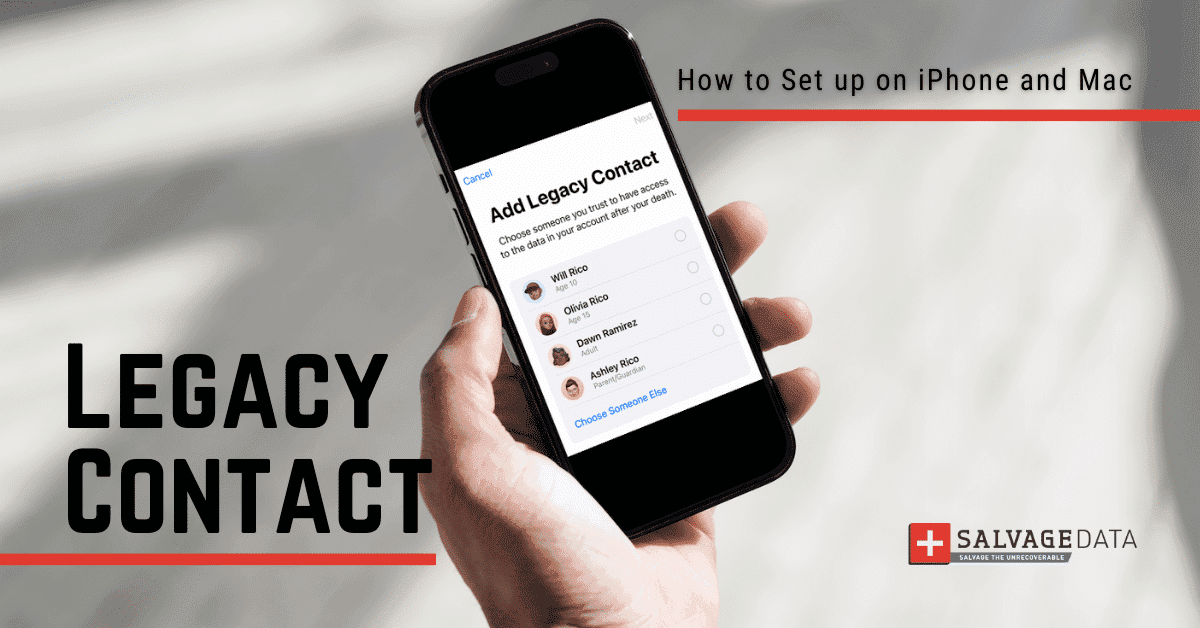

With the introduction of the Legacy Contact feature in iOS 15.2 and macOS 12.1, Apple has made it easier for users to designate someone they trust to manage their digital legacy. This means that if something happens to you, someone you have appointed previously can have access to all the information you have on your iPhone.
This guide will walk you through the process of assigning a Legacy Contact for your Apple ID, ensuring a secure and controlled transition of your digital assets.
Pro tip: Remember, the Legacy Contact feature is designed to respect your privacy and offer a secure way to pass on your digital legacy. Take the time to designate someone you trust and ensure your digital assets are handled according to your wishes.
What is the Apple Legacy Contact?
A Legacy Contact for your Apple ID is a person you designate to have access to the data stored in your Apple account after your death.Introduced in iOS 15.2 and macOS 12.1, this feature provides a secure way to share personal data such as photos, messages, notes, files, apps, and device backups with a trusted individual.
The Legacy Contact receives a special access key generated during the setup process.
What kind of information is shared within Legacy Contact?
The goal is to provide the Legacy Contact with access to personal and sentimental data while respecting the user's privacy and security. For this reason, Apple only allows data that will not risk or endanger the deceased privacy, such as:
- Photos: Access to the user's stored photos.
- Messages: Viewing of text messages and iMessages.
- Notes: Access to notes created by the user.
- Files: Viewing and retrieval of files stored on iCloud.
- Apps: Information related to apps downloaded by the user.
- Device Backups: Access to device backups stored in iCloud.
- Contacts: Viewing and retrieval of contact information.
- Calendar Events: Access to events and schedules stored in the user's calendar.
What kind of data are excluded from Legacy Contact
When users enable a Legacy Contact for their Apple ID, certain types of information are explicitly excluded from access by the designated Legacy Contact. These exclusions are in place to protect the user's sensitive and private information, ensuring that certain types of content and personal details remain secure and inaccessible even when the Legacy Contact has been designated. Apple aims to strike a balance between facilitating access to valuable and sentimental data and maintaining the user's privacy and security.
The information that cannot be saved within the Legacy Contact arrangement typically includes:
- Movies, Music, and Books: Content purchased with the user's Apple ID, such as movies, music, and books, is not accessible to the Legacy Contact.
- Subscriptions: Any subscriptions associated with the Apple ID, including services like Apple Music or Apple TV+, remain inaccessible to the Legacy Contact.
- Keychain Data: Sensitive data stored in the Keychain, such as payment information, passwords, and passkeys, is not accessible to the Legacy Contact.
How to assign a Legacy Contact
Enabling a Legacy Contact is a simple and secure way to provide trusted individuals with access to your Apple account data after your passing.You can choose multiple Legacy Contacts, and they don't need an Apple ID or device.To access the data, your Legacy Contact will require:
- The access key. Make sure to send it when choosing your contact.
- Your death certificate.
Note that a Legacy Contact's access is limited to three years from the initial request approval. After this, the account is permanently deleted. If you have multiple Legacy Contacts, each can independently manage your account data.
Before setting up a Legacy Contact
When setting up the Legacy Contact you must ensure a few details:
- Your Apple device runs iOS 15.2 or macOS Monterey 12.1.
- You must sign in with your Apple ID.
- Two-factor authentication is enabled.
- You are over 13 (age requirements vary depending on the Country).
How to set up Legacy Contact on iPhone or iPad
To assign a Legacy Contact for your iPhone, follow these steps:
1. Open the Settings app on your device.
2. Tap on your name at the top of the screen.3. Select Sign-In & Security and then tap on Legacy Contact.

4. Tap Add Legacy Contact.
5. Authenticate with Face ID, Touch ID, or your device passcode.6. Choose a person from your contacts or family sharing members.

7. After selecting a person, tap Next.
8. Review the information on how Legacy Contact works, then tap Continue.
9. Choose how to share the Access Key with your Legacy Contact via iMessage or by printing a copy.
10. Once shared, the selected person is officially set as your Legacy Contact.
How to set up Legacy Contact on Mac:
- Click on the Apple menu and choose System Preferences.
- Select Apple ID.
- Click on Sign-In & Security
- Choose Legacy Contact.
- Authenticate with Touch ID or your Mac login password.
- Choose a person from your contacts or family sharing members.
- After selecting a person, click Next.
- Review the information on how Legacy Contact works, then click Continue.
- Choose how to share the Access Key with your Legacy Contact via iMessage or by printing a copy.
- Once shared, the selected person is officially set as your Legacy Contact.
Removing a Legacy Contact
If you ever need to remove a Legacy Contact, follow these steps:
On iPhone
Go to Settings > [Your Name] > Sign-In & Security.Choose the contact’s name under Legacy Contact settings and select Remove Contact.
On Mac
Open the Apple menu > System Settings > Apple ID > Sign-In & Security.
Choose the contact’s name under Legacy Contact settings and select Remove Contact.
iPhone data recovery
If you ever notice files, contacts, or photos missing from your iPhone you must immediately check for virus infection and look for your data on the recently deleted folder.
If you can’t find your files, you can contact the SalvageData iPhone data recovery experts team and get your data back safe and sound.