


Checking hard drive health in Windows 10/11 is a simple step that can mean the difference between saving your data and losing it. You can do it with a built-in SMART status check, the CHKDSK command, your BIOS/UEFI, or free software, each with a different balance of speed, depth, and risk.
Warning: A few quick checks carry real risk if a drive is already failing. If you’re already seeing warning signs, back up what matters first and then contact a hard drive data recovery team.
Signs your hard drive may be failing
The clearest signs of hard drive failure are unusual noises, slower-than-normal boot and file-access times, and frequent errors when opening or saving files.
Mechanical drives tend to warn you before they fail completely. Watch for:
- Errors transferring data, freezing when you try to open files, and boot times that keep getting slower
- A clicking noise or beeping sound coming from the drive itself
- Age. Mechanical components wear out over time even without an obvious trigger event
These usually point to common causes of hard drive failure like a failing read/write head, a degrading motor, or accumulated bad sectors. For the full list of warning signs and what each one means, see our guide to signs of hard drive failure.
Warning: If your drive is already giving failing signs, skip ahead to when to stop checking and call a professional.
How to check hard drive health in Windows
The fastest way to check hard drive health in Windows 10 or 11 is a SMART status check through PowerShell, which takes under a minute.
CHKDSK, your BIOS, and dedicated software each offer more detail, but with trade-offs in speed, depth, and risk to an already struggling drive.
Check SMART status
- Difficulty: Easy
- Risk of data loss: None. This is a read-only check.
S.M.A.R.T. (Self-Monitoring, Analysis, and Reporting Technology) is built into most HDDs sold today. It’s the fastest way to get a straight answer about your drive’s details.
The modern method uses PowerShell:
1. Open PowerShell as an administrator.
2. Run: Get-PhysicalDisk | Format-Table DeviceId, FriendlyName, MediaType, Size, HealthStatus -AutoSize
3. Check the HealthStatus column. “Healthy” means no reported problems; “Warning” or “Unhealthy” means back up now.
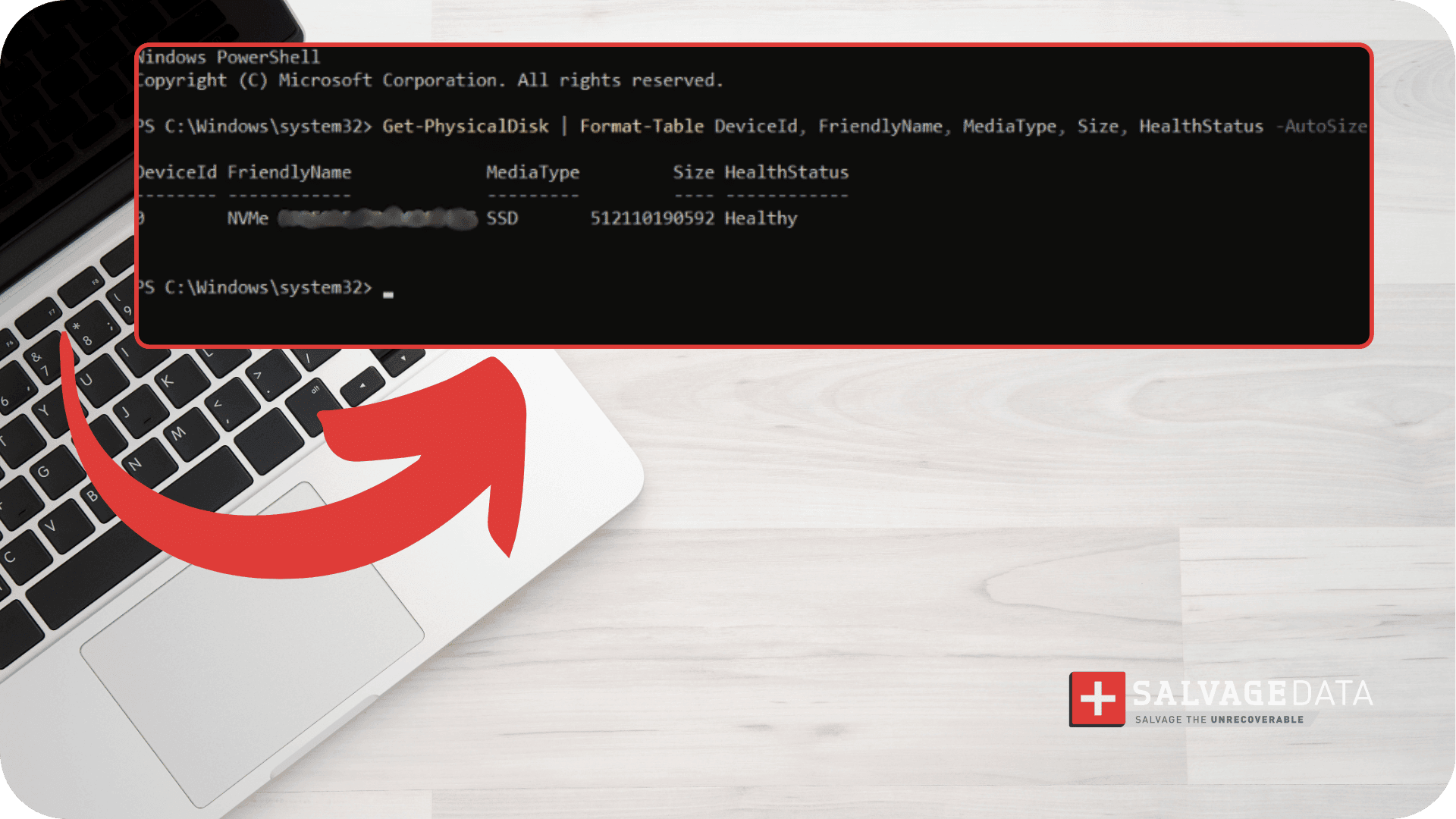
The MediaType column also tells you whether each listed drive is an SSD or HDD, useful if your PC has more than one drive installed.
Pro tip: If the “Windows detected a hard disk problem” message pops up on its own, Windows is surfacing this same SMART data automatically.
Run CHKDSK
- Difficulty: Easy
- Risk of data loss: Low to moderate. CHKDSK can stress a drive that’s already physically failing.
CHKDSK scans for file system errors and bad sectors and tries to fix what it finds. This is a repair tool, not purely a diagnostic one, and it only addresses logical data loss, not physical damage.
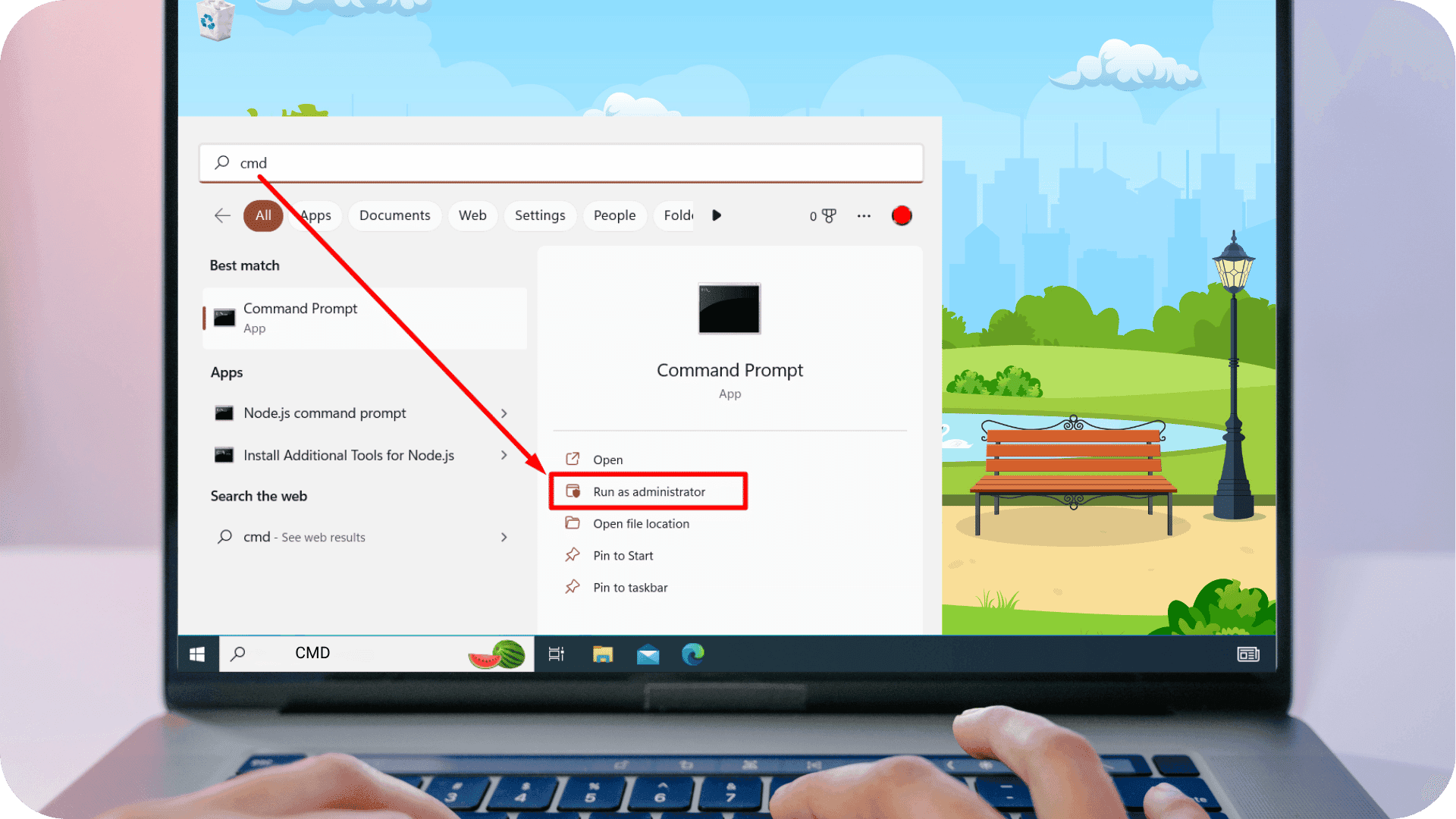
1. Type cmd in the Windows search bar, then choose Run as administrator.
2. Type chkdsk C: /f /r /x and press Enter (replace C: with your drive letter).
3. If the drive is in use, Windows will offer to schedule the scan for your next restart.
Harley Nugent, SalvageData’s HDD and SSD diagnostics specialist, has seen what happens when people ignore what CHKDSK and Windows are telling them:
“These errors are warnings. Continuing to use the drive without addressing them is what causes worse damage down the line. The best approach is to use your senses: if you suspect unfamiliar noise or the drive isn’t spinning at all, it’s better not to keep re-powering it.”
If you’re seeing a “Data error (cyclic redundancy check)” or “I/O Device Error” message, don’t run CHKDSK repeatedly hoping it clears up. Run it once, and if the drive still throws errors or sounds different than usual, treat it as a hardware problem, not a software one.
Check health in BIOS
- Difficulty: Easy to access, moderate to interpret.
- Risk of data loss: None. This is a read-only check.
Most BIOS and UEFI menus include a basic drive diagnostic that runs independently of Windows.
1. Restart your computer and press F2, F12, or Del during boot-up (the key depends on your manufacturer).
2. Look for a Diagnostics or Storage section.
3. Run the built-in drive test if available.
Wording and location vary by manufacturer. If BIOS reports a problem here, treat it the same as a failing SMART or CHKDSK result.
Use third-party and manufacturer tools
- Difficulty: Easy
- Risk of data loss: Low
Dedicated tools provide more detail than Windows’ built-in options, including temperature, wear level, and usage stats, and most read the same SMART data as the methods above.
CrystalDiskInfo
CrystalDiskInfo reads SMART data and displays temperature, health status, and usage stats in one window. Download it only from its official source, and scan the installer with your antivirus first, as with any third-party utility.
Seagate SeaTools
SeaTools runs Seagate’s own diagnostic suite, including the Short DST (Drive Self-Test). If that test fails, see our guide to fixing a Short DST check failure for what the result means.
WD Dashboard
WD Dashboard checks drive health, firmware version, and SMART status, and can flag drives covered under an active WD warranty.
A result that disagrees with what SMART or CHKDSK told you is worth paying attention to. If it confirms a problem, the next section covers what to do.
When to stop checking and call a professional
Stop running checks and back up immediately if your drive clicks, grinds, isn't detected by the system, or repeatedly fails the same test. At that point, further checks or DIY repair attempts can cause more damage than they prevent.
At SalvageData, our policy with a clicking or grinding drive is simple: power it off immediately and don’t try to run it again. Every attempt to read a failing drive adds the risk of the heads contacting the platters, and that’s the difference between a recoverable drive and one that isn’t.
Before anything else: back up your files to an external hard drive if you can still access them.
If your checks point to a real problem, SalvageData’s data recovery teams are available 24/7 to take it from here.