


You can easily check SSD health by opening a tool that shows your drive's health report: Windows PowerShell, CrystalDiskInfo, and Disk Utility on a Mac can all display it.
- A ‘Good’ result means your drive is fine.
- A warning means back up your files immediately.
- If your drive shows no report at all, it may need SSD data recovery.
Your SSD tracks wear, errors, and temperature. Windows and macOS software can read these numbers from the drive's S.M.A.R.T. data. Each item includes its current value, worst value, and warning limit.
Check SSD health on Windows 11
You can check SSD health on Windows 11 in three ways: the Disks & volumes page in Settings, a PowerShell command, and CrystalDiskInfo. PowerShell displays your drive's reliability counters. CrystalDiskInfo shows a color-coded Health Status.
The PowerShell command and CrystalDiskInfo also work on Windows 10. Microsoft ended Windows 10 support on October 14, 2025, but that affects updates, not your drive.
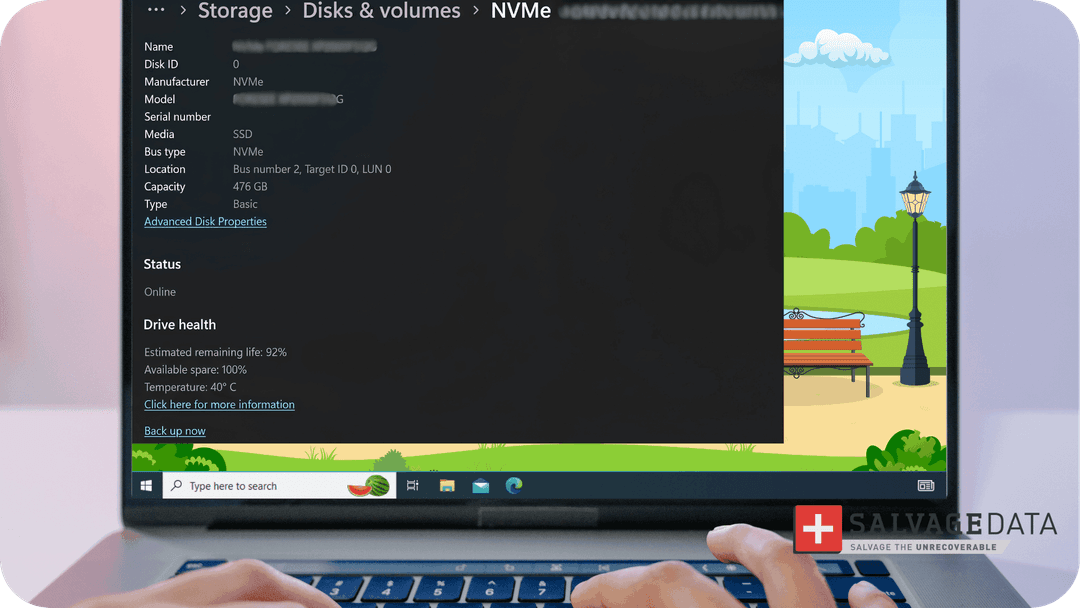
Check SSD health in Windows Settings
Open Settings, go to System, then Storage, then Advanced storage settings, and select Disks & volumes. Open the drive's properties to view its drive health.
Check SSD health with PowerShell
Open PowerShell and run this command:
Get-PhysicalDisk | Get-StorageReliabilityCounter | Format-List
Microsoft documents that the Get-StorageReliabilityCounter command returns temperature, error counts, wear, and the hours your drive has been in use for each physical disk.
Review Temperature, wear, and the read and write error counts. A field can be blank if the drive doesn't report it.
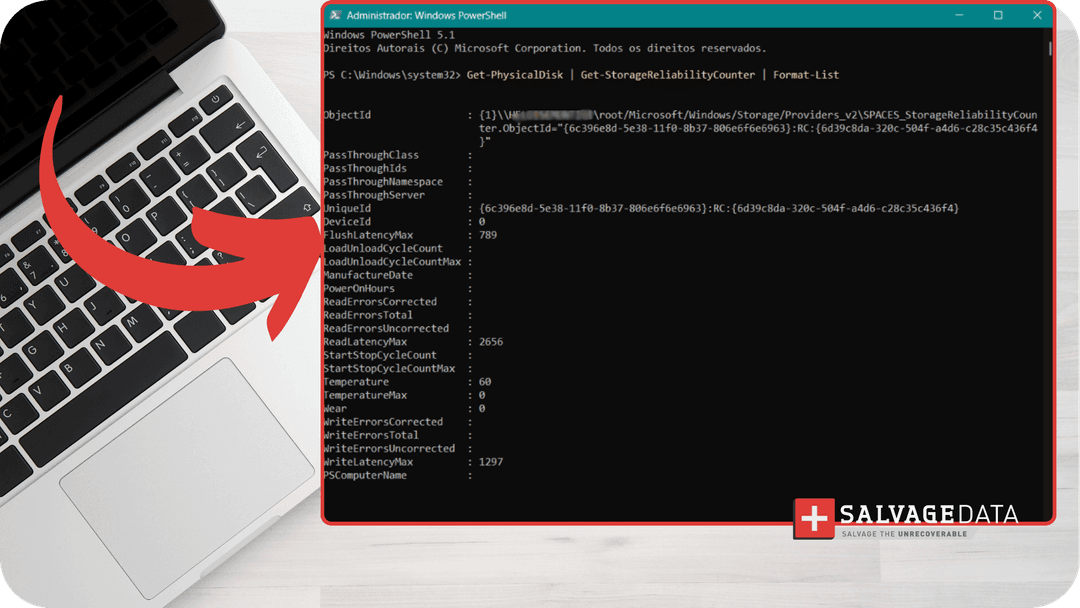
The results will include latency.
Latency is how long the drive takes to respond to a request. ReadLatencyMax, WriteLatencyMax, and FlushLatencyMax show the slowest read, write, and flush times, in milliseconds (1,000 ms equals one second).
Microsoft states that a value above 10 seconds may indicate a problem with the disk or its adapter.
The same command also works on hard drives. For those, see our guide to check hard drive health.
Check SSD health with CrystalDiskInfo
CrystalDiskInfo reads the same S.M.A.R.T. data and shows a Health Status for each drive. It also shows the full list of values. If your PC or laptop has more than one SSD, each drive has its own entry.
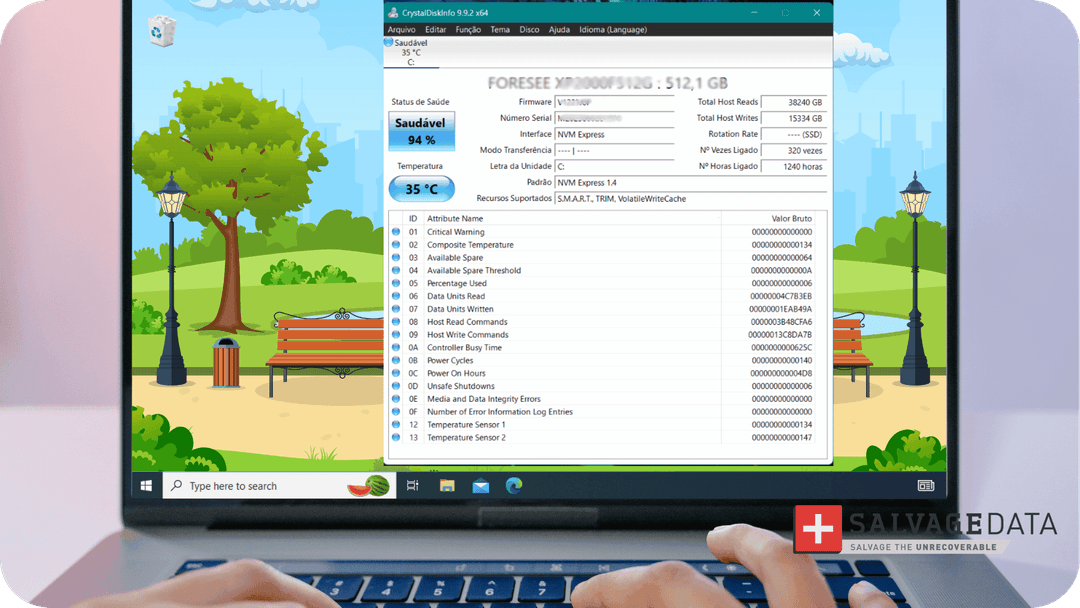
To monitor your drive over time, CrystalDiskInfo can write warnings to the Windows Application log through its Event Log feature.
Check SSD health on a Mac
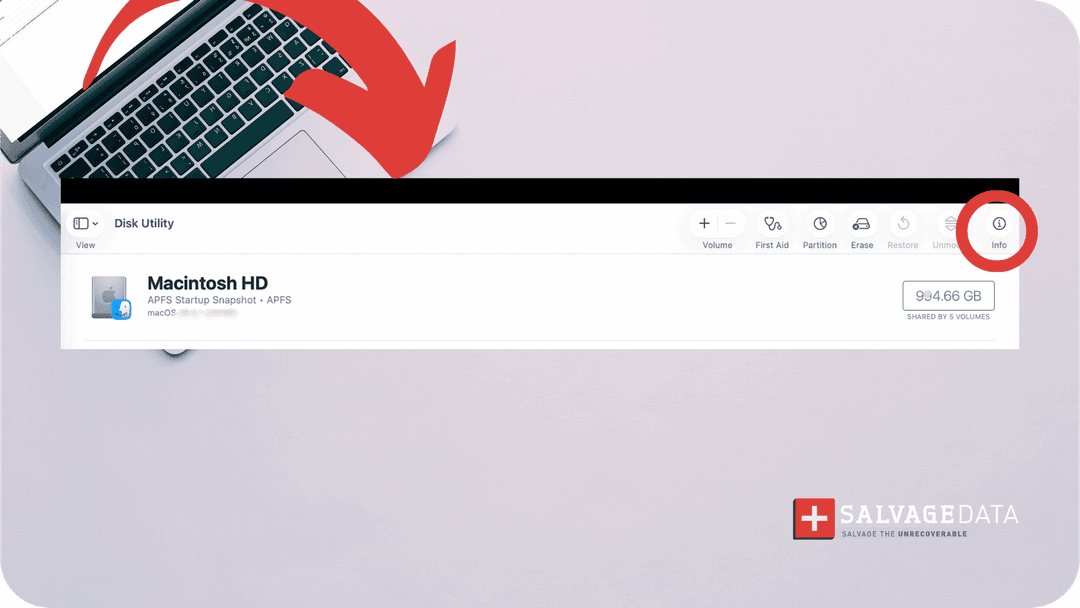
On a Mac, open Disk Utility, select the disk, and click the Info button.
Disk Utility shows a fatal hardware error when no software repair tool can fix the problem. If you see it, back up as much data as you can and arrange service.
1. Open Disk Utility from the Utilities folder in Applications.
2. Select the disk to check.
3. Click the Info button in the toolbar.
Pro tip: If your Mac cannot read its disk at all, see Mac and MacBook data recovery.
Check SSD health on an external or portable SSD
To check an external SSD, connect it to your computer and open a tool that reads drive health. CrystalDiskInfo can read most external USB SSDs sold today, but results depend on the drive and its enclosure, and some setups cannot be read.
1. Connect the drive and wait for your computer to detect it.
2. On Windows, open CrystalDiskInfo and select the external drive from the list.
3. Read its Health Status, then compare it with the results table below.
If the tool shows nothing for your portable drive, it cannot read the drive through that enclosure. That does not mean the drive is healthy or failed. If the drive also disappears from your computer, it needs external drive data recovery, not another check.
Whichever system you use, the next step is the same: interpret the result.
What the SSD health check results mean
Each tool words its results differently, but they all come from your drive. CrystalDiskInfo shows Good, Caution, Bad, or Unknown. PowerShell shows counters such as Wear. NVMe drives report a Critical Warning.
The table below explains what each one means and what to do next.
| Result | Tool or feature | What it means | Next step |
|---|---|---|---|
| Good (blue) | CrystalDiskInfo Health Status | Your drive reports no problems. | No action. Keep a current backup. |
| Caution (yellow) | CrystalDiskInfo Health Status | For SSDs, Remaining Life is at 10% or less. | Back up now and plan a replacement. |
| Bad (red) | CrystalDiskInfo Health Status | For SSDs, Remaining Life is below the manufacturer's own threshold. | Back up immediately. |
| Unknown (gray) | CrystalDiskInfo Health Status | The tool cannot rate your drive. This can happen with drives it lists as Other SSD. | Run a second check from this guide. |
| Critical Warning | NVMe S.M.A.R.T. data | NVM Express describes it as the main health indicator. It means the drive has a problem, such as read-only mode, a hardware failure, or excessive temperature. | Back up, then read the last section. |
| Percentage Used | NVMe S.M.A.R.T. data | An endurance gauge, similar to a fuel gauge. Life left is 100 minus Percentage Used. | Read it as wear. Our guide to SSD endurance explains what wear means. |
| Available Spare | NVMe S.M.A.R.T. data | Spare capacity the drive keeps in reserve. The manufacturer can set a threshold that alerts your system when it runs low. | Read it alongside Percentage Used. |
| Wear | PowerShell reliability counters | A percentage in which 100 means the estimated wear limit has been reached. | At 100, back up and plan a replacement. |
Is 70% or 98% SSD health good?
CrystalDiskInfo documents one line for SSDs: Caution appears at 10% remaining life or less. A health of 98% or 70% is far above that line, so the tool shows no warning.
Our guide to how long SSDs last explains what those numbers mean for lifespan.
Some drives give no result at all. The last section covers those.
What to do when the health check fails, or the SSD does not show up
A health check can only read a drive that responds. If your SSD is missing from the tool or from Windows, or your backup fails, stop using the drive and contact a recovery lab. A failing controller or firmware often has nothing to report. The failure shows up as a missing drive, not as a low percentage.
Harley Nugent, a SalvageData recovery engineer, explains how to tell the difference. An SSD stuck in read-only mode usually stays visible, even if only occasionally. A controller or firmware failure usually leaves the drive undetected. Without recovery tools, most users cannot tell which one they have. If Windows cannot see your drive, the read-only SSD won't show up in Disk Management.
A warning on a drive that still responds means you should back up immediately. If the drive drops out or the backup fails, Kyle Ciresi, a SalvageData recovery engineer, names three mistakes to avoid:
- Keeping the drive connected and reading it.
- Attempting a "recovery" on the drive itself.
- Saving recovered files onto the same drive.
To check SSD health, choose the method that fits your system, read the Health Status or the Critical Warning, and back up before you act on a warning. The signs that come before a failure are listed in SSD failure causes and symptoms.