
CRITICAL WARNING: Flash memory failure modes differ from mechanical drives. Running write-heavy repair commands or repeatedly re-inserting a failing SD card can trigger a total flash controller lock-up, making the card inaccessible through any standard interface.
SD cards are a data storage solution that helps expand mobile phone memory, and they’re a reliable technology for many professionals. However, despite their advances and reliability, memory cards can fail. They can present issues due to physical damage, the end of their lifespan, or misuse. Fortunately, you can avoid data loss in several ways, including by checking the SD card for errors.
Symptoms of SD card errors
SD card errors can be frustrating, but understanding the symptoms can help you troubleshoot and address the issues. Some common issues that may happen when you have a corrupted or damaged SD card include:
No SD card detected
As you insert your SD card into a camera or laptop, nothing happens—no sound, no message. Your SD card is not showing up, therefore, you can’t edit or read the files on it.
SD card read and write error
Error messages related to reading/writing problems, such as the “disk is write-protected” while transferring data to/from the SD card, might indicate an issue with the drive.
Connection issues
Repeatedly reinserting the SD card before it mounts properly could indicate a faulty port or SD card reader. Also, debris or damaged connectors can lead to SD card errors.
Missing files
Suddenly missing files that you haven’t deleted yourself could signal serious SD card problems or that you have a corrupted memory card.
The volume does not contain a recognized file system
Seeing the message “You need to format the disk before you can use it” indicates an issue with the SD card.
Unable to format the SD card
There are several reasons your SD card won’t format, including bad sectors and virus infection.
How to check SD cards for errors?
When you are not sure why your memory card is not working properly, and there’s no visible physical damage, you can use tools to scan for errors. The best way to check your SD card for errors is through a computer, both Mac and Windows. It’s important to regularly check your memory cards for errors to prevent any potential data loss.
Important: If the issue persists even after checking and formatting the card, it might be a sign of physical damage to the device. In such cases, you need to replace your memory card with a new one. You can easily scan and fix your SD card for errors by following these steps:
How to check the SD card for errors on Mac
If you are using a Mac to check your SD card for errors, you can use the Disk Utility tool. This is a built-in feature that helps macOS users perform several tasks, including scanning the health of devices and disk drives.
- You can open Disk Utility from the Utilities folder of your Applications folder.
- Choose View > Show All Devices from the menu bar or toolbar in Disk Utility. This will show each available disk or other storage device in the sidebar.[
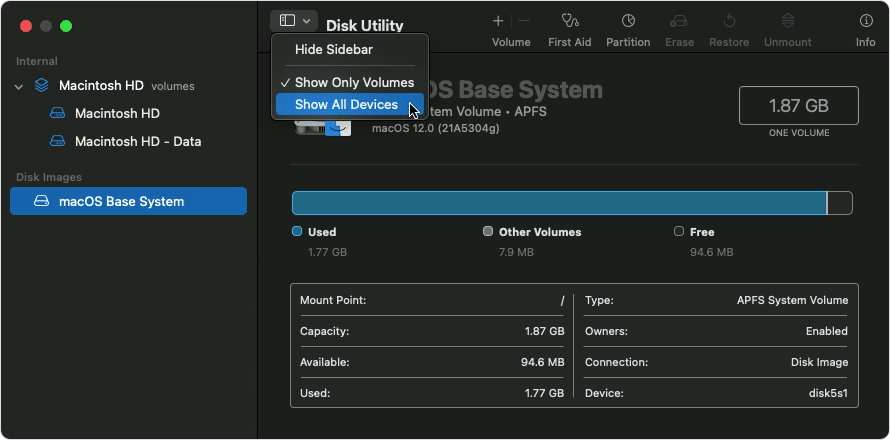
- Source: Apple support[/caption]
- Select your memory card and then start checking and repairing it
- Begin with the last volume on the card. Click the First Aid button to begin checking the selected volume for errors
- When done repairing all volumes, containers, and disks, quit Disk Utility
How to check the SD card for errors on Windows
Checking SD cards for errors in Windows is also easy. Plug in your SD card to the computer, then open “My Computer”. Right-click on the memory card and select “Properties”. On the new window, click on the “Tools” tab and then click “Check” to scan for errors.
If this doesn’t work, you can still try to check and fix your memory card on Windows using the Check Disk utility (CHKDSK) or Master Boot Record (MBR)
Use CHKDSK for logical errors only
CHKDSK can fix file system errors on an SD card caused by improper ejection or an interrupted transfer. It is not a hardware repair tool and should not be run on cards showing physical wear, zero capacity, or a RAW file system.
Do not run CHKDSK on an SD card that shows 0 Bytes capacity, is listed as RAW in Disk Management, is stuck in read-only mode, or has physical cracks or damaged contacts. These symptoms indicate controller or NAND failure. Running CHKDSK in this state can trigger a permanent controller lock-up.
CHKDSK is appropriate only when the card is detected with its correct capacity and the error occurred after an improper ejection or unexpected disconnect.
Step 1: Open Command Prompt by pressing Windows + S, typing cmd, right-clicking the result, and selecting Run as administrator.
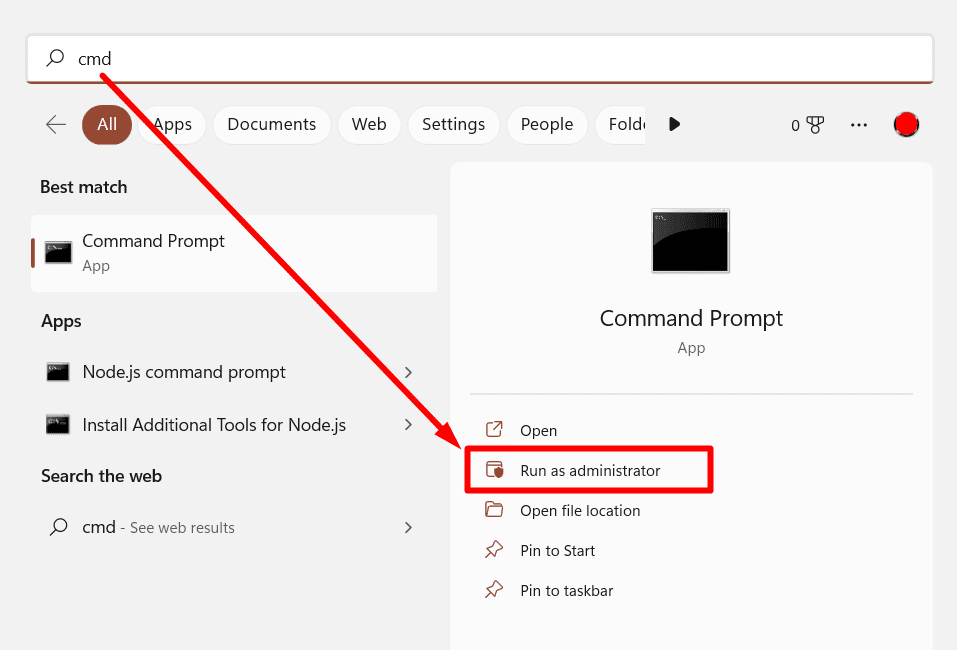
Step 2: Type the following command and press Enter. Replace E with your card's drive letter:
chkdsk E: /f
Do NOT use /r or /x on flash media. The /r flag forces a full surface scan that can overwhelm the card's error-correction system and cause a controller lock-up on worn NAND.
Step 3: Let the scan complete. If CHKDSK reports errors it cannot fix, or if the process freezes, stop immediately.
Safe SD card recovery workflow
When built-in tools have not resolved the error, follow this workflow to recover data without risking further damage to the card.
Step 1: Isolate the hardware interface
Before assuming the card has failed internally, rule out reader and port faults. Clean the gold contact pads on the card using 99% isopropyl alcohol and a lint-free swab. Test the card in a dedicated USB 3.0 card reader connected directly to a rear motherboard port, rather than a built-in laptop slot or hub.
Step 2: Create a byte-for-byte raw image before running any software
Never run recovery software directly against an unstable or failing SD card. Each failed read attempt stresses the NAND further. Use Win32 Disk Imager, FTK Imager, or ddrescue to create a raw image file (.img) of the card first, then work from the image.
Step 3: Run file recovery software against the image file
Load the .img file into file recovery software (such as R-Studio, PhotoRec, or DMDE).
Scan the virtual image for file carving or file system reconstruction. Save all recovered files to a separate physical drive, not back to the card.
Step 4: Understand controller lock-up and NAND wear-out
Modern SD cards use a Flash Translation Layer (FTL) inside an integrated controller. When the NAND flash blocks reach their write endurance limit or experience block degradation, the controller forces the card into a permanent read-only state or drops off the bus entirely.
No software tool can clear a hardware-level FTL lock. If the card requests formatting every time it is inserted, or shows a write-lock that the physical switch cannot clear, the controller has locked up. Recovery in this state requires direct NAND chip-off extraction by a professional laboratory.
Why Windows bootloader commands do not apply to SD cards
The bootrec.exe tool repairs the Master Boot Record, boot sector code, and Boot Configuration Data exclusively on internal Windows system drives.** SD cards used in cameras, smartphones, drones, or removable slots do not host the Windows bootloader. Executing bootrec commands against a removable flash volume has no effect on the card's file system and can overwrite sector structures if the tool targets the wrong volume.
If CHKDSK and Disk Management have not resolved the error, the next step is to create a raw image of the card before attempting any further repair.
When to stop DIY and contact a professional
SD cards that have failed at the controller or NAND level cannot be recovered through software. Continued attempts can make the physical media harder to work with.
STOP DIY RECOVERY IMMEDIATELY IF:
- The card is not detected in Disk Management or Device Manager.
- The card shows 0 Bytes, 30 MB, or any capacity that does not match its label.
- The card has visible cracks, bent contacts, or signs of liquid or heat damage.
- The card becomes hot within seconds of being connected to a reader.
Disconnect the card immediately and do not re-insert it.
When an SD card fails at the physical or controller level, professional data recovery engineers bypass the onboard controller entirely. The card package is polished down using precision micro-abrasion to expose the raw NAND flash memory for direct chip-off extraction. This process requires specialized equipment and cannot be replicated with consumer tools.
SalvageData offers a free evaluation for SD cards and flash media showing physical failure. Contact the team 24/7 to start a case.