
Key Takeaways:
- A USB drive not showing up on Windows means the operating system failed somewhere in the detection process.
- A drive showing as RAW or unallocated does not mean your files are gone, but formatting it will make recovery much harder.
- Most detection failures are caused by a missing drive letter and can be fixed in under two minutes through Disk Management.
You plug in your USB drive, and nothing happens. No sound, no pop-up, no drive in File Explorer. A USB drive not showing up on Windows is caused by one of six things: a missing drive letter, an unallocated partition, a corrupted file system, an outdated or conflicting driver, a USB controller failure, or physical damage to the drive itself.
Most cases are fixable in minutes. A few require professional help. Get a USB flash drive data recovery evaluation from SalvageData before attempting any fix that could erase data.
Why is your USB drive not showing up?
A USB drive not showing up on Windows means the operating system failed to recognize the hardware, load the correct driver, or mount the drive with a letter that makes it visible in File Explorer. Each failure point produces a different symptom, and each symptom points to a different fix.
Understanding which category your problem falls into saves you from running through a list of fixes that will not work.
Hardware connection issues
Physical connection issues, such as a loose port, a damaged connector, or a low-power USB hub, can prevent Windows from detecting the drive at all.
Test the drive in a different USB port on the same computer. Then try it on a different computer entirely. If it does not appear on any machine, the drive likely has physical damage.
External drives that draw more power may also fail to initialize when plugged into a USB hub rather than directly into the computer.
Driver problems
Windows needs a driver to communicate with USB storage devices. If the driver is corrupted, outdated, or in conflict with another device, the USB drive may appear in Device Manager with a warning icon or as an unknown device, but remain invisible in File Explorer.
Reinstalling or updating the driver usually resolves this.
Understanding the broader range of flash drive failures and common causes can help you determine whether a driver issue or something deeper is at play.
Missing or conflicting drive letters
Sometimes Windows detects the hardware and loads the driver correctly, but skips assigning a drive letter, usually because another device already claimed it or a conflict exists from a previously connected drive. The drive will appear in Disk Management but not in File Explorer.
Unallocated or uninitialized disk
In some cases, Windows detects the drive but shows it as unallocated or uninitialized in Disk Management. This usually means the partition table is missing or damaged, often due to being unplugged without a safe eject.
This is not the same as the drive being empty or broken. The data may still be intact on the NAND chips inside the drive.
Corrupted or unsupported file system
Windows can recognize a drive but refuse to read it if the file system is unsupported or corrupted. A drive formatted for Linux (ext4) or macOS (APFS) will not mount in Windows without third-party tools. A drive showing as RAW means Windows cannot identify the file system.
If your drive is showing as RAW, do not format it. Read the section below on when not to format before taking any action. You can also learn more about how to fix a corrupted USB drive in our dedicated guide.
USB controller and flash memory failure
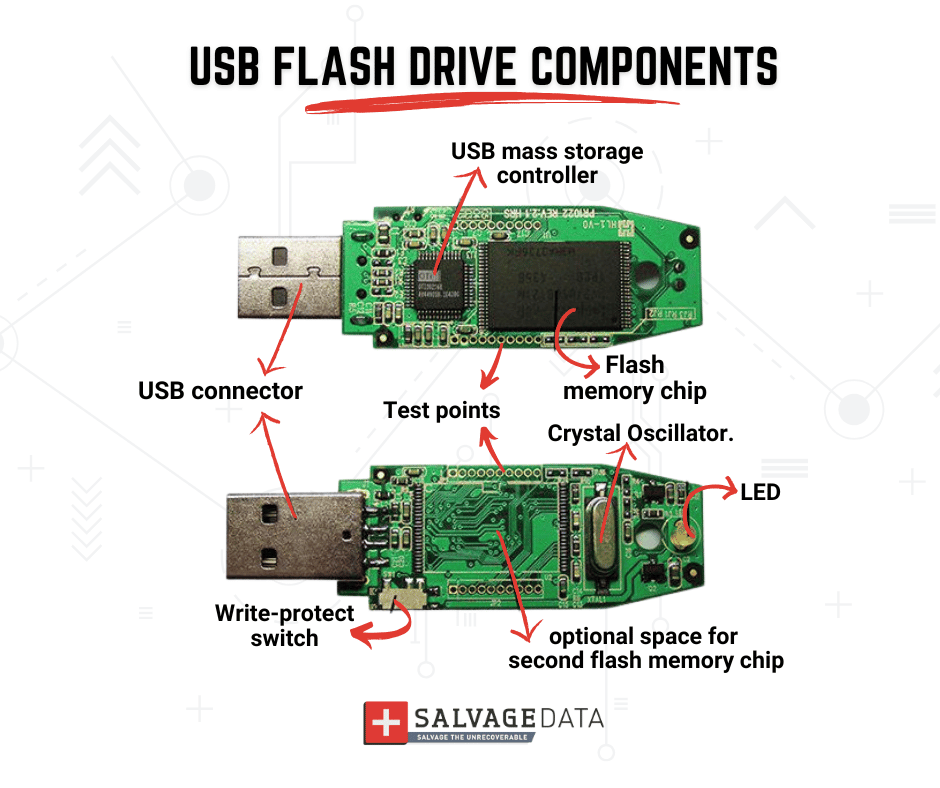
USB flash drives rely on an internal controller chip to manage communication between the NAND memory chips and your computer. If this controller fails, the drive may not complete USB enumeration with the host controller, which means Windows never even registers that something was plugged in.
This is a hardware-level failure. No software fix will resolve it. The NAND chips storing your data may still be intact, but extracting that data requires specialized lab equipment.
How to diagnose the problem before you fix it
Before running any fix, make sure you check what Windows can access and detect. This helps you decide which fix to run first.
Check Disk Management
Disk Management is the most important diagnostic tool for a USB drive not showing up. It displays all storage devices Windows can detect, including ones it cannot mount or read.
To open it:
- Press the Windows + R keys
- Type diskmgmt.msc on the box and press Enter

Look for your USB drive in the list. Note what it shows: a healthy volume with a drive letter, an unallocated block, a RAW partition, or nothing at all. Each state maps to a different fix in the section below.
Check Device Manager
If the drive does not appear in Disk Management at all, check Device Manager.
- Press the Windows + X keys and then click on Device Manager
- Expand the Disk Drives and Universal Serial Bus controllers sections

A yellow warning icon next to a device means Windows recognized the hardware but could not load the driver correctly. No listing at all usually means a physical connection problem or a controller-level failure.
How to fix a USB drive not showing up on Windows
The fix depends entirely on where your drive appears in Windows. Match your symptom to the fix below, and do not skip to formatting or partition repair before ruling out the simpler options first.
Fix 1: Try a different port or computer
Do this if your drive is not detected on this computer at all, or if you have not yet tested it on another machine.
Unplug the drive and plug it into a different USB port, preferably one directly on the computer rather than a hub. If that does not work, try the drive on a different computer.
If the drive shows up on another computer, the problem is with your system's driver or port, not the drive itself. If it fails on every machine, the drive likely has hardware damage.
Fix 2: Update or reinstall USB drivers
Do this if your drive appears in Device Manager with a warning icon or as an unknown device, but does not show in Disk Management or File Explorer.
- Open Device Manager and expand Disk Drives
- Right-click on the USB drive entry and select Update driver
- Choose "Search automatically for updated driver software"
If updating does not help, right-click the device and select Uninstall device. Unplug the drive, wait 10 seconds, plug it back in, and let Windows reinstall the driver automatically.
You can also check for Windows updates in Settings > Windows Update, as system updates sometimes include patches for USB controller drivers.
Fix 3: Assign a drive letter
Do this if your drive appears in Disk Management but is missing from File Explorer.
- Open Disk Management
- If your drive appears without a drive letter (shown as a volume with no letter prefix), right-click on it and select Change Drive Letter and Paths
- Click Add, choose a letter that is not already in use, and click OK

The drive should appear in File Explorer within a few seconds.
Fix 4: Fix file system errors with CHKDSK
Do this if your drive has a drive letter in File Explorer but is inaccessible, slow, or throwing errors when you try to open it.
If the drive appears with a drive letter but is inaccessible or behaving strangely, Windows' built-in CHKDSK tool can scan and repair logical file system errors.
Open Command Prompt as administrator and run:
chkdsk X: /f /r
Replace X with your drive's actual letter.

The /f flag repairs errors. The /r flag locates bad sectors and recovers readable data.
WARNING: Do not run CHKDSK on a drive showing as RAW. CHKDSK cannot repair RAW file systems and may make data recovery harder.
Fix 5: Disable USB selective suspend
Do this if your drive shows up when you first plug it in but disappears after a few minutes of use.
Windows has a power-saving feature called USB selective suspend that can cut power to USB devices it considers idle, which can cause them to drop off during a session.
To disable it
- Go to Control Panel > Power Options > Change plan settings > Change advanced power settings
- Expand USB settings > USB selective suspend setting and set it to Disabled
Fix 6: Clear ghost USB devices
Do this if none of the fixes above worked and your drive is still not showing up, despite appearing to connect physically.
Windows keeps a registry record of every USB device that has ever been connected to the system. Over time, these ghost entries can conflict with new connections, causing Windows to misidentify or fail to mount your drive.
To clear them,
- Open Device Manager
- Click the View menu
- Select Show hidden devices
- Look under Disk Drives and Universal Serial Bus controllers for greyed-out entries
- Right-click any greyed-out device that matches your drive type and select Uninstall device
- Unplug and replug your USB drive after clearing the ghost entries
WARNING: The next fix may erase your data. If your drive is showing as RAW or unallocated and has files you need, do not proceed.
Fix 7: Create a new partition (if unallocated)
Do this if your drive appears as unallocated in Disk Management, and you have already confirmed there is no data on it that you need to keep.
- Go to Disk Management
- Right-click the unallocated space
- Select New Simple Volume
- Follow the wizard prompts
You may also want to review how to fix a "disk unknown not initialized" error if Windows prompts you to initialize the disk.
A drive showing as RAW or unallocated does not mean the data is permanently gone. The NAND chips may still contain intact data, but the partition table that tells Windows where to find it has been damaged. Formatting at this stage writes a new structure over the old one, making professional recovery significantly harder.
If your files matter, stop all write operations to the drive immediately. Continued use of a failing drive risks overwriting the data sectors you are trying to save.
How to recover data from a USB drive that is not showing up
If troubleshooting did not restore the drive, or if the drive is exhibiting data loss symptoms, the priority shifts from fixing the drive to recovering the files.
Use data recovery software
Data recovery software can scan a USB drive for recoverable files when the file system is damaged, the partition table is missing, or the drive shows as RAW. SalvageData offers a free recovery program that works on most USB drive failure types.
Software recovery works best when the drive is still detected by the computer, even partially. If the drive appears in Disk Management but not File Explorer, a recovery tool can often extract the files before you attempt any partition repair.
You can find the complete process for recovering files from a USB drive in our step-by-step guide.
When to call a professional
Software tools cannot recover data from a drive with a failed USB controller or physical NAND damage. In these cases, the drive will not appear anywhere in Windows, no matter what fix you attempt.
Professional data recovery labs can remove the NAND chips from the drive's circuit board and read the memory directly, bypassing the failed controller entirely. This is the only reliable method for physically broken flash drive data recovery where the hardware has failed.
Contact SalvageData for a free in-lab evaluation. If the data cannot be recovered, you pay nothing.
USB drive not showing up on Windows 11
USB detection failures on Windows 11 follow the same root causes as Windows 10, but two additional factors are worth checking first.
Windows 11 introduced tighter driver signing requirements. Third-party USB drivers that worked on Windows 10 may be blocked on Windows 11, causing the device to appear as unknown in Device Manager. Updating the driver through Windows Update rather than a third-party source usually resolves this.
Windows 11 also includes an updated USB power management policy that is more aggressive about suspending inactive USB devices. If your drive drops off intermittently, Fix 5 above (disabling USB selective suspend) is the first thing to try.
For all other symptoms, the diagnostic workflow in this article applies identically across Windows 10 and Windows 11.
If you are troubleshooting an external hard drive rather than a flash drive, the causes overlap, but the fixes differ in a few key ways: see our guide on external hard drive not showing up on Windows for the distinctions.