
Hard drives are classified in three ways at the same time: by storage medium (mechanical HDD, solid-state SSD, or hybrid SSHD), by interface (PATA, SATA, SCSI/SAS, or NVMe over PCIe), and by physical form factor (3.5-inch, 2.5-inch, or M.2). Every drive carries one value on each of those three axes, which is why two drives that look identical can perform, and fail, in completely different ways.
Choosing a drive type is usually framed as a speed question, but speed is only one of the three dimensions that define a drive. A 2.5-inch SATA drive can be mechanical or solid-state. An M.2 stick can run the SATA protocol or the NVMe protocol.
Those distinctions determine throughput, cost per gigabyte, and, when something goes wrong, whether hard drive data recovery is straightforward or nearly impossible. Reliability in this field is measured by AFR, or annualized failure rate, and a healthy drive population sits below 1% AFR.
What are the different types of hard drives?
The main types of hard drives are mechanical hard disk drives (HDD), solid-state drives (SSD), and solid-state hybrid drives (SSHD), each of which then connects through one of four interfaces and ships in one of several physical form factors.
The interface and form factor decide compatibility, and they are where most purchasing mistakes happen.
A hard drive stores data persistently, meaning the contents survive a power cycle. How it does that, and how it talks to the motherboard, are separate questions with separate answers.
The following comparison table shows hard drive types showing HDD, SSD, and SSHD:
| Storage Feature | Mechanical HDD | Solid-State Drive (SSD) | Hybrid Drive (SSHD) |
| How it stores data | Magnetically, on spinning platters | Electrically, in NAND flash cells | Both, platters plus a small flash cache |
| Moving parts | Yes | None | Yes |
| Speed profile | Slowest, consistent | Fastest, consistent | HDD speeds, faster on repeated access |
| Capacity ceiling | Highest | Lower at consumer prices | Matches HDD |
| Noise | 20–40 dB | Silent | Audible, same as HDD |
| Best suited to | Archives, backups, NAS, surveillance | Operating systems, applications, editing | Single-drive laptops on a budget |
The practical read: HDDs win on capacity per dollar, SSDs win on speed and shock resistance, and SSHDs are a compromise that only makes sense when one drive has to do everything.
Mechanical vs. solid-state: how each storage medium works
The storage medium is the most fundamental division between drive types, because it determines whether the drive has moving parts. Everything downstream, including noise, shock tolerance, failure behavior, and recovery odds, follows from that one fact.
HDD: platters, spindle, and read/write heads
An HDD writes data magnetically onto spinning platters while an actuator arm positions read/write heads nanometers above the surface. The heads never touch the platter during normal operation, and that clearance is the drive's greatest vulnerability.
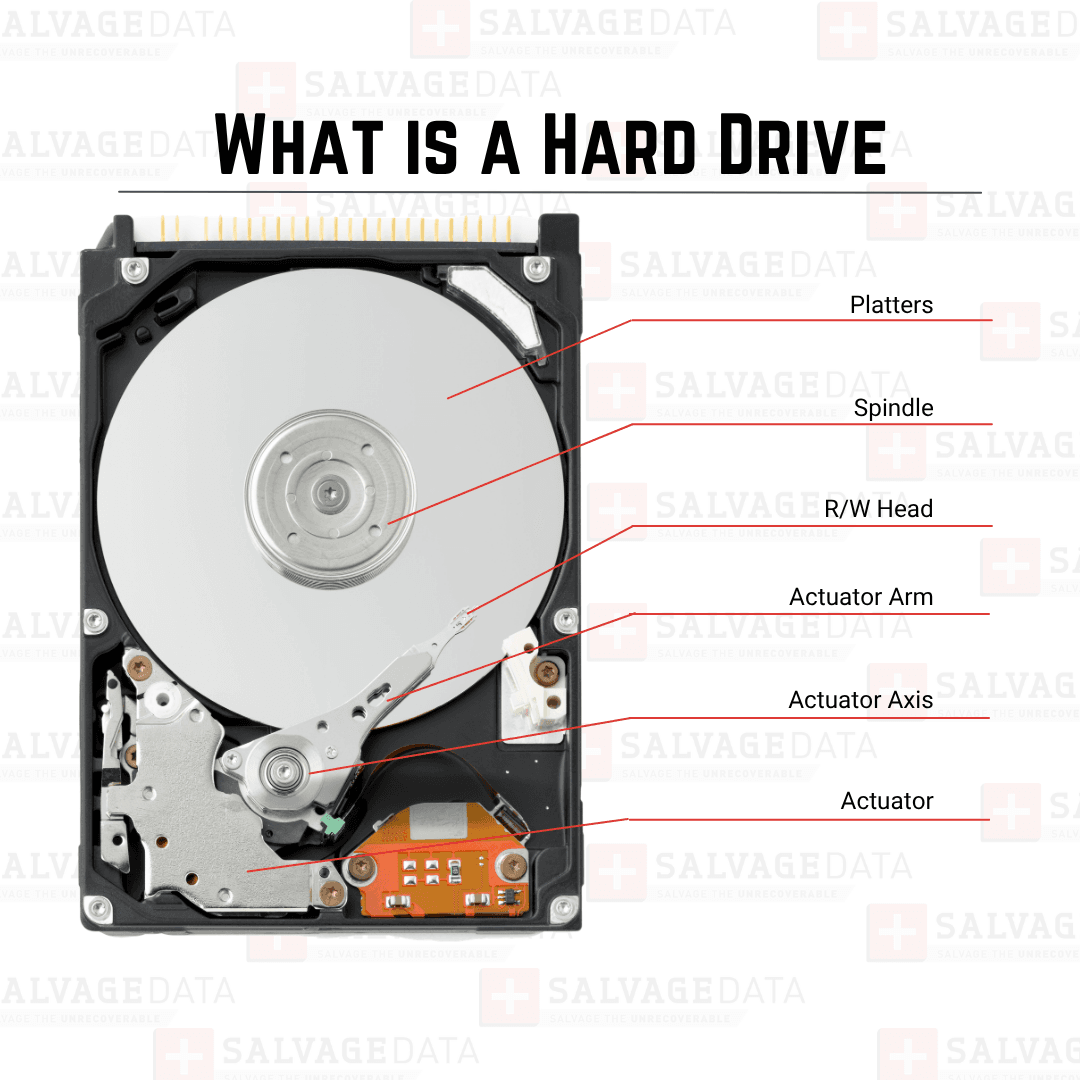 HDDs remain the lowest-cost-per-gigabyte option and dominate archival storage, NAS arrays, and surveillance systems. Capacities now reach 24 TB to 28 TB in consumer and enterprise channels, with nearline drives going considerably higher.
Beyond physical platter size, mechanical drives differ fundamentally in how magnetic tracks are written to the platters:
- CMR (Conventional Magnetic Recording): Writes data in parallel, non-overlapping magnetic tracks. CMR drives deliver stable, consistent write performance under heavy, sustained workloads, making them the absolute standard for NAS systems, RAID arrays, and enterprise servers.
- SMR (Shingled Magnetic Recording): Overlaps magnetic tracks like shingles on a roof to pack more data onto a single platter at a lower manufacturing cost. However, modifying existing data requires rewriting an entire block of overlapping tracks.
Critical warning for IT admins: SMR drives suffer severe write performance drops during prolonged, continuous write cycles. Mixing SMR drives into a RAID array or NAS rebuild can cause write timeouts, disk drops, and catastrophic array rebuild failures. Always verify that replacement drives use CMR technology for multi-drive storage pools.
If a failed rebuild or dropped drive has left your storage array or network storage offline, do not attempt destructive volume re-initializations. Consult our NAS data recovery experts to inspect disk health safely before attempting further array rebuilds.
SSD: NAND flash, controller, and wear leveling
An SSD stores data as trapped electrical charge in NAND flash cells. With no motor or arm, access is effectively instant, and physical shock is not an issue.
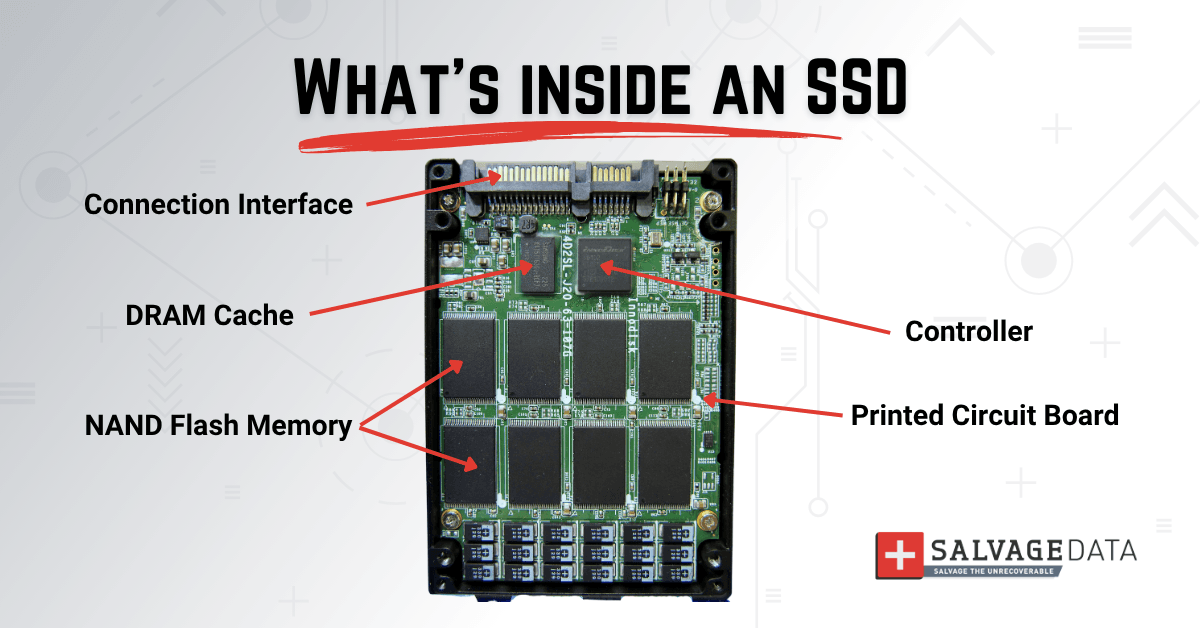
A controller chip manages the whole arrangement, distributing writes across cells through wear leveling so no single block degrades early. That controller is doing far more work than an HDD's equivalent electronics, which matters later.
SSHD: flash caching over magnetic storage
An SSHD pairs a conventional platter assembly with a small NAND cache that holds frequently accessed files. The result is faster boot and load times than a plain HDD at a fraction of an SSD's cost.
The cache is small, so the speed gain applies only to repeated access patterns. Our guide to what is an SSHD covers where hybrids still make sense.
Medium is only the first axis. The second one, the interface, is where most of the confusion in this topic actually lives.
Hard drive interfaces explained: SATA, PATA, SCSI, and NVMe
An interface is the protocol and physical connection a drive uses to communicate with the system, and it is entirely separate from whether the drive is mechanical or solid-state.
What is SATA III and legacy PATA/IDE
SATA (Serial ATA) is the mainstream consumer interface, delivering up to roughly 600 MB/s of theoretical bandwidth and using a thin seven-pin data cable. It carries both mechanical drives and entry-level SSDs.
Our breakdown of SATA hard drives covers generational differences and compatibility.
PATA, also called IDE, is SATA's predecessor and is identifiable by its wide 40-pin ribbon cable. It survives only in legacy systems, industrial equipment, and older test benches, where replacement parts are the main concern.
What is SCSI and SAS
SCSI (Small Computer System Interface) is a parallel interface built for servers and workstations, prized for command queuing and multi-device reliability rather than raw single-drive speed. SAS (Serial Attached SCSI) replaced it, preserving the SCSI command set while transitioning to serial signaling.
SAS drives are standard in enterprise arrays because they support dual-port connections and higher duty cycles than consumer SATA.
What is NVMe over PCIe
An NVMe drive is an SSD that speaks a faster language. NVMe (Non-Volatile Memory Express) is a protocol designed specifically for flash storage, running over the PCIe bus rather than a storage cable.
Legacy protocols like SATA were designed around the seek behavior of spinning platters and add overhead that flash doesn't need. Removing that overhead is why NVMe reaches 3,500 MB/s and beyond, as detailed in our NVMe vs SSD comparison.
The third axis, physical size, is the one buyers check last and regret most often.
Hard drive form factors: 3.5-inch, 2.5-inch, and M.2
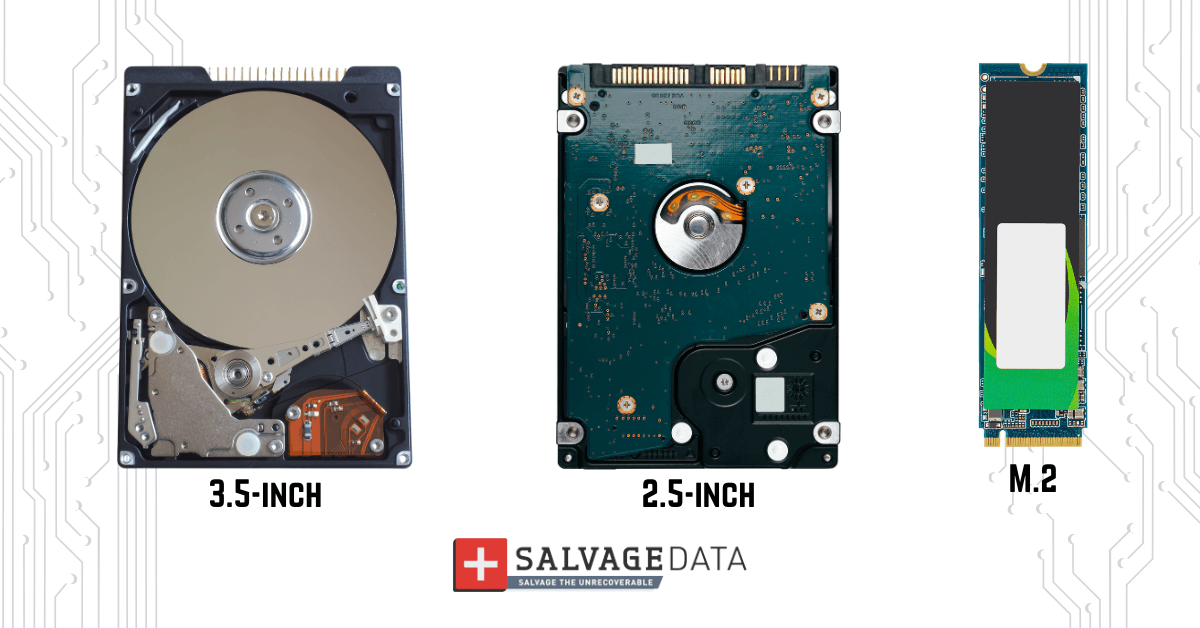
Form factor describes the drive's physical dimensions and mounting style, and it constrains which systems a drive will physically fit. Three matter for most buyers. They are described in the next table:
| Drive size and type | Primary uses | Technology and key features | Representative models |
| 3.5-inch Desktop and Enterprise | Desktop PCs, NAS, Servers and Data Centers | Mechanical HDDs; highest storage capacities and power consumption. | WD Black 8TB (Desktop); Seagate IronWolf Pro 24TB (NAS) |
| 2.5-inch compact | Laptops, mini PCs and external enclosures | Compact drives housing both mechanical HDDs and SATA SSDs. | Crucial MX500 (SATA SSD); Seagate BarraCuda 2.5" (HDD) |
| M.2 board-mounted | Modern laptops, high-performance PCs and compact devices | Solid-state only (NVMe/SATA); direct motherboard mounting in standard lengths (2280, 2230). | Samsung 990 Pro (M.2 NVMe); WD Black SN850X (M.2 NVMe) |
How to choose the right hard drive for your workload
Matching a hard drive or SSD to your exact workload is critical because the fastest option is rarely the most economical, and the cheapest is rarely the most appropriate.
| Workload/use case | Recommended storage type | Recommended interface | Key specification to check |
| Daily tasks/gaming/applications | NVMe SSD | PCIe 4.0 / 5.0 (M.2) | High random read/write IOPS |
| Bulk storage/backups/surveillance | Enterprise / NAS mechanical HDD | SATA III or SAS | High CMR (Avoid SMR), Low AFR |
| Heavy video editing/workstation | High-end NVMe SSD | PCIe 4.0/5.0 x4 | High endurance (TBW) and sustained write speed |
| Enterprise server/data center | Enterprise NVMe / SAS SSD | PCIe / SAS 12G/24G | U.2/U.3 form factor, High DWPD (Drive Writes Per Day) |
Check the best hard drive for you with our complete guide.
Which drive type should you use with your laptop or desktop?
For almost all modern laptops and desktops, a standard M.2 NVMe PCIe 4.0 SSD is the default recommendation. However, before buying an upgrade, you need to ensure physical and protocol compatibility with your system's motherboard:
- SATA M.2 drives: Older, slower drives featuring a dual "B+M Key" design (two notches). They are strictly capped at SATA speeds (~550 MB/s).
- NVMe M.2 drives: Modern, high-speed drives utilizing an "M-Key" design (a single notch on the right side).
A mismatch between your drive and motherboard leads to immediate headaches. An M-Key drive physically will not fit into a B-Key slot. Worse, even if a drive slides into place, your computer will completely ignore it if the motherboard lacks software support for that protocol. This can mean wasted money on unusable speed, non-refundable open-box return fees, and frustrating delays if you ever need to rescue files with an external enclosure.
Quick steps to verify compatibility:
1. Check your laptop’s official manual for "NVMe," "PCIe," or "SATA" support
2. Look directly at your laptop's drive slot: a single notch on the right means NVMe, while two notches mean SATA
If you want to skip manual checking altogether, run a free system scanner from a major brand to instantly get a guaranteed list of compatible drives.
What drives and bays do enterprise servers use?
While personal computers rely on simple M.2 blades or consumer drives, enterprise servers and storage arrays require high-density, hot-swappable hardware built for nonstop operations and high bandwidth.
- U.2 and U.3 drives: These look like standard 2.5-inch drives on the outside, but they run over high-speed PCIe connections instead of basic SATA.
- EDSFF drives (E1.S and E3.S): This is the modern enterprise storage standard created to replace older M.2 and U.2 drives in dense rack servers. These drives are built from the ground up for high-performance PCIe 5.0 and 6.0 systems, offering better cooling, easier hot-swappability, and higher overall storage density.
- Hot-swappable SAS and SATA backplanes: An enterprise SAS or U.3 drive is best if you want full dual-port backup protection, accurate hardware RAID tracking, and reliable drive-swapping on a live server.
Hot-swap and drive bay warning: Before pulling member disks from live server backplanes or degraded enterprise bays, always verify individual drive health and array sync states. Forcing a hot-rebuild on an unstable drive bay can trigger cascading disk failures and permanent parity corruption across the remaining array. If your server array drops offline during a swap, consult certified RAID recovery services before pulling additional drives.
How HAMR and high-capacity market trends impact drive reliability
Mechanical storage is undergoing a breakthrough evolution to keep pace with hyperscale data demands, with HAMR (Heat-Assisted Magnetic Recording) reshaping both capacity limits and drive longevity. Rather than a future concept, this cutting-edge approach is becoming the new standard in high-capacity drive architecture.
According to Kyle Ciresi, HDD Recovery Engineer at SalvageData, HAMR actively improves physical reliability rather than simply increasing storage density. By packing higher capacities into fewer moving components and reducing magnetic surface density, HAMR lowers the likelihood of random bit flips and mitigates physical wear over an extended operational life.
How each drive type fails, and what that means for recovery
Each storage medium has a dominant failure mode, and the medium determines what the failure sounds like and how much data is realistically retrievable.
The following table shows hard drive failure modes by drive type, the symptoms, and immediate actions:
| Drive type | Dominant failure mode | Typical symptom | Stop doing this immediately |
| HDD | Head crash, platter damage, firmware corruption | Clicking, grinding, drive not detected | Power cycling the drive |
| SATA SSD | Controller failure, NAND wear-out | Drive shows as RAW or vanishes | Running disk repair utilities |
| NVMe SSD | Controller failure with paired NAND | Sudden disappearance from BIOS | Reformatting or reinitializing |
| SSHD | Either mode, independently | Mixed mechanical and logical symptoms | Rebuilding the cache |
On most NVMe SSDs, the controller is cryptographically paired to the NAND it manages and holds both the encryption keys and the drive's critical firmware, meaning a dead controller can render the flash unreadable even if the memory cells are intact. On an M.2 SATA SSD, swapping the main controller remains a viable repair path.
According to Harley Nugent, Data Recovery Engineer at SalvageData, flash storage presents a much thinner support landscape than mechanical drives: SSD controllers come from a far wider range of manufacturers than HDD components, so the years of infrastructure experience a lab builds with a specific brand of mechanical drives doesn't carry over the same way to flash. Recovering a failed SSD controller, she notes, is often a slow process of reverse-engineering rather than a documented repair procedure.
Critical warning for failing drives: If your HDD is making clicking/grinding sounds or your SSD is showing as RAW/Uninitialized, contact our data recovery experts for emergency services. SalvageData maintains recovery capability across Seagate, Western Digital, Samsung, Toshiba, and Hitachi drives, with documented manufacturer-specific procedures.