
The best internal hard drives in 2026 combine CMR recording technology, 7,200 RPM spindle speeds, and adequate DRAM cache for their intended workload. The right pick depends on whether you need raw desktop performance, NAS reliability for multi-drive environments, high-capacity enterprise storage, or simply the most gigabytes per dollar.
Choosing poorly increases the risk of premature failure, and SalvageData's hard drive data recovery engineers see the consequences daily. This guide covers the best internal hard drives across six categories, with picks informed by real-world failure data from the recovery lab.
What makes a great internal hard drive in 2026?
There are four main specifications that set a hard drive apart from budget shortcuts that often fail sooner and make data recovery harder. This is what makes a great internal hard drive in 2026:
- It uses CMR recording technology,
- It spins at 7,200 RPM,
- It includes at least 256MB of DRAM cache,
- and it carries a warranty of three years or longer.
CMR vs. SMR recording technology
Conventional Magnetic Recording (CMR) writes data in non-overlapping tracks, while Shingled Magnetic Recording (SMR) overlaps tracks to increase density at the cost of write performance. CMR drives handle sustained writes and random workloads without slowdowns. SMR drives can stall during large file transfers or RAID rebuilds because overwritten data forces the drive to rewrite adjacent tracks.
From a data recovery perspective, this distinction matters even more. "We see a clear pattern in our lab: drives with CMR recording technology tend to preserve data on the platters more reliably after a failure than SMR drives. With SMR, the overlapping write tracks make recovery more complex and sometimes less complete. In the case of Western Digital SMR, formatting a device makes the data wholly unrecoverable due to the sector overlaps and firmware complications. If you're storing anything you can't afford to lose, CMR is worth the extra cost," explains Kyle Ciresi, HDD Recovery Engineer at SalvageData.
For a deeper comparison of these technologies, see our guide to CMR vs. SMR hard drives.
RPM, cache, and form factor
Hard drive speed is measured in revolutions per minute (RPM), with 7,200 RPM drives accessing data roughly 25% faster than 5,400 RPM drives. Higher RPM also means better random access latency, which affects how quickly the drive responds to operating system and application requests.
DRAM cache acts as a buffer between the drive's platters and your system. Cache sizes on modern internal hard drives range from 64MB on entry-level models to 512MB on high-performance and enterprise drives. A larger cache improves throughput during sustained workloads.
For form factor, nearly all internal hard drives for desktops, NAS, and servers use the 3.5-inch size. Laptops use 2.5-inch drives, though capacity options are more limited. Check your device manufacturer's specifications to confirm which size fits your chassis. Our hard drive storage capacity guide explains how capacity, form factor, and performance relate.
HDD vs. SSD: when a hard drive still makes sense
SSDs are faster, but internal hard drives still dominate in three areas: bulk storage capacity, cost per terabyte, and archival longevity. NVMe SSDs top out at roughly 8TB per device on consumer models, and motherboards have limited M.2 slots. Meanwhile, internal hard drives already reach 30TB per drive, with 120TB capacities on the horizon.
Hard drives remain the practical choice for NAS arrays, media libraries, surveillance systems, backup archives, and storing game libraries you access infrequently. For a full breakdown, see our comparison of hard drive vs. SSD pros and cons.
The sections below cover the best internal hard drives for each specific workload.
Best internal hard drive for desktop PCs
The WD Black 8TB is the best internal hard drive for desktop PCs, delivering 7,200 RPM performance with 256MB of DRAM cache and a 5-year warranty.
The WD Black is a proven high-performance internal hard drive built for desktop workstations and power users. Its 7,200 RPM spindle speed delivers consistent sequential and random performance. The 256MB DRAM cache handles sustained workloads well, though a 128MB version is available at a lower price point.

The main drawback is cost. The WD Black 8TB carries a premium over budget alternatives with the same capacity. However, the 5-year warranty and reliable performance justify the price for users who depend on their primary storage drive daily.
Alternate pick: WD Blue 10TB/12TB. For users who want more capacity on a tighter budget, the WD Blue 10TB and 12TB models offer 7,200 RPM speeds and a larger 512MB DRAM cache. The trade-off is a shorter 2-year warranty.
Desktops handle one type of workload, but network storage demands a very different drive.
Best internal hard drive for NAS
The Seagate IronWolf Pro 24TB is the best internal hard drive for NAS, with firmware optimized for multi-drive environments, a 550 TB/year workload rate, and Seagate's 3-year data recovery service.
NAS drives run continuously in multi-drive enclosures where vibration, heat, and constant read/write cycles accelerate wear. The IronWolf Pro includes rotational vibration (RV) sensors that adjust performance to maintain reliability when multiple drives share a chassis. The firmware is tuned specifically for RAID configurations.
Seagate's 3-year Rescue data recovery plan is a significant advantage. Most hard drive warranties only cover hardware replacement; Seagate's plan actually covers the cost of recovering your data from a failed drive. For businesses relying on a NAS for shared file access, this is the most complete protection package available from any manufacturer.

Alternate pick: WD Red Pro 22TB. The WD Red Pro offers 512MB of DRAM cache and WD's OptiNAND technology for better 4KB random performance. The workload rate is 300 TB/year, which is adequate for most home and small business NAS setups. If your NAS handles heavy small-file I/O, the Red Pro's larger cache gives it an edge.
When NAS drives fail, the recovery process involves multiple disks and RAID configurations. SalvageData's NAS data recovery service handles these complex multi-drive scenarios.
If gaming is your priority, the drive requirements shift again.
Best internal hard drive for gaming
The WD Black 8TB is the best internal hard drive for gamers who need high-capacity HDD storage, though an SSD remains the better choice for games you play frequently.
Modern games routinely exceed 100GB per title. Storing a large library on a single internal hard drive keeps your SSD free for the games you actively play. The WD Black's 7,200 RPM speed and 256MB cache provide reasonable load times for games accessed from HDD storage.
For active gaming, an SSD is significantly faster. The table below shows why most gamers use both drive types together.
NVMe drives deliver read speeds above 7,000 MB/s compared to roughly 260 MB/s for the fastest internal hard drives. Game loading benchmarks consistently show SSDs cutting load times by half or more. The practical approach is to use an SSD as your boot and active-gaming drive, with an internal hard drive for library storage and backups.
This combination works especially well for gamers with inconsistent internet access who prefer keeping large game libraries downloaded locally rather than re-downloading titles repeatedly.
Video editors face a similar decision, but with different file sizes and workflow demands.
Best internal hard drive for video editing
The Toshiba X300 Pro 22TB is the best internal hard drive for video editing, offering workstation-grade performance with a 512MB DRAM cache and capacities up to 22TB.
Video editing generates massive files. A single hour of 4K RAW footage can exceed 500GB. The Toshiba X300 Pro handles sustained sequential writes well, and the 512MB cache supports the mixed read/write patterns common during rendering and transcoding.

Pro tip: Use an internal hard drive for storage and archival, not as your active editing timeline drive. Editing software like DaVinci Resolve and Premiere Pro performs best when project files and scratch disks sit on an NVMe SSD. The internal hard drive serves as the long-term home for finished projects, raw footage archives, and backup copies.
The X300 Pro is priced slightly higher per terabyte than NAS drives with similar specs. However, its firmware is optimized for single-drive workstation use rather than multi-drive NAS environments, which can result in slightly better desktop performance.
Enterprise environments have the most demanding requirements of all.
Best internal hard drive for enterprise
The Seagate Exos M 30TB is the best enterprise internal hard drive, using HAMR technology to deliver 30TB of CMR storage at 7,200 RPM with a 550 TB/year workload rate.
HAMR (Heat-Assisted Magnetic Recording) is Seagate's technology for achieving storage densities above 3TB per platter. The Exos M is the first widely available drive using this approach at scale. Seagate has also optimized idle power states to keep energy consumption competitive despite the higher capacity.
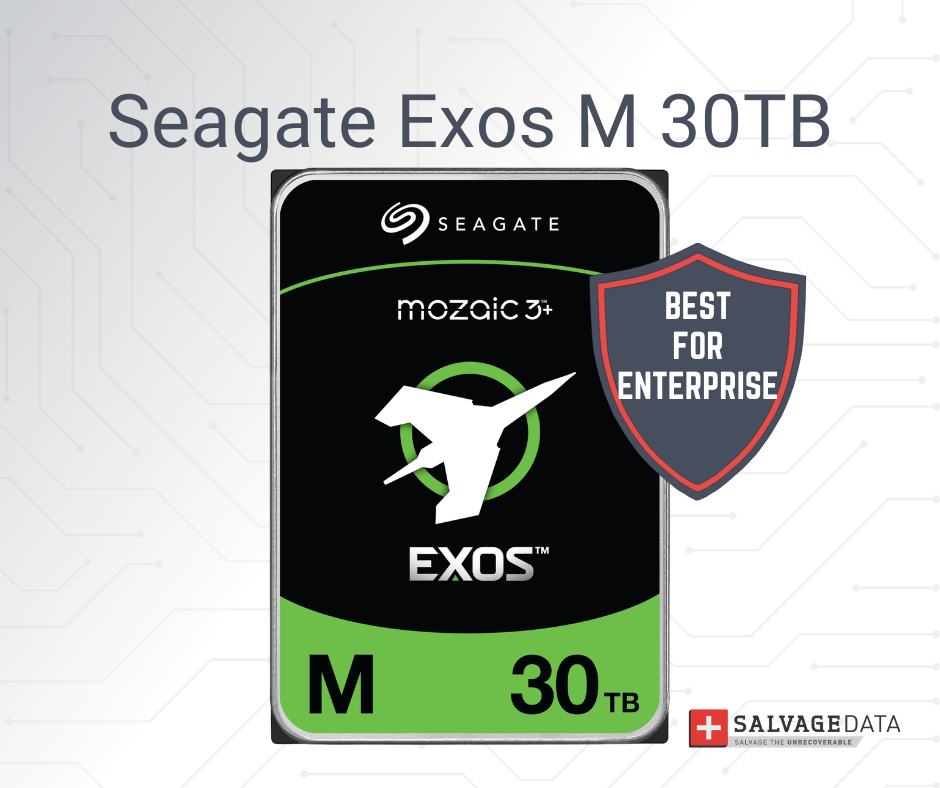
Note that the 32TB and 36TB Exos M models use SMR technology, not CMR. For workloads requiring consistent write performance and maximum recoverability, stick with the 30TB CMR version.
Alternate pick: WD Gold 22TB. The WD Gold includes ArmorCache technology, which uses flash memory to protect cached data during unexpected power loss events. This feature is particularly valuable in multi-drive RAID environments where a power failure during a write operation could corrupt data across multiple disks. The WD Gold also carries a 550 TB/year workload rate and a 5-year warranty.
Not every buyer needs enterprise-grade hardware. The next section covers the best option for cost-conscious shoppers.
Best budget internal hard drive
The Seagate BarraCuda 24TB is the best budget internal hard drive, offering CMR technology at 7,200 RPM with a 512MB cache at the lowest price per terabyte in its class.
This recommendation comes with an important caveat: only purchase the BarraCuda at 16TB or higher. Lower-capacity BarraCuda models use SMR recording technology, a slower 5,400 RPM spindle, and a smaller 256MB cache. These lower-capacity models are a fundamentally different product despite sharing the same brand name.
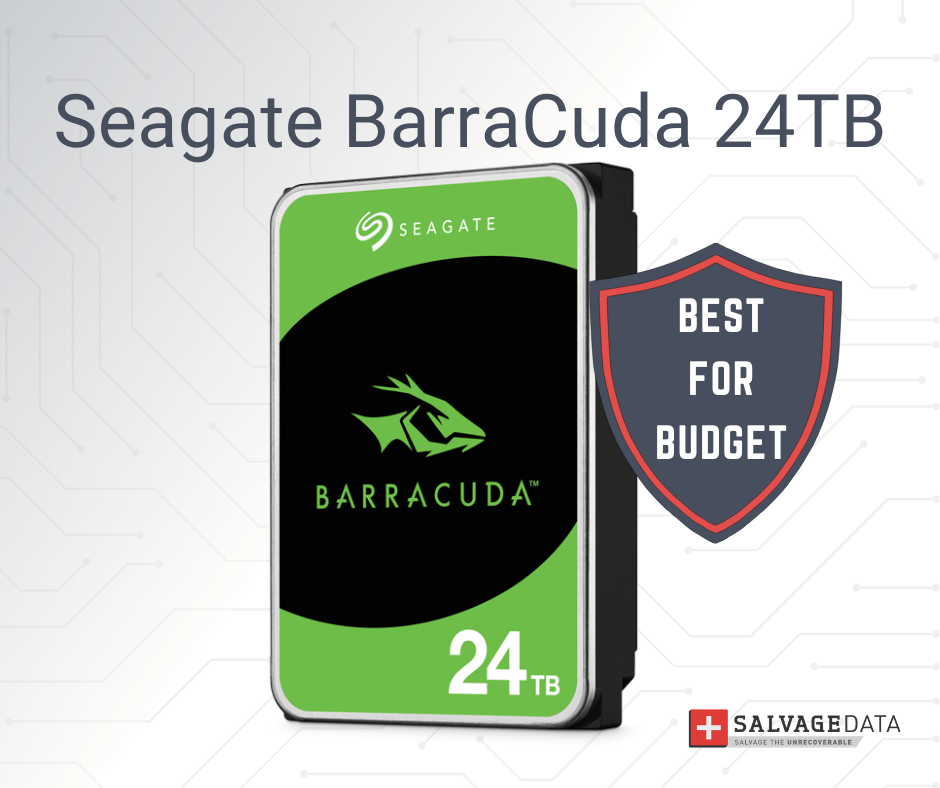
At 16TB and above, the BarraCuda switches to CMR, 7,200 RPM, and 512MB cache. This makes it comparable in specs to the WD Blue but at a higher capacity ceiling. The main trade-off is a 2-year warranty and a slightly lower maximum transfer rate of 190 MB/s compared to other drives in this guide.
The BarraCuda's cost-per-terabyte advantage applies primarily to internal 3.5-inch installations. Buyers considering external storage should note that external drives use different controllers and enclosures that affect both performance and recovery options.
Regardless of which drive you choose, the next section explains why your purchase decision is only half the equation.
How to protect your data after choosing a hard drive
Every hard drive will eventually fail. The question is whether your data survives when it does. A warranty covers hardware replacement, but it does not cover data recovery. These are two separate problems that require two separate solutions.
According to Bogdan Glushko, CEO of SalvageData, most people only think about data recovery after a failure has already happened. Choosing a drive with a strong warranty is a good start, but warranties typically cover hardware replacement, not data recovery. Glushko recommends pairing any new hard drive with a backup strategy: at minimum, 3 copies, in 2 different mediums, with 1 copy offsite. Better known as the 3-2-1 backup rule.
Among the drives in this guide, only the Seagate IronWolf Pro and Seagate SkyHawk AI include Seagate's 3-year Rescue data recovery plan as part of the warranty. No other major manufacturer bundles data recovery coverage with their consumer or enterprise drives.
Three steps to protect your data with any internal hard drive:
- Follow the 3-2-1 backup rule. Keep three copies of important data, on two different media types, with one copy stored offsite or in the cloud.
- Monitor drive health. Use S.M.A.R.T. monitoring tools to track reallocated sectors, temperature, and power-on hours. Early warnings can prevent catastrophic failure.
- Act fast when symptoms appear. Clicking sounds, slow read speeds, or disappearing files are signs of common causes of hard drive failure. Power the drive off immediately and contact a professional recovery service.
If your internal hard drive has already failed, SalvageData offers free diagnostics with a no-data, no-charge policy. Contact our team or request help to find out if your data is recoverable.