

If your iPhone screen is black but the device is still powered on, you are dealing with a phenomenon often called the "iPhone Black Screen of Death." You know the phone is working, you can feel vibrations, hear notifications, and even hear ringtones, but the display remains completely dark and unresponsive.
This issue can be caused by anything from a simple software crash to severe hardware damage. While frustrating, it is often solvable at home.
This guide covers 7 proven solutions to fix a black screen on iPhone, ranging from simple force restarts to advanced recovery methods.
Supported iPhone models
The solutions in this guide apply to all current iOS versions and models, including:
- iPhone 17, 17 Air, 17 Pro, & 17 Pro Max
- iPhone 16, 16 Plus, 16 Pro, & 16 Pro Max
- iPhone 15, 14, 13, 12, and 11 Series
- iPhone XS, XR, X, 8, and SE (2nd & 3rd Gen)
- iPhone 7, 7 Plus, and older legacy models
Why is my iPhone screen black?
Before attempting repairs, it helps to understand the root cause. If your phone is completely dead and shows no signs of life, you may be dealing with a battery failure or an issue where the iPhone won't turn on.
However, if the phone is on but the screen is black, the causes usually fall into two categories:
- Hardware Issues: Includes physical damage to the screen connector, a failed display panel, liquid contact, or your phone is overheating to the point of component failure.
- Software Glitches: A failed iOS update, app conflicts, or a system crash that has frozen the display driver.
How to fix iPhone black screen (Step-by-Step)
Follow these steps in order. We start with the easiest non-invasive fixes and move to advanced troubleshooting.
Fix 1: Charge and inspect your accessories
Sometimes, the "iPhone Black Screen of Death" is a power irregularity that prevents the screen from waking, even when the phone still has residual power.
- Connect your iPhone to a power source and let it charge for at least 30 minutes.
- Ensure you are using an Apple-certified charger and cable. Third-party cables often fail to regulate voltage properly, leading to display glitches.
- Check the charging port for debris.
- If the battery icon appears, your screen is working. If the screen stays black but you hear the charging chime, proceed to the next step.
Fix 2: Perform a force restart
A force restart (hard reset) cuts power to the motherboard from the battery, forcing the hardware to reboot. This is the most effective fix for software crashes.
- For iPhone 8, X, 11, 12, 13, 14, 15, 16, 17 & SE (2nd/3rd Gen): Press and quickly release Volume Up. Press and quickly release Volume Down. Then, press and hold the Side button until you see the Apple logo.
.png)
- For iPhone 7 and 7 Plus: Press and hold both the Volume Down and the Side (Sleep/Wake) buttons at the same time until the Apple logo appears.

- For iPhone 6s, SE (1st Gen), and older:
Press and hold both the Home button and the Top/Side button at the same time until the Apple logo appears.
Fix 3: Remove problematic apps
If your screen goes black, specifically when launching a certain app, that software is likely corrupt.
- Perform a Force Restart (Fix 2) to get the screen back.
- Identify the app causing the crash.
- Long-press the app icon and select Remove App > Delete App.
Fix 4: The "squeeze" method
If you recently dropped your device, the display ribbon cable may have dislodged. Gently squeezing the area around the camera module or the top of the screen (where the connectors connect to the logic board) might momentarily re-establish the connection.
- WARNING: If this works, it is temporary. You likely have physical damage akin to a concert-crushed iPhone scenario and should seek professional repair.
Advanced fixes
WARNING: Data Backup Required
The following solutions involve interacting with the iOS firmware. Before proceeding, ensure you know how to back up your iPhone to iCloud or to a computer, as repairs can sometimes result in data loss.
Fix 5: Update iOS via Recovery Mode
If your screen is black due to a software bug or a failed update, Recovery Mode allows you to reinstall iOS without erasing your data.
- Connect your iPhone to a computer (Mac or PC) and open Finder or iTunes.
- Perform the Force Restart button combination for your specific model (see Fix 2).
- Do not release the button when you see the Apple logo. Keep holding until you see the Recovery Mode screen (a computer and cable icon).
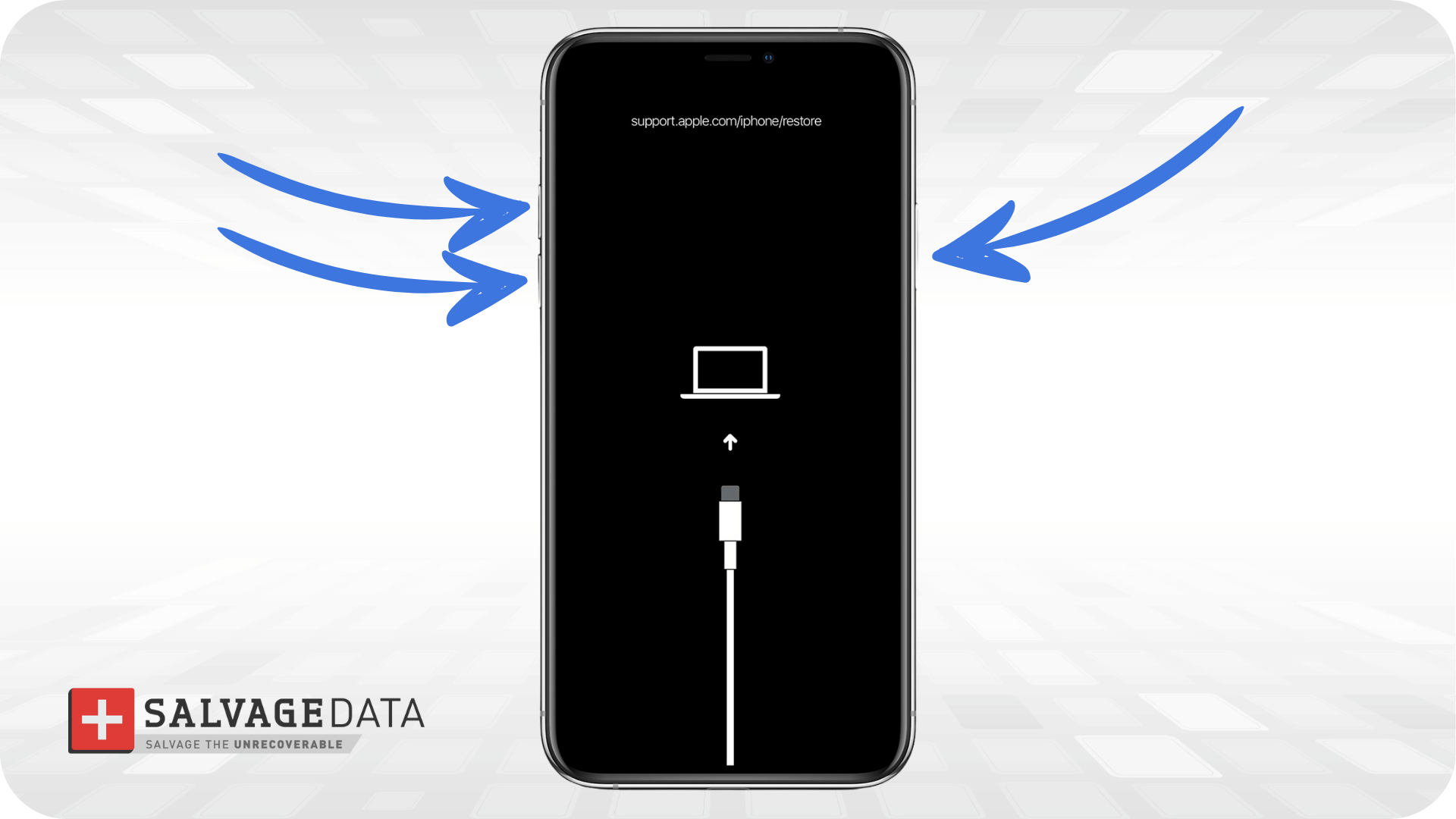
- Your computer will detect a device in recovery mode. Select Update.
- This will attempt to reinstall iOS without wiping your photos or files.
Fix 6: DFU mode restore
DFU stands for Device Firmware Update, which reloads the software and the firmware. This is the deepest type of restore and it is often used to resolve complex issues, such as data loss after iOS jailbreaking.
A DFU restore will erase everything on your iPhone. Only do this if you have a backup or do not need the data on the device.
- Connect your iPhone to your computer.
- Enter DFU Mode:
iPhone 8 and newer: Press Volume Up, then Volume Down. Hold the Side button until the screen goes black. As soon as it goes black, hold Volume Down while continuing to hold the Side button. After 5 seconds, release the Side button but keep holding Volume Down.
iPhone 7: Hold Side and Volume Down for 8 seconds. Release Side but keep holding Volume Down.
- That tells the computer to perform a deep restore via Finder (Mac) or Apple Devices/iTunes (PC).
- If the screen stays black but iTunes/Finder says "Detected iPhone in Recovery Mode," you are successful.
- Click Restore iPhone.
- Once you're finished, you can read our guide on restoring your iPhone from a backup to get your data back.
Fix 7: Contact data recovery services
As an Apple Independent Repair Provider, SalvageData specializes in recovering data from devices with failed displays. In this scenario, professional iPhone data recovery is the only way to retrieve your photos, contacts, and messages.
Our certified engineers can:
- Temporarily repair the logic board or display assembly.
- Bypass the display requirement to access the memory chip directly.
- Perform a comprehensive iOS data recovery to securely extract your files.
Is Your Screen Still Black? It Might Be a Hardware Failure.
If a DFU restore failed, or if the screen flickered but didn't stay on, you are likely dealing with hardware failure.
Common hardware causes:
- Liquid Damage: Even water-resistant phones aren't waterproof. Corrosion can kill the backlight circuit.
- Physical Impact: A drop can shatter the OLED/LCD panel beneath the glass, rendering it black even if the glass isn't broken.
Regardless of the cause of your hardware issues. It’s time to contact professional iPhone repair providers.
How to Prevent iPhone Black Screen Issues
These best practices reduce the risk of experiencing the iPhone Black Screen of Death and extend your device’s lifespan.
Keep iOS Updated
Install iOS updates promptly. Updates include bug fixes and security patches that address known display and system crashes. Go to Settings > General > Software Update.
Use Certified Accessories
Use Apple-certified (MFi) chargers and cables. Uncertified accessories can cause voltage irregularities that damage the power management circuit and trigger display failures.
Monitor Battery Health
Check Settings > Battery > Battery Health & Charging. Replace the battery when maximum capacity drops below 80% — the threshold at which iOS recommends service.
Protect Against Physical Damage
Use a quality case and screen protector to absorb impacts from drops. Physical damage to the display connector or OLED panel is a leading cause of black screens.
Avoid Overheating
Keep the iPhone out of direct sunlight and hot environments. Excessive heat can damage display components and trigger protective shutdowns that present as a black screen.
Manage Unstable Apps
Remove apps that crash often or hang the interface. While iOS sandboxing prevents apps from causing true system failures, unstable apps can force restarts that look indistinguishable from a black screen.
Keep the Charging Port Clean
Debris in the Lightning or USB-C port can block charging and power delivery. Use a soft, dry brush to gently remove lint. Avoid compressed air, metal tools, or liquid cleaners — all can damage the connector.
Maintain Regular Backups
Back up to iCloud or a computer weekly. Backups don’t prevent black screens, but they protect your data if hardware failure requires replacement or professional recovery.