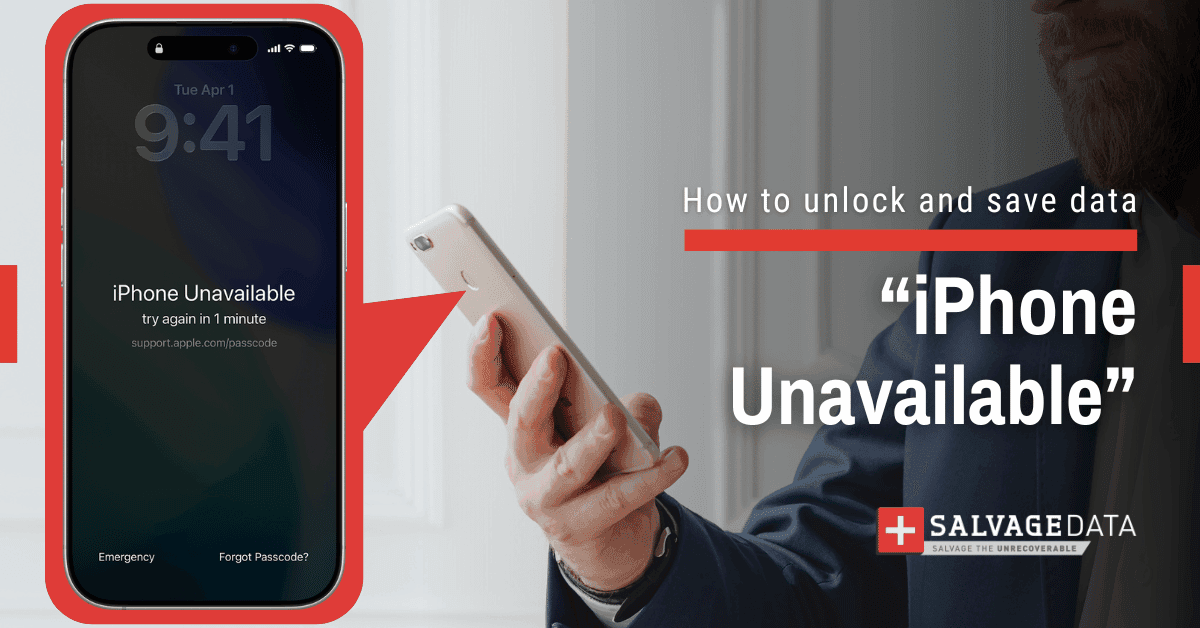

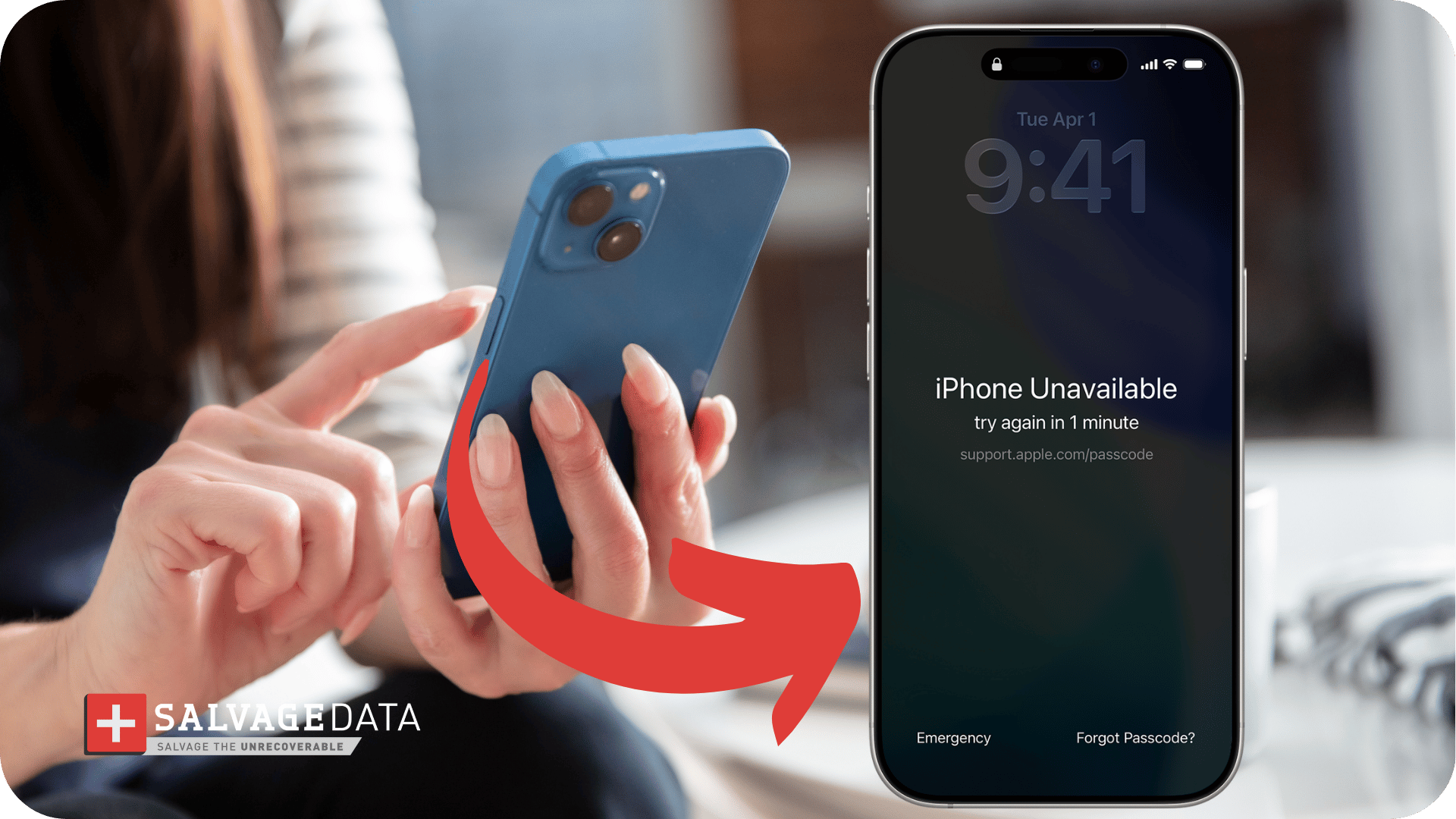
The iPhone Unavailable or Security Lockout screen appears when Apple detects too many incorrect passcode attempts and restricts access to the device. On newer iPhones, Apple may show Security Lockout instead of iPhone Unavailable, but both messages indicate the same lockout state and require similar recovery steps.
When the data on the device matters as much as regaining access, SalvageData's iPhone data recovery service is available 24/7 for locked, damaged, and unresponsive devices. Contacting a specialist before attempting any erasure improves the chances of recovery.
What Does iPhone Unavailable or Security Lockout Mean on iPhone?
The iPhone Unavailable message, also displayed as Security Lockout on newer iPhones, means Apple's security system has detected too many incorrect passcode attempts and has temporarily or permanently restricted access.
The terminology has changed across iOS versions, but all three screens describe the same underlying event. The screen that appears indicates which recovery options are available.
| Screen text | When it appears |
| iPhone Disabled | iOS 14 and earlier |
| iPhone Unavailable | iOS 15+ on an offline device |
| Security Lockout | iOS 15.2+ on a connected device |
Why does my iPhone say Unavailable?
While user error is the most common cause, hardware failures, including screen damage, can also automatically trigger the lockout.
Too many failed passcode attempts
The most frequent cause is entering the wrong code multiple times. The counter tracks all attempts regardless of who made them or why. Children playing with the device, accidental pocket inputs, or repeated guessing after changing a passcode are all common triggers.
If Face ID stops working after an update or restart, the phone falls back to passcode entry. Learning what to do when Face ID is not working before the issue escalates can prevent a lockout from building up unnoticed.
Screen damage or ghost touch
A less obvious cause is physical damage to the screen. A damaged iPhone screen can enter a ghost-touch state in which the digitizer registers phantom inputs across the display. The phone interprets these as passcode attempts, cycling through incorrect entries even when left untouched on a table.
An iPhone's black screen can completely mask this activity, making the lockout appear without warning.
iOS behavior after updates and restarts
Apple requires passcode entry after every iOS update or device restart, even on devices that normally use Face ID. Users who have relied on biometrics for months and no longer recall their six-digit code can find themselves locked out quickly after a software update.
How Long Do iPhone Unavailable or Security Lockout Last?
The lockout duration increases with each failed attempt, starting at one minute after five wrong entries and escalating to a permanent disable after ten or more. The timer runs only while the device is powered on.
| Failed attempts | Wait time |
| 1 to 5 | No wait (immediate retry) |
| 6 | 1 minute |
| 7 | 5 minutes |
| 8 | 15 minutes |
| 9 | 1 hour |
| 10 | 8 hours |
| 11 or more | Permanent lockout or auto-erase, depending on settings |
Restarting the device does not reset the failed attempt counter or reduce the wait time.
How to Fix iPhone Unavailable or Security Lockout
There are six methods to regain access to a locked iPhone. The right approach depends on iOS version, internet connectivity, computer availability, and whether a recent backup exists. SalvageData's phone unlocking services are also available when hardware damage is part of the problem.
1. Wait for the timer
The simplest method requires no computer, no Apple ID, and no erasure. If the screen shows "iPhone Unavailable, try again in X minutes," the lockout is temporary, and data is still intact.
Wait for the countdown to finish, then carefully enter the correct passcode. Each additional incorrect attempt during a wait period extends the lockout. This is the only method that preserves all data on the device.
If the timer appears frozen, force-restart the device by pressing and quickly releasing Volume Up, then pressing and quickly releasing Volume Down, and then holding the Side button until the Apple logo appears. For detailed guidance on next steps, see the full guide on what to do when you've forgotten your iPhone passcode before the permanent lockout stage.
WARNING (methods 2 through 6): All remaining methods involve erasing the device. Without a recent backup, all data is permanently deleted. Any erase-based method ends with setup, during which you can restore from a backup.
2. Use Forgot Passcode to Remove an iPhone Security Lockout (iOS 15.2+)
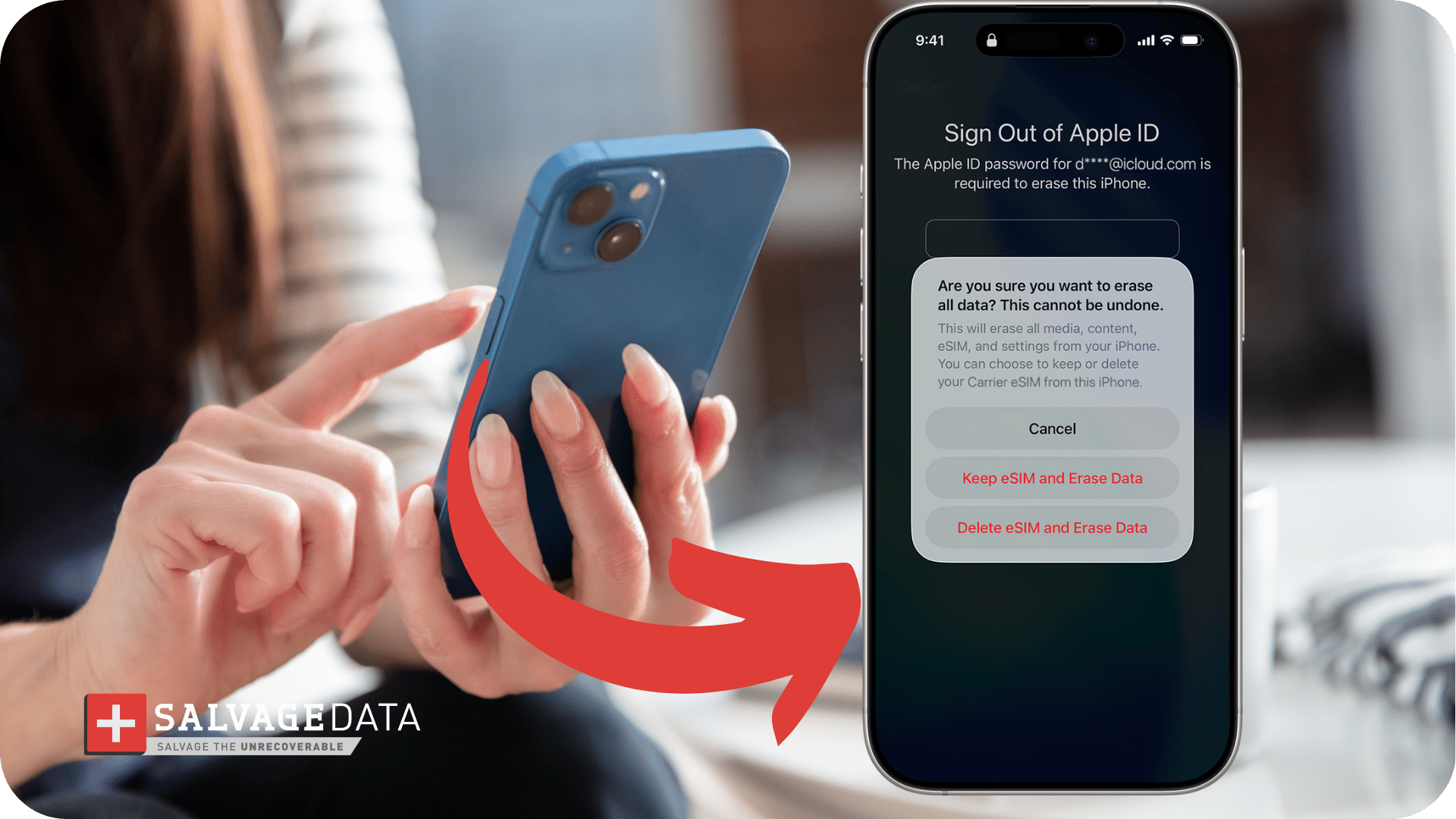
This option appears directly on the lock screen after multiple failed attempts, but only when Find My is enabled, and the device is connected to cellular or Wi-Fi.
- On iOS 17 and later:
Tap "Forgot Passcode?" in the bottom corner.
If the passcode was changed within the last 72 hours, select "Enter Previous Passcode" to unlock without losing data.
Otherwise, tap "Start iPhone Reset," enter the Apple ID password, then tap "Erase iPhone."
- On iOS 15.2 through iOS 16:
Tap "Erase iPhone" in the bottom corner, confirm the action, then enter the Apple ID password.
Erasing the device does not remove Activation Lock. The Apple ID and password are still required before setup can complete.
3. Enter recovery mode with a computer
Recovery mode works when the lock screen erase option is unavailable or the Apple ID password is unknown. Either a Mac or a Windows PC is required.
- For iPhone 8 and newer (including SE 2nd and 3rd generation):
Connect the iPhone to the computer.
Press and quickly release Volume Up, press and quickly release Volume Down, then press and hold the Side button until the recovery mode screen appears, showing a cable icon.
- For iPhone 7 and 7 Plus:
Connect to the computer, then press and hold both Volume Down and Side buttons simultaneously until the recovery mode screen appears.
- For iPhone 6s and earlier:
Connect to the computer, then press and hold both the Home and Side buttons until the recovery mode screen appears.

Once in recovery mode, Finder (macOS Catalina and later) or iTunes (Windows) will detect the device and offer options to Restore or Update. Select Restore. It downloads the latest iOS and resets the phone.
4. Use Find My through iCloud
Visit icloud.com/find in any browser and sign in with the Apple ID associated with the locked device. Select the locked iPhone from the device list, then click Erase iPhone.
The device must be powered on and connected to the internet for the erase command to reach it.
5. Use another Apple device with Find My
Open the Find My app on another iPhone, iPad, or Mac that is signed in to the same Apple ID.
Tap Devices and select the locked iPhone.
Scroll down and tap Erase This Device, then confirm with the Apple ID password. The locked device erases remotely once it connects to the internet.
6. Contact Apple Support
Apple cannot bypass the iPhone Unavailable lock without erasing the device, and Apple Support cannot recover data. They can verify device ownership and offer guidance when standard methods fail. Visit an Apple Store with proof of purchase or contact support online.
No legitimate method exists to unlock a forgotten-passcode iPhone and preserve all data simultaneously.
Why Your iPhone Shows Security Lockout With No Timer
When the iPhone Unavailable screen shows no countdown and no erase option, the device has either reached permanent lockout, lost its internet connection, or entered a state where standard recovery paths are blocked.
Four scenarios can cause an iPhone Unavailable or Security Lockout screen with no timer:
- The device completed ten or more failed attempts and is now permanently disabled.
- Find My is disabled on the device, which removes the on-screen erase option entirely.
- The device is offline. Both the lock screen erase command and iCloud remote erase require an internet connection.
- iOS is in a corrupted state after a failed update or an incomplete restore.
All of them point to the same solution: connect to a computer and use recovery mode, following the steps described in method 3 above.
Can data be recovered before resetting?
Whether data can be recovered before resetting depends entirely on the reason the iPhone became unavailable. In general, recovery is more feasible when a hardware failure causes the lockout than when the device is locked solely due to a forgotten passcode.
“The iPhone Unavailable message is usually fixable,” says Alex Poliakov, iPhone and Apple Device Recovery Engineer at SalvageData. “The real concern should be your data backup status. Without a recent backup, some solutions will erase everything on your device.”
Recovery is possible when hardware caused the lockout
Professional recovery is most viable when the lockout results from physical damage rather than a passcode error. Hardware issues such as screen damage, liquid exposure, or failed buttons can prevent normal interaction with the device while leaving stored data intact.
For example, a damaged screen may trigger ghost touches that repeatedly enter incorrect passcodes, causing the device to lock. In these cases, engineers may be able to repair or stabilize the affected hardware first, restoring controlled access to the device and creating a path to recovery.
The same applies to severe impact damage or water exposure. When the lockout is a symptom of hardware failure rather than the primary issue, addressing the underlying damage can significantly improve the odds of recovery.
Recovery becomes extremely difficult in the BFU state
Recovery is far more challenging when the device is locked solely because the passcode is unknown.
Apple’s Secure Enclave ties encryption keys directly to the device hardware. If the correct passcode has not been entered since the last restart, the iPhone remains in BFU (Before First Unlock) state. In BFU, the encrypted storage partition is inaccessible, even to advanced forensic and professional recovery tools.
This is the primary technical limitation in iPhone data recovery. If no backup exists and the device remains in BFU, recovery options become extremely limited.
Why acting quickly matters after the lockout
Timing can significantly affect recovery success.
Repeated attempts to restore or erase may overwrite artifacts that would otherwise remain accessible in certain hardware-failure scenarios. In addition, newer iOS versions further reduce the recovery window.
iOS 18 introduced Inactivity Reboot, which automatically restarts a locked iPhone after 72 hours of inactivity. Once that reboot occurs, the device returns to the BFU state, making encrypted data substantially harder to access.
If the data on the device is important, avoid repeated passcode attempts, resets, or restores until recovery options have been evaluated.
How to prevent data loss due to iPhone Unavailable
Preventing a future lockout crisis comes down to two habits: keeping a passcode that can be recalled under pressure, and maintaining a backup that does not depend on remembering that passcode at all.
Use a memorable passcode
Choose a six-digit code that works when calm, tired, rushed, or stressed. Passcodes that only surface under ideal conditions fail at the worst moments. Avoid overly complex sequences that seemed clever when set but fade from memory after a month of using Face ID.
Enable iCloud backup
Go to Settings, tap the account name, then iCloud, then iCloud Backup, and turn it on. The device backs up automatically whenever it is charging and connected to Wi-Fi. A current iCloud backup turns a lockout reset from a crisis into a minor inconvenience.
Create local computer backups
Connect the iPhone to a Mac or PC periodically and create a local backup through Finder or iTunes. Local backups often contain more data than iCloud and restore more quickly. The complete process for restoring an iPhone from a backup covers both iCloud and local options. For a full overview of all available backup methods, the guide to backing up your iPhone is the right starting point.
Set up an Account Recovery Contact
Go to Settings, tap the account name, then Sign-In and Security, then Account Recovery. A trusted contact can generate a recovery code that resets the Apple ID password without ever seeing the actual credentials. This adds a safety layer without requiring access to the account.
Consider disabling auto-erase
In Settings, under Face ID and Passcode, the "Erase Data" toggle controls whether the device wipes itself automatically after 10 incorrect attempts. Turning it off prevents automatic destruction if a child reaches the threshold or the device is briefly misplaced.
Important: Disabling auto-erase reduces protection if the device is stolen. The right call depends on how and where the device is typically used.
If the iPhone Unavailable screen is showing right now and the data on the device matters, stop entering passcodes and call SalvageData before attempting any reset. A free diagnostic determines which recovery options are available before any data is put at risk. Start an evaluation at salvagedata.com/request-help.